

Live search trending topics with Grok and post to Slack when scheduled trigger runs daily
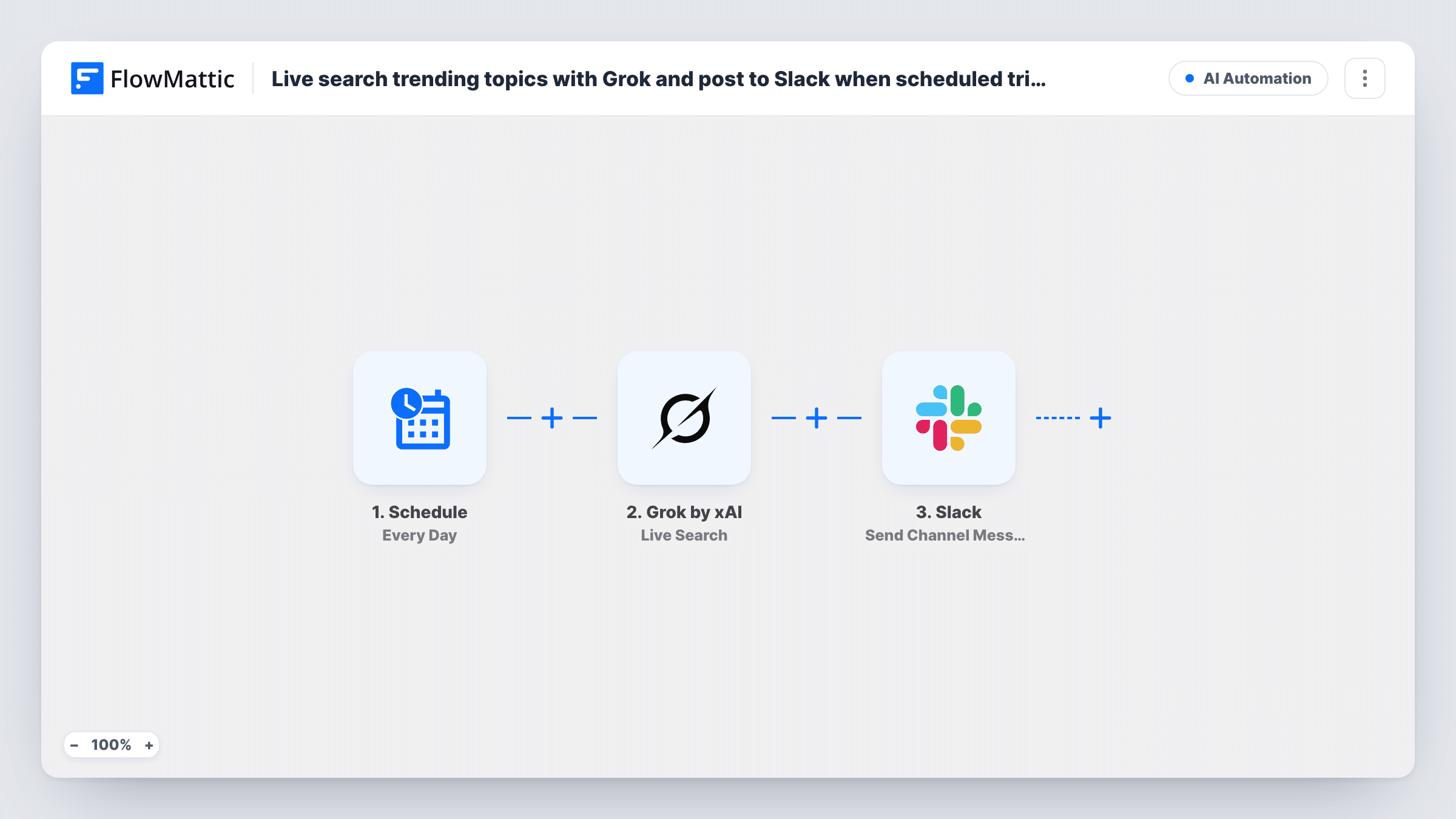
Once a day, this workflow asks Grok by xAI to live-search what is trending on a topic you choose, using real-time data from X, the web and news, and posts Grok’s answer to a Slack channel.
 Schedule
 Grok by xAI
 Slack
Slack3 steps Setup ~5 min Used on 3.0k sites Free to import
What this workflow does
Keeping up with what people are talking about in your field takes time, and most teams don't have someone scanning X and the news every morning. This workflow hands that job to Grok and delivers the result to Slack once a day.
A Schedule trigger set to Every Day starts each run. The next step is Live Search in Grok by xAI, which takes a query or message and answers it with real-time data from X, web and news sources. You write that query after import, for example asking for today's trending topics in your industry. Grok's response then goes to the Slack step, which posts it to the #channel you choose.
Each run is independent. Grok searches again every day and the channel gets a new post, even when the topics overlap with yesterday's. The quality of the digest depends on how clearly your query says what to look for and how to format the answer.
Morning briefing for a marketing team
Ask Grok for the topics trending on X in your niche, and the team reads the summary in #marketing before planning the day's posts.
Product team watching their category
A daily query about news and discussion around your product category gives product managers a short read in Slack each day.
Newsroom or content desk ideas
Editors get a list of trending stories in a channel each day and pick which ones are worth covering.
How this workflow runs
What happens at each step once the workflow is on, and what you need before you import it.
 Schedule Every Day
Starts the workflow once a day, on the schedule the trigger holds. Check it after import so the Slack post lands when your team is online.
- Grok by xAI Live Search
Sends your query to Grok's Live Search, which answers it with real-time data from X, web and news sources. Write the query after import, naming the topic and the format you want back.
- Slack Send Channel Message
Posts Grok's answer to the Slack #channel you select. Map the Live Search response into the message text and add a short heading if you like.
What you need
- FlowMatticCore
- Grok by xAI AccountAccount
- Slack AccountAccount
After importing, map your own data. To keep the template universal, not every step is pre-filled. Open each step in the builder and connect your accounts and fields (channels, lists, sheets, recipients) before you switch the workflow on.
Make it yours
Changes worth making after you import it.
- Spell out the output format in your Grok query, such as five bullet points with one line each. A predictable shape is easier to read in Slack.
- To post somewhere private, replace the Slack step with Send Private Channel Message, which the Slack app in FlowMattic offers for private channels.
- Test the Grok and Slack steps in the workflow editor after import, and read the post it produces before you leave the daily schedule running.
Questions about this workflow
Where does Grok's Live Search get its data?
According to the action's description, Live Search answers your query with real-time data from X, web and news sources.
Do I need an xAI account for the Grok step?
Yes. The Live Search step runs through your Grok by xAI connection, which you set up in FlowMattic when you import the workflow.
Will the daily Slack post repeat topics from the day before?
It can. Each run is a fresh search with no memory of earlier posts, so a story that is still trending may appear again.
Can I change how often the Grok search runs?
Yes. Change the Schedule trigger, for example to every week, and the search and Slack post follow that timing.
More AI Automation workflows
Other ready-to-import templates from the same category.








Import this workflow into your WordPress site
Download the JSON, import it from the Workflows screen and connect your accounts. Every run stays on your server, with no per-task fees.
30-day money-back guarantee Unlimited workflows and runs Self-hosted