

Log completed ClickUp tasks in Airtable
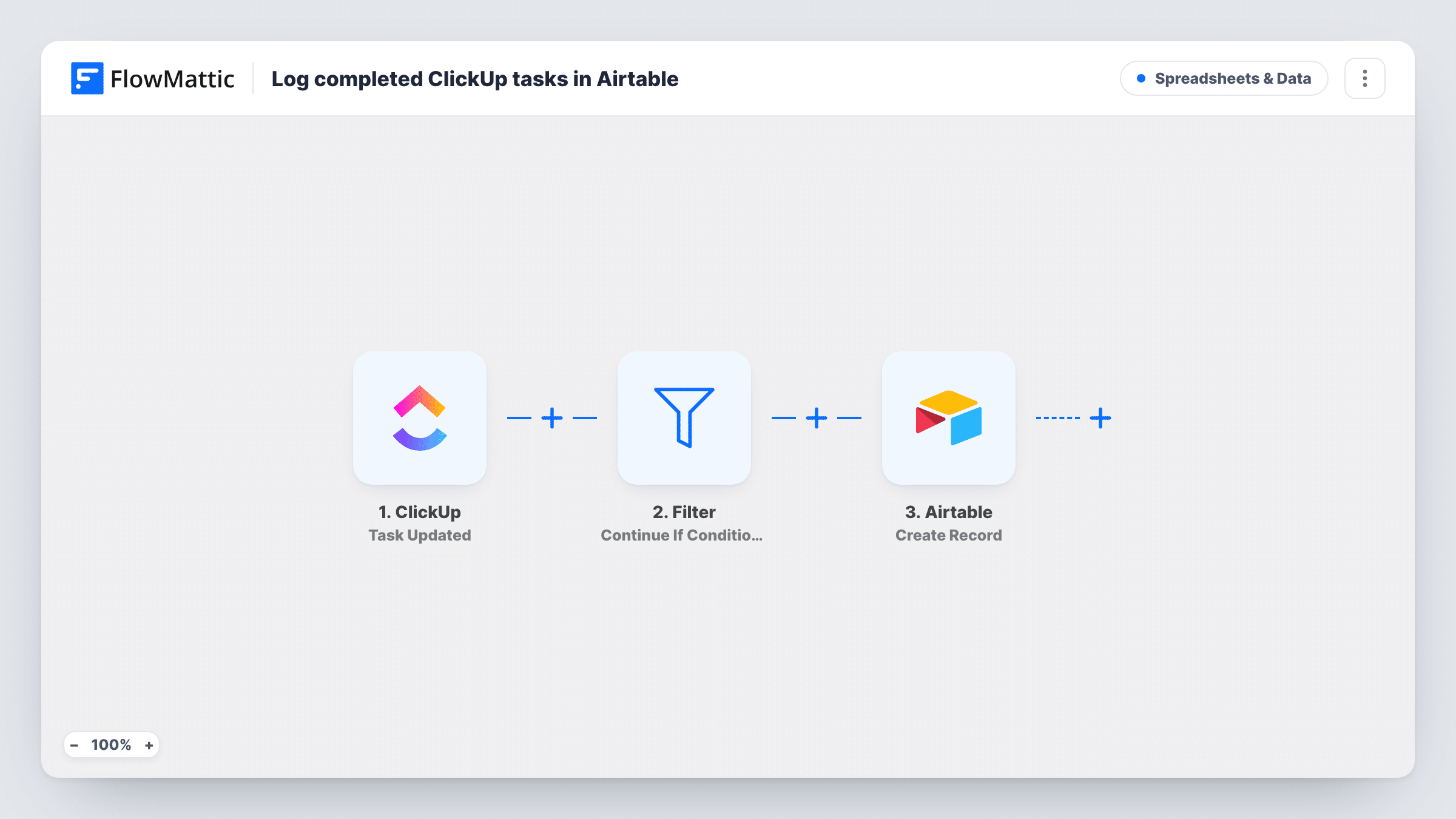
Each ClickUp task update passes through a Filter you set to your done status, and tasks that pass become new Airtable records, giving you a running log of finished work outside ClickUp.
 ClickUp
 Filter
 Airtable
3 steps Setup ~5 min Used on 3.1k sites Free to import
What this workflow does
ClickUp shows what is open, but finished tasks drop out of view and are hard to report on later. An Airtable table of completed work gives you something to sort, count and share with people who never open ClickUp. This workflow builds that table as tasks get done.
The ClickUp trigger fires whenever a task is updated, not only when it is closed. That is why the second step is a Filter. It ships with no condition, so after import you set it to continue only when the task's status equals the status your space uses for done. Updates that fail the check end the run there. Tasks that pass go to Airtable, where Create Record adds a row to the base and table you pick, holding the task details you map.
Set the Filter before you turn the workflow on. Without a condition, the run is not limited to finished tasks, and your log fills with every edit. Task History lists each run, so you can confirm which updates the Filter let through.
Monthly delivery report for clients
An agency filters the Airtable table by client and month to show what the team finished, without giving the client access to the ClickUp workspace.
Sprint review list
A product team opens the Airtable log at the end of a sprint and walks through every task that reached the done status in those two weeks.
Billing hours from closed work
A freelancer maps the task name and assignee into Airtable, then adds rates in extra columns to prepare invoices from completed jobs.
How this workflow runs
What happens at each step once the workflow is on, and what you need before you import it.
 ClickUp Task Updated
Runs each time a task in your ClickUp workspace is updated, whatever changed. The task's details, including its status, are passed on for the Filter and the Airtable step.
- Filter Continue If Condition Meet
Stops the run unless the task meets the condition you add after import. Set it to the status your ClickUp list uses for finished tasks, such as complete or closed, so only those continue.
- Airtable Create Record
Adds one record per finished task to the Airtable table you pick. Connect your Airtable account and map the ClickUp task details you want in the log to the table's fields.
What you need
- FlowMatticCore
- ClickUp AccountAccount
- Airtable AccountAccount
After importing, map your own data. To keep the template universal, not every step is pre-filled. Open each step in the builder and connect your accounts and fields (channels, lists, sheets, recipients) before you switch the workflow on.
Make it yours
Changes worth making after you import it.
- Do a test run on a task you move to done, then copy the exact status text from the captured data into the Filter condition. Status names are whatever your ClickUp space calls them.
- Add a second condition to the Filter, such as a list or assignee match, if you only want one team's finished work in the Airtable log.
- Add a date field in Airtable and map a date from the ClickUp data into it, if your test run shows one, so the log shows when each task was closed.
Questions about this workflow
Why does the ClickUp trigger fire on edits that are not completions?
The trigger is ClickUp's Task Updated event, which fires on any change to a task. The Filter in step 2 is what narrows the run to finished tasks, once you give it a status condition.
Can a finished ClickUp task appear twice in Airtable?
Yes. If someone edits a task that is already done, that update still matches the Filter, and Create Record adds another row. Map the task ID into its own Airtable field so repeats are easy to spot and remove.
Will tasks completed before import reach Airtable?
No. Only updates that happen after the workflow is on start a run, so earlier completed tasks are not copied.
Does the workflow change anything in ClickUp?
No. It reads the task update and writes to Airtable only. Your ClickUp tasks stay as they are.
More Spreadsheets & Data workflows
Other ready-to-import templates from the same category.






Import this workflow into your WordPress site
Download the JSON, import it from the Workflows screen and connect your accounts. Every run stays on your server, with no per-task fees.
30-day money-back guarantee Unlimited workflows and runs Self-hosted