

Log every Clarityflow purchase in a Google Sheets spreadsheet
Every new purchase in Clarityflow is added as a row in a Google Sheets spreadsheet you choose, giving coaches a running sales log they can sort, total and share outside Clarityflow.
 Clarityflow
 Google Sheets
2 steps Setup ~5 min Used on 2.9k sites Free to import
What this workflow does
Coaches selling programs and sessions in Clarityflow often keep their numbers in a spreadsheet: for bookkeeping, for an assistant, or to compare months. Copying each purchase over by hand is the kind of task that slips. This workflow writes each one to the sheet as it happens.
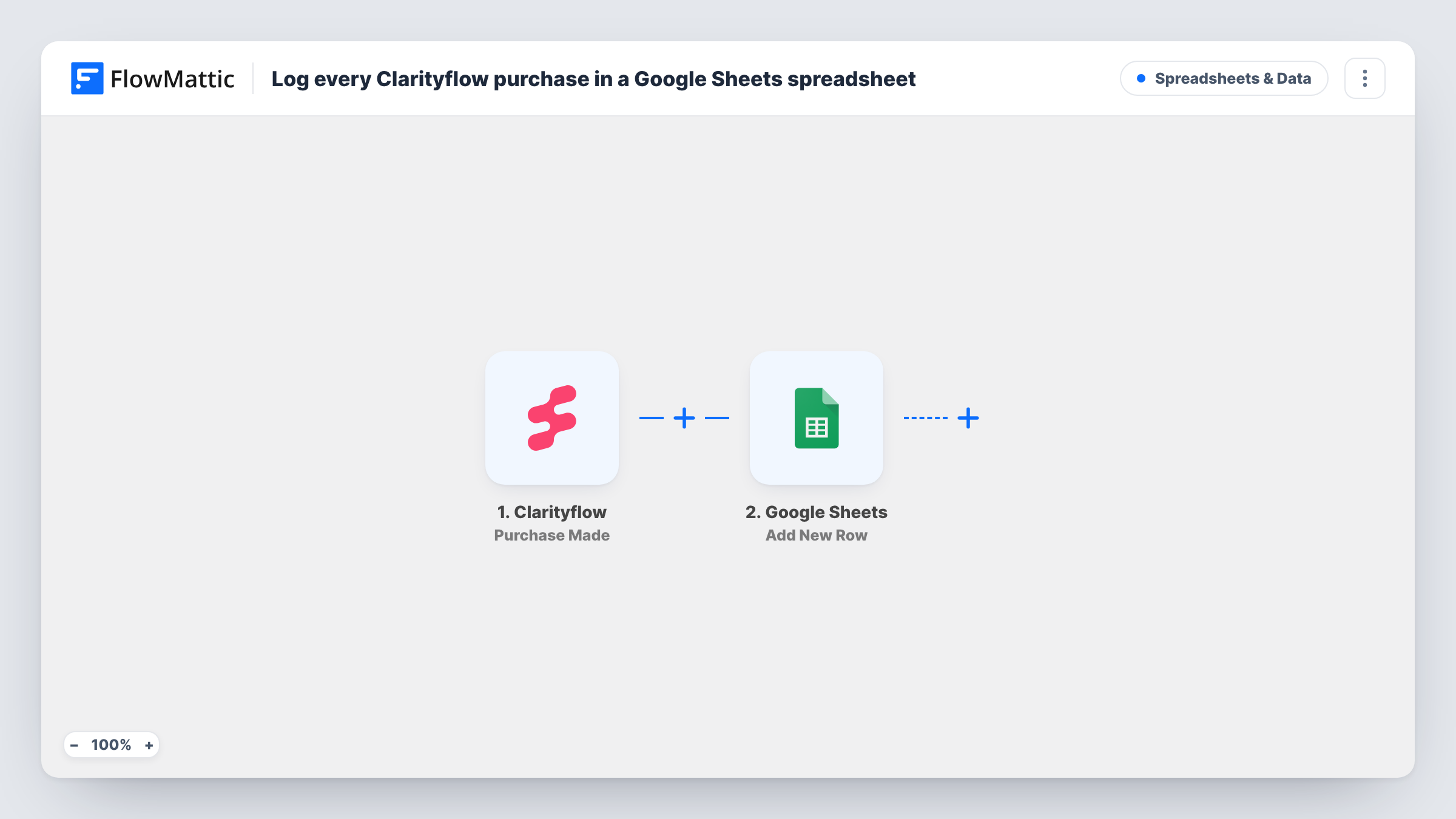
A run starts with each sale recorded in Clarityflow. FlowMattic sends the purchase data to Google Sheets, which adds a new row to the spreadsheet and sheet you pick. You decide which purchase details go in which column.
Every purchase adds one row, and nothing is edited or removed afterwards, so the sheet is an append-only record. Refunds or cancellations in Clarityflow don't change it. Use a formula or pivot table in the same file to total sales by month or by offer. Task History shows what was sent in each run.
Monthly income review
A coach adds a SUM formula and a monthly pivot table next to the log, so the month's Clarityflow sales are totalled without exporting anything.
Assistant who handles onboarding
A virtual assistant watches the shared sheet and starts onboarding for each new buyer, without needing a Clarityflow login.
Bookkeeper hand-off
The bookkeeper gets view access to the sheet and works from a current list of purchases at the end of each quarter.
How this workflow runs
What happens at each step once the workflow is on, and what you need before you import it.
 Clarityflow Purchase Made
Fires when a new purchase is made in your Clarityflow account. The purchase details are passed on for mapping to your sheet's columns.
- Google Sheets Add New Row
Writes a row for the purchase to the Google Sheets spreadsheet and sheet you select. Put headers in the first row, then map each Clarityflow value to a column.
What you need
- FlowMatticCore
- Clarityflow AccountAccount
- Google Sheets AccountAccount
After importing, map your own data. To keep the template universal, not every step is pre-filled. Open each step in the builder and connect your accounts and fields (channels, lists, sheets, recipients) before you switch the workflow on.
Make it yours
Changes worth making after you import it.
- Leave the formulas on a separate tab and point them at the log tab. New rows from the workflow then never land in the middle of your calculations.
- Make a test purchase, or wait for the first real one, before turning the workflow on, so the Clarityflow purchase data is captured for mapping.
- Add a Gmail step after the sheet if you'd also like an email about each sale, with the buyer and offer in the message.
Questions about this workflow
Are refunds in Clarityflow reflected in the Google Sheet?
No. The workflow only reacts to new purchases and adds rows. Mark refunds in the sheet yourself or build a separate workflow for them.
Will my existing Clarityflow sales be added?
No. Only purchases made after the workflow is turned on are written to the sheet. Copy earlier sales in by hand if you want a full history.
Can the Clarityflow log go into a sheet my team already uses?
Yes. Pick that spreadsheet and tab in the Google Sheets step, as long as your connected Google account can edit it.
More Spreadsheets & Data workflows
Other ready-to-import templates from the same category.



Import this workflow into your WordPress site
Download the JSON, import it from the Workflows screen and connect your accounts. Every run stays on your server, with no per-task fees.
30-day money-back guarantee Unlimited workflows and runs Self-hosted