

Log every confirmed imeetify appointment in a Google Sheets spreadsheet
When an appointment is confirmed in imeetify, FlowMattic adds it to a Google Sheets row with the client, time and service details you map, building a booking log you can filter and report on.
 imeetify
 Google Sheets
2 steps Setup ~5 min Used on 646 sites Free to import
What this workflow does
imeetify handles the booking itself, but a spreadsheet is often where you count sessions, check who booked what and share numbers with a business partner. Copying each appointment over by hand rarely survives a busy week. Here, each confirmed booking writes its own row instead.
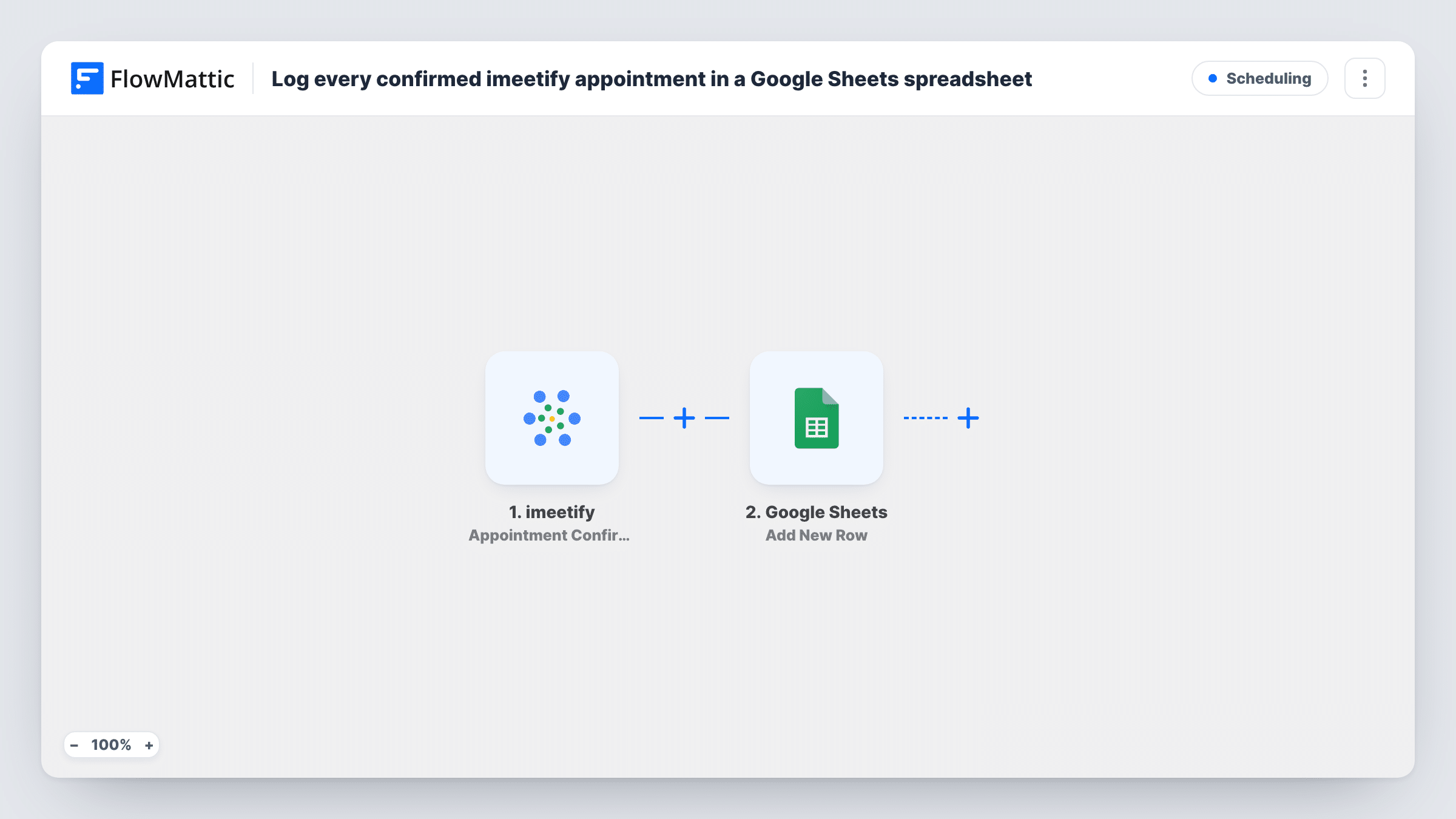
The imeetify trigger is Appointment Confirmation, which runs when a new appointment is confirmed. FlowMattic receives the appointment's details and hands the values you map to Google Sheets. There, Add New Row writes one row per confirmed appointment to the spreadsheet and tab you choose.
Cancellations come through a different imeetify trigger, Appointment Cancellation, so a cancelled booking keeps its row in this sheet. If you want those marked, the tips explain a second workflow for it. Each confirmation the workflow handles also shows up in Task History.
Monthly session counts for a coach
A coach logs every confirmed imeetify session, then filters the sheet by month to see how many sessions each client booked.
Shared schedule for a small clinic
Front-desk staff who don't use imeetify read the sheet to see upcoming confirmed appointments with names and times.
Billing from confirmed bookings
A consultant invoices at the end of each month and works from the sheet of confirmed appointments rather than scrolling through the calendar.
How this workflow runs
What happens at each step once the workflow is on, and what you need before you import it.
 imeetify Appointment Confirmation
Runs when an appointment is confirmed in imeetify. Connect your account, then confirm a test booking so FlowMattic captures the appointment values, such as the client name and time, for mapping.
- Google Sheets Add New Row
Writes one row to the Google Sheets spreadsheet and tab you select. Create the column headers first, connect your Google account and map each one to an imeetify appointment value.
What you need
- FlowMatticCore
- imeetify AccountAccount
- Google Sheets AccountAccount
After importing, map your own data. To keep the template universal, not every step is pre-filled. Open each step in the builder and connect your accounts and fields (channels, lists, sheets, recipients) before you switch the workflow on.
Make it yours
Changes worth making after you import it.
- Build a second workflow on imeetify's Appointment Cancellation trigger that adds a row to a Cancellations tab, so you can compare confirmed and cancelled bookings.
- Map the appointment date into its own column so you can sort the log and filter it by week or month.
- If you only want one service in this sheet, add a Filter after the trigger that checks the service or meeting type value from imeetify.
Questions about this workflow
Are cancelled imeetify appointments removed from the sheet?
No. This workflow only adds rows when an appointment is confirmed. A cancellation is a separate imeetify trigger and doesn't change the existing row.
Do appointments booked before import appear in Google Sheets?
No. Only appointments confirmed after the workflow is on are logged. Add older bookings to the sheet by hand if you need a full history.
What if an imeetify appointment is rescheduled?
The sheet only changes when a new confirmation comes through. If imeetify sends a fresh confirmation for the new time, you get a second row, so check a test reschedule.
Which appointment details can go into the sheet?
Any value imeetify sends with the confirmation. Confirm one test booking after import and FlowMattic lists the captured fields for mapping.
More Scheduling workflows
Other ready-to-import templates from the same category.





Import this workflow into your WordPress site
Download the JSON, import it from the Workflows screen and connect your accounts. Every run stays on your server, with no per-task fees.
30-day money-back guarantee Unlimited workflows and runs Self-hosted