

Log every Factors.ai page view event in a Google Sheets spreadsheet
Every page view that Factors.ai reports for an account becomes a new row in Google Sheets, giving you a raw log of account activity you can sort, chart or share outside Factors.ai.
 Factors.ai
 Google Sheets
2 steps Setup ~5 min Used on 2.2k sites Free to import
What this workflow does
Factors.ai tells you which companies are visiting your site. Sometimes you want that activity in a plain spreadsheet, to build your own charts, join it with other data, or share it with someone who does not use Factors.ai. This workflow writes each page view event into Google Sheets as it arrives.
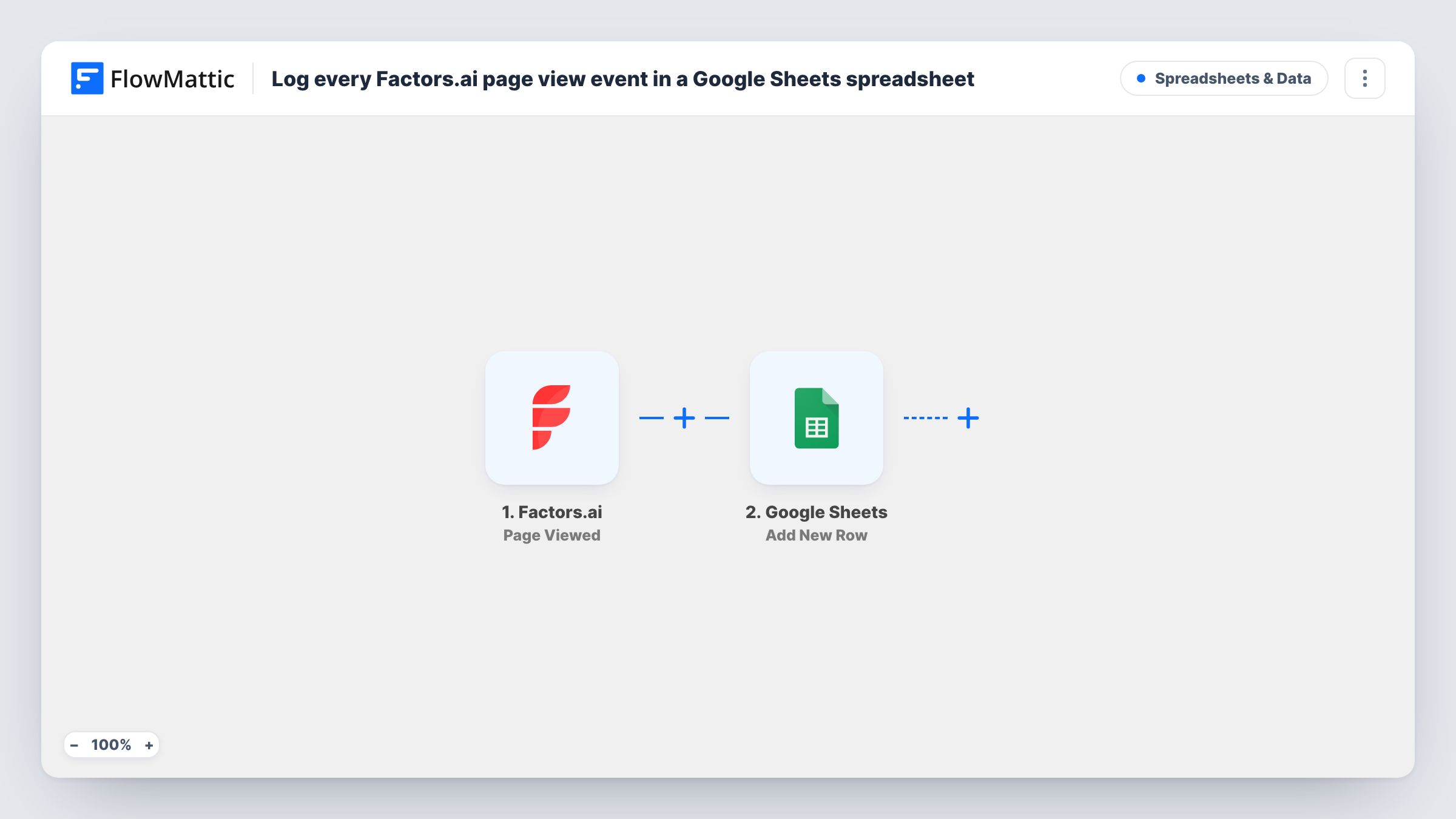
The Factors.ai trigger fires when a page is viewed by an account. FlowMattic passes the event data to Google Sheets, where the Add New Row step writes it to the spreadsheet and columns you choose.
The log is as complete as you make it: every event adds one row, with nothing filtered or grouped. On a busy site that can be a lot of rows, so think about which pages you care about before you switch it on. The tips below show how to narrow the events. If a page view seems to be missing from the sheet, look it up in Task History.
Building your own account activity reports
Your marketing team pulls the sheet into a chart or pivot table to see which accounts visit the most and when.
Sharing visits with sales
Sales reps without Factors.ai access check the shared sheet to see which pages a target account looked at before a call.
Keeping a long-term record
You keep every page view event in a spreadsheet you control, alongside the reports inside Factors.ai.
How this workflow runs
What happens at each step once the workflow is on, and what you need before you import it.
 Factors.ai Page Viewed
Fires when Factors.ai records a page view by an account. The event data is passed on for mapping in the Google Sheets step.
- Google Sheets Add New Row
Writes the page view to a new row in the spreadsheet you pick. Connect your Google account and map each event value to a column.
What you need
- FlowMatticCore
- Factors.ai AccountAccount
- Google Sheets AccountAccount
After importing, map your own data. To keep the template universal, not every step is pre-filled. Open each step in the builder and connect your accounts and fields (channels, lists, sheets, recipients) before you switch the workflow on.
Make it yours
Changes worth making after you import it.
- Add a Filter after the trigger that continues only for pages you care about, such as a pricing or demo page URL, to keep the sheet focused.
- Type your column headers into the sheet before mapping, then trigger one test page view so the Factors.ai fields appear in the Add New Row step.
- If one sheet grows too large, use a Router with conditions on page URL that cannot overlap, each route writing to its own sheet.
Questions about this workflow
Does every Factors.ai page view add a row?
Yes, as imported. There is no Filter, so each page view event the trigger receives becomes a row. Add a Filter to log only certain pages.
Which Factors.ai details end up in the sheet?
The values you map in the Add New Row step. Run a test after import to see which fields the Page Viewed event provides, then map the ones you want.
Will older Factors.ai page views be copied into Google Sheets?
No. Only events that arrive after you turn the workflow on are logged.
Can I send Factors.ai page views to Slack as well as the sheet?
Yes. Add a Slack step after Google Sheets and map the same event values into the message. Consider a Filter so only key pages post to Slack.
More Spreadsheets & Data workflows
Other ready-to-import templates from the same category.




Import this workflow into your WordPress site
Download the JSON, import it from the Workflows screen and connect your accounts. Every run stays on your server, with no per-task fees.
30-day money-back guarantee Unlimited workflows and runs Self-hosted