

Log every new Northpass person in a Google Sheets spreadsheet
Each time a learner account is created in Northpass, this workflow adds a row to a Google Sheets spreadsheet with that person’s details, giving you a running list of new learners that you can sort, share and report from.
 Northpass
 Google Sheets
2 steps Setup ~5 min Used on 2.6k sites Free to import
What this workflow does
Northpass holds your learners, but the people who need the numbers often live in spreadsheets: a customer success lead counting sign-ups, a manager checking who joined this month, a partner team without a Northpass login. Exporting and merging lists by hand gets old fast. This workflow keeps a sheet updated as people are added.
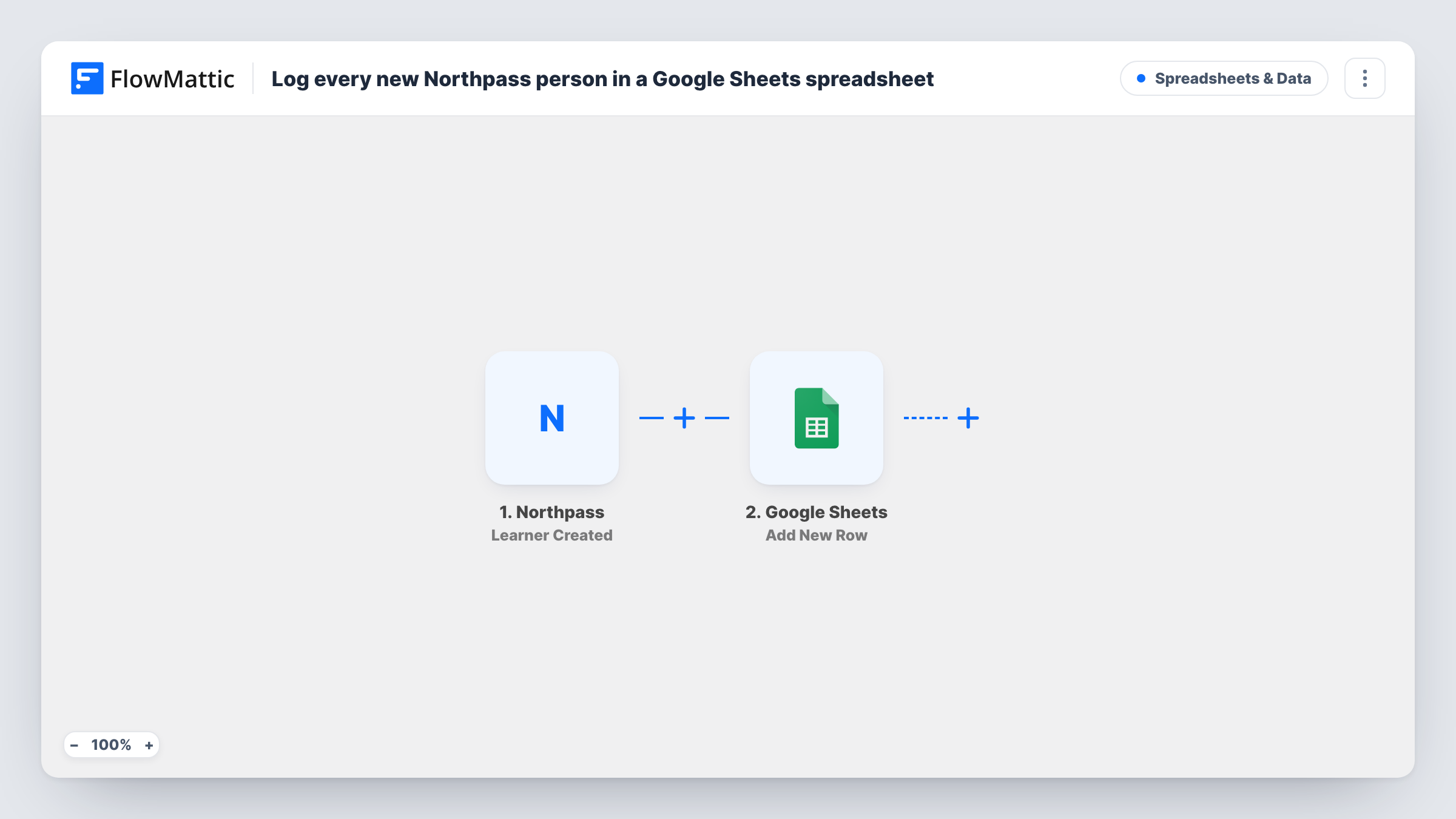
The Northpass trigger fires when a learner account is created in your school. FlowMattic takes the details Northpass sends about that person and passes them to Google Sheets, where the Add New Row action writes them into the spreadsheet and sheet you choose. You decide which column each value lands in.
Each new learner gives you one new row, appended below the last one. Rows are never updated by this workflow, so later changes to a learner in Northpass, such as a new name or course progress, will not show in the sheet. Task History keeps a record of each run, which helps when a row seems to be missing.
Customer education sign-up tracking
A customer success team watches a shared sheet fill up as customers create Northpass accounts, and uses it to plan onboarding calls.
Partner academy roster
Every partner employee who joins your Northpass academy gets a row, so channel managers can see which partner companies are signing people up.
Monthly reporting without exports
Learner rows build up over the month, and a pivot table on the sheet gives you new-learner counts for your report.
How this workflow runs
What happens at each step once the workflow is on, and what you need before you import it.
 Northpass Learner Created
Fires when a learner account is created in Northpass. The details Northpass sends about the new person become data you can place in sheet columns.
- Google Sheets Add New Row
Writes the new learner into the next empty row of your chosen Google Sheets file. Connect your Google account, pick the spreadsheet and sheet, and map the learner details to its columns.
What you need
- FlowMatticCore
- Northpass AccountAccount
- Google Sheets AccountAccount
After importing, map your own data. To keep the template universal, not every step is pre-filled. Open each step in the builder and connect your accounts and fields (channels, lists, sheets, recipients) before you switch the workflow on.
Make it yours
Changes worth making after you import it.
- Put column headers such as Name, Email and Created in the first row of the sheet before mapping, so each column is easy to match to a Northpass value.
- Add a date column and fill it from the trigger data, if your test shows a creation time, so the sheet can be filtered by month.
- Create one test learner in Northpass after import so FlowMattic captures the fields, then complete the Google Sheets mapping and switch the workflow on.
Questions about this workflow
Are learners already in Northpass added to the sheet?
No. The trigger reacts to accounts created after the workflow is turned on. Export existing learners from Northpass if you want them in the same sheet.
Does the Google Sheets row update when a Northpass learner changes?
No. The workflow only adds a row when a learner account is created. Later edits in Northpass are not sent to the sheet.
Can I log Northpass learners in FlowMattic Tables instead of Google Sheets?
Yes. Replace the Google Sheets step with a FlowMattic Tables step and map the same learner details into your table's columns.
More Spreadsheets & Data workflows
Other ready-to-import templates from the same category.




Import this workflow into your WordPress site
Download the JSON, import it from the Workflows screen and connect your accounts. Every run stays on your server, with no per-task fees.
30-day money-back guarantee Unlimited workflows and runs Self-hosted