

Save new form submissions from Gravity Forms as rows in Smartsheet
Each new Gravity Forms entry on your WordPress site is added as a new row in a Smartsheet sheet, with the form fields mapped to the columns you pick, so your team can track responses there.
 Gravity Forms
 Smartsheet
2 steps Setup ~5 min Used on 2.5k sites Free to import
What this workflow does
Gravity Forms keeps entries inside WordPress, which suits the site admin but not a team that plans its work in Smartsheet. Exporting entries and pasting them in means the sheet is always a step behind. This workflow adds each entry to Smartsheet as it is submitted.
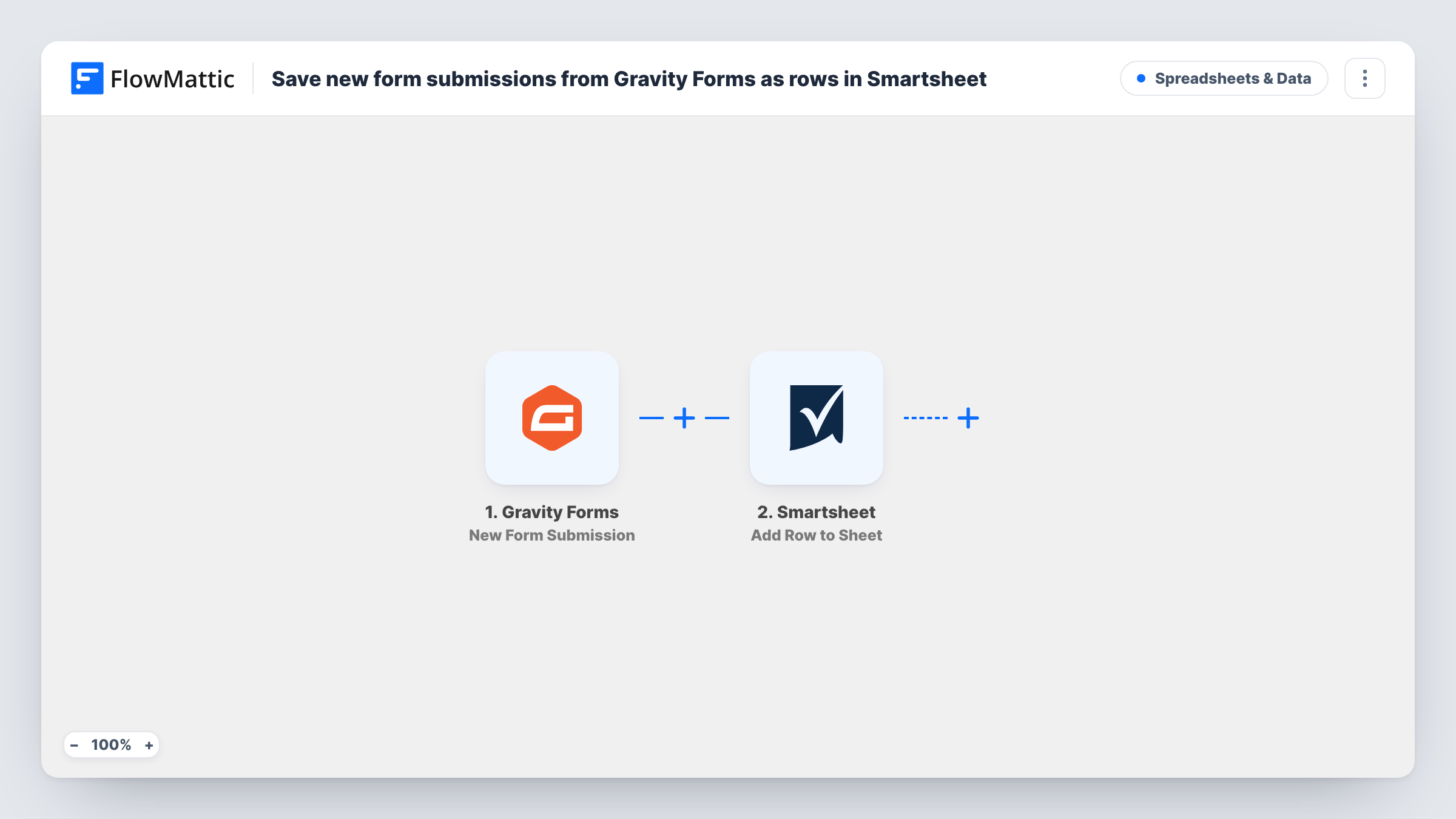
The Gravity Forms trigger, New Form Submission, runs when a visitor submits one of your forms. FlowMattic passes the entry's fields to Smartsheet, where Add Row to Sheet adds a row to the sheet you choose. You decide which form field goes into which column.
Every submission adds one row, since there is no Filter. Gravity Forms still stores the entry in WordPress as usual, so the Smartsheet row is a copy, not a move. Task History records each run, which helps when you check a mapping.
Project request intake
Departments submit project requests through a Gravity Forms form. Each one lands as a row in the Smartsheet your project office uses to prioritize work.
Event registrations for an operations team
Registrations from your site become rows the events team can assign, sort and track in Smartsheet without a WordPress login.
Equipment or facility bookings
Staff book a room or a piece of equipment with a form, and the bookings sheet in Smartsheet shows every request in one grid.
How this workflow runs
What happens at each step once the workflow is on, and what you need before you import it.
 Gravity Forms New Form Submission
Runs when a visitor submits a Gravity Forms form on your WordPress site. Every field in the entry is passed on for mapping into Smartsheet.
- Smartsheet Add Row to Sheet
Adds a new row to the Smartsheet sheet you choose. Map each Gravity Forms field to a column, after one test entry has been captured so the fields are available.
What you need
- FlowMatticCore
- Gravity Forms PluginPlugin
- Smartsheet AccountAccount
After importing, map your own data. To keep the template universal, not every step is pre-filled. Open each step in the builder and connect your accounts and fields (channels, lists, sheets, recipients) before you switch the workflow on.
Make it yours
Changes worth making after you import it.
- Create the Smartsheet columns before you map the step, matching the form fields you want to keep, so each answer has a place to go.
- Add a Filter after the Gravity Forms trigger that continues only for one form or one answer, if only some entries belong in this sheet.
- Map the entry date into a date column, so the Smartsheet grid can be sorted by when each request arrived.
Questions about this workflow
Does Gravity Forms still keep the entry in WordPress?
Yes. FlowMattic just picks up a copy of the entry. Gravity Forms stores the entry as usual, and the Smartsheet row is an extra copy.
What if I add a field to the Gravity Forms form later?
Submit a new test entry so FlowMattic captures the new field, add a column in Smartsheet, then map the field in the Add Row to Sheet step.
Will older Gravity Forms entries be copied to Smartsheet?
No. Smartsheet gets rows only for entries sent after the workflow is switched on. Older entries stay in Gravity Forms.
Does editing a Gravity Forms entry update the Smartsheet row?
No. The trigger runs on new submissions, and the step only adds rows. Edits made later in WordPress aren't sent to Smartsheet.
More Spreadsheets & Data workflows
Other ready-to-import templates from the same category.





Import this workflow into your WordPress site
Download the JSON, import it from the Workflows screen and connect your accounts. Every run stays on your server, with no per-task fees.
30-day money-back guarantee Unlimited workflows and runs Self-hosted