

Log every new Senseily course enrollment in a Google Sheets spreadsheet
Each time a student enrolls in one of your Senseily courses, free or paid, FlowMattic adds a row to a Google Sheets spreadsheet with the enrollment details you map, building a running enrollment register.
 Senseily
 Google Sheets
2 steps Setup ~5 min Used on 3.4k sites Free to import
What this workflow does
Course creators need enrollment numbers for many reasons: planning cohorts, reporting to partners, checking which course draws students. Pulling them from the course platform each time is slow when the figures could already be in a sheet. This workflow logs every Senseily enrollment in Google Sheets.
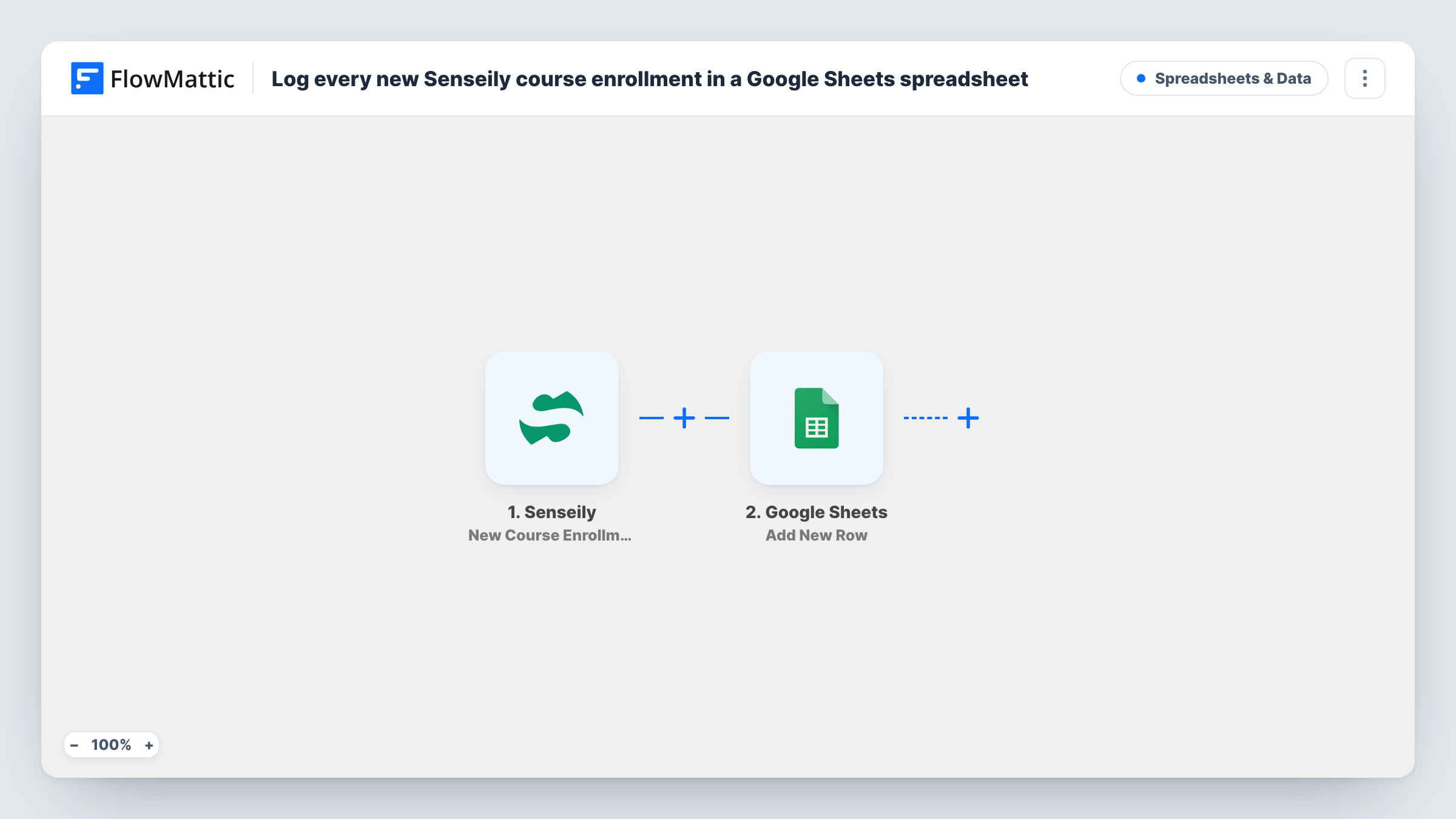
The Senseily trigger, New Course Enrollment, fires when a student enrolls in a free or paid course. The enrollment data it sends, such as the student and the course, becomes available to map. The Google Sheets step adds that enrollment as a row in the sheet you choose.
Free and paid enrollments both add rows, since the template has no Filter. Enroll a test student after import to capture the data, map your columns, then confirm the row in Task History.
Weekly enrollment report
Count rows per course in the sheet each week to see which Senseily courses gained students, without exporting anything from the platform.
Cohort planning for live sessions
Instructors check the sheet before each live class to see who enrolled since the last one and plan group sizes.
Sharing numbers with a partner
A training partner who co-runs a course reads enrollment rows in the shared sheet instead of needing a Senseily login.
How this workflow runs
What happens at each step once the workflow is on, and what you need before you import it.
 Senseily New Course Enrollment
Fires when a student enrolls in a free or paid Senseily course. The enrollment details are passed on to be mapped into the sheet.
- Google Sheets Add New Row
Records each enrollment as one row in the Google Sheets file you choose. Set headers such as student, email and course, map each to a Senseily value, and connect your Google account on import.
What you need
- FlowMatticCore
- Senseily AccountAccount
- Google Sheets AccountAccount
After importing, map your own data. To keep the template universal, not every step is pre-filled. Open each step in the builder and connect your accounts and fields (channels, lists, sheets, recipients) before you switch the workflow on.
Make it yours
Changes worth making after you import it.
- Add a Filter after the trigger that continues only for one course, if this sheet belongs to a single programme. Enrollments in other courses then add no row.
- Use a Router with one route per course, each adding rows to its own sheet, so instructors see only their students. Set each route to a different course so no enrollment matches two.
- Keep counts and charts on a separate tab that reads the enrollment rows, so the workflow's new rows never collide with your formulas.
Questions about this workflow
Are free Senseily enrollments logged as well as paid ones?
Yes. The trigger fires when a student enrolls in a free or paid course, so both add a row unless you add a Filter.
Will students who enrolled before import appear in the sheet?
No. Only enrollments made after you turn the workflow on start a run. Earlier ones have to be added by hand.
Which Senseily enrollment details can go in Google Sheets?
Whatever the New Course Enrollment trigger sends. Enroll a test student, then open the Google Sheets step to see the values you can map to columns.
More Spreadsheets & Data workflows
Other ready-to-import templates from the same category.




Import this workflow into your WordPress site
Download the JSON, import it from the Workflows screen and connect your accounts. Every run stays on your server, with no per-task fees.
30-day money-back guarantee Unlimited workflows and runs Self-hosted