

Log every new Textline contact message in a Google Sheets conversation log
Every text a contact sends to your Textline account becomes a new row in Google Sheets, building an inbound message log you can search, filter and hand to people outside your Textline team.
 Textline
 Google Sheets
2 steps Setup ~5 min Used on 3.4k sites Free to import
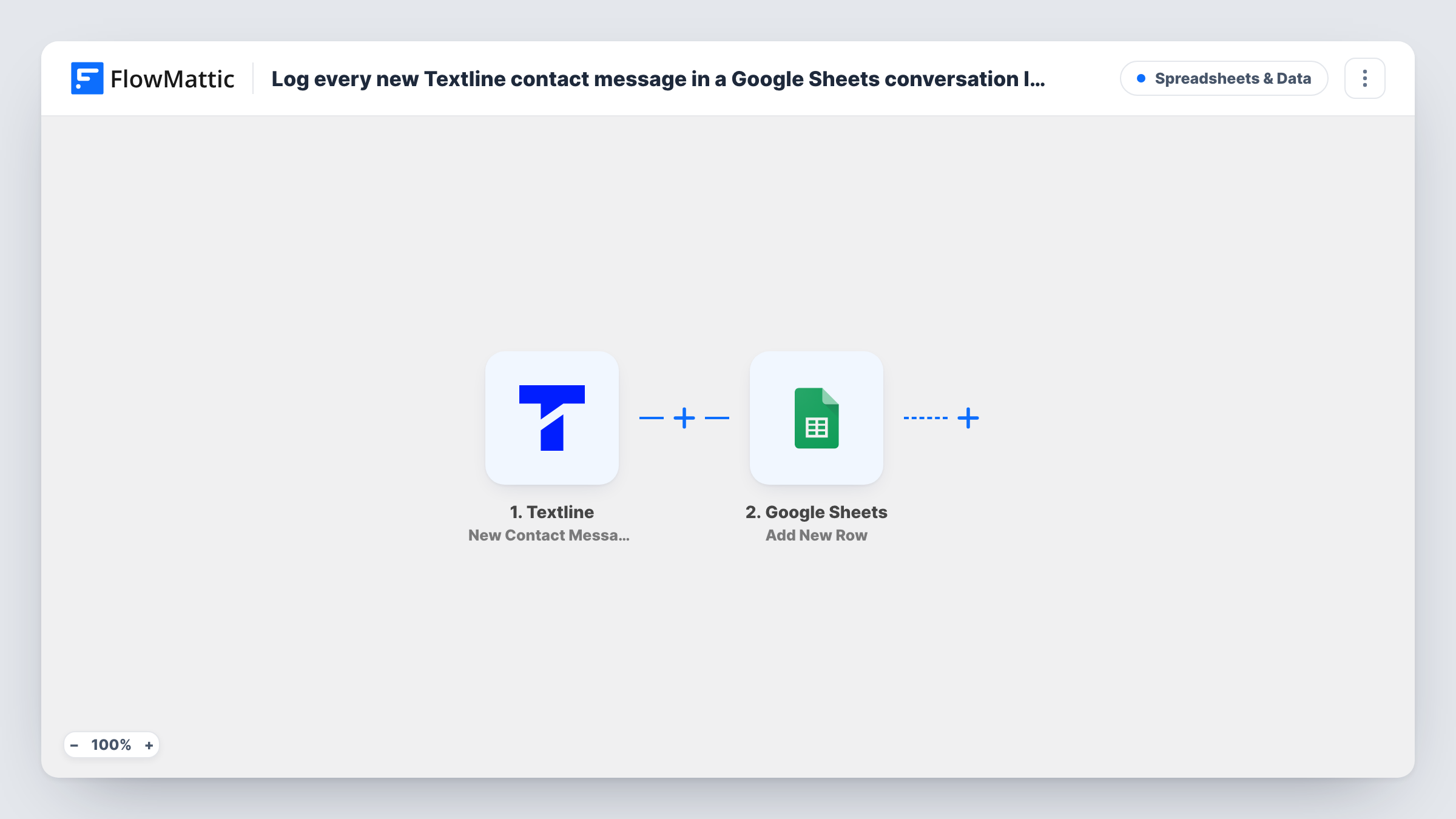
What this workflow does
Textline keeps your SMS conversations in its own inbox. When a manager wants to review what customers are texting about, or you need a record for reporting, scrolling through threads is slow. A spreadsheet with one row per inbound message is easier to sort and share.
The Textline trigger fires when a contact sends a message to your Textline account. FlowMattic receives the message data and passes the details you choose to Google Sheets, which adds a new row. Typical columns are the contact's name or number, the message text and when it arrived, depending on what Textline includes with the event.
Only messages from contacts are logged. Replies your team sends from Textline are not part of this trigger, so the sheet shows the inbound side of each conversation. Every message adds its own row, so a long exchange produces many rows. Task History records each run if you need to trace one.
Weekly review of customer texts
A support lead filters the sheet by date each Friday to see what customers texted about and spot repeat questions.
Record of booking requests by SMS
A salon that takes bookings by text keeps a sheet of every inbound request, which front-desk staff check against the calendar.
Sharing feedback with another team
Product or operations staff without Textline seats read the inbound message log in Google Sheets and pick out comments that affect their work.
How this workflow runs
What happens at each step once the workflow is on, and what you need before you import it.
 Textline New Contact Message
Fires when a contact sends a message to your Textline account. The message and contact details are captured for the sheet.
- Google Sheets Add New Row
Appends a row to the Google Sheets spreadsheet you set. Connect your Google account and map the Textline message, sender and any other details to columns.
What you need
- FlowMatticCore
- Textline AccountAccount
- Google Sheets AccountAccount
After importing, map your own data. To keep the template universal, not every step is pre-filled. Open each step in the builder and connect your accounts and fields (channels, lists, sheets, recipients) before you switch the workflow on.
Make it yours
Changes worth making after you import it.
- Map the sender's phone number to its own column so you can sort or filter the log by contact.
- Add a Filter after the trigger if you only want texts containing certain words in the log, such as cancel or refund.
- Text your Textline number once after import so FlowMattic captures a real message, then map its fields to the sheet's columns.
Questions about this workflow
Are outgoing Textline replies logged too?
No. The trigger is New Contact Message, which fires on messages contacts send to you. Your team's replies stay in Textline only.
Does every Textline message get its own row?
Yes. Each inbound message is a separate event, so a contact who sends three texts adds three rows to the sheet.
Can I keep a separate tab per Textline contact?
Not as imported. All rows go to the one sheet you choose. Use the sheet's own filter views, or add a Router with routes for specific numbers if you need separate tabs.
More Spreadsheets & Data workflows
Other ready-to-import templates from the same category.



Import this workflow into your WordPress site
Download the JSON, import it from the Workflows screen and connect your accounts. Every run stays on your server, with no per-task fees.
30-day money-back guarantee Unlimited workflows and runs Self-hosted