

Log every submitted Oracle Commerce order in a Google Sheets spreadsheet
Whenever a customer or an agent submits an order in Oracle Commerce, this workflow adds a row to a Google Sheets spreadsheet with the order details you map, giving you a running order log.
 Oracle Commerce
 Google Sheets
2 steps Setup ~5 min Used on 3.0k sites Free to import
What this workflow does
Order data in Oracle Commerce is easy to reach for people with admin access and hard to share with everyone else. Finance, operations or a fulfilment partner often just want a spreadsheet. This workflow writes each submitted order into one as it happens.
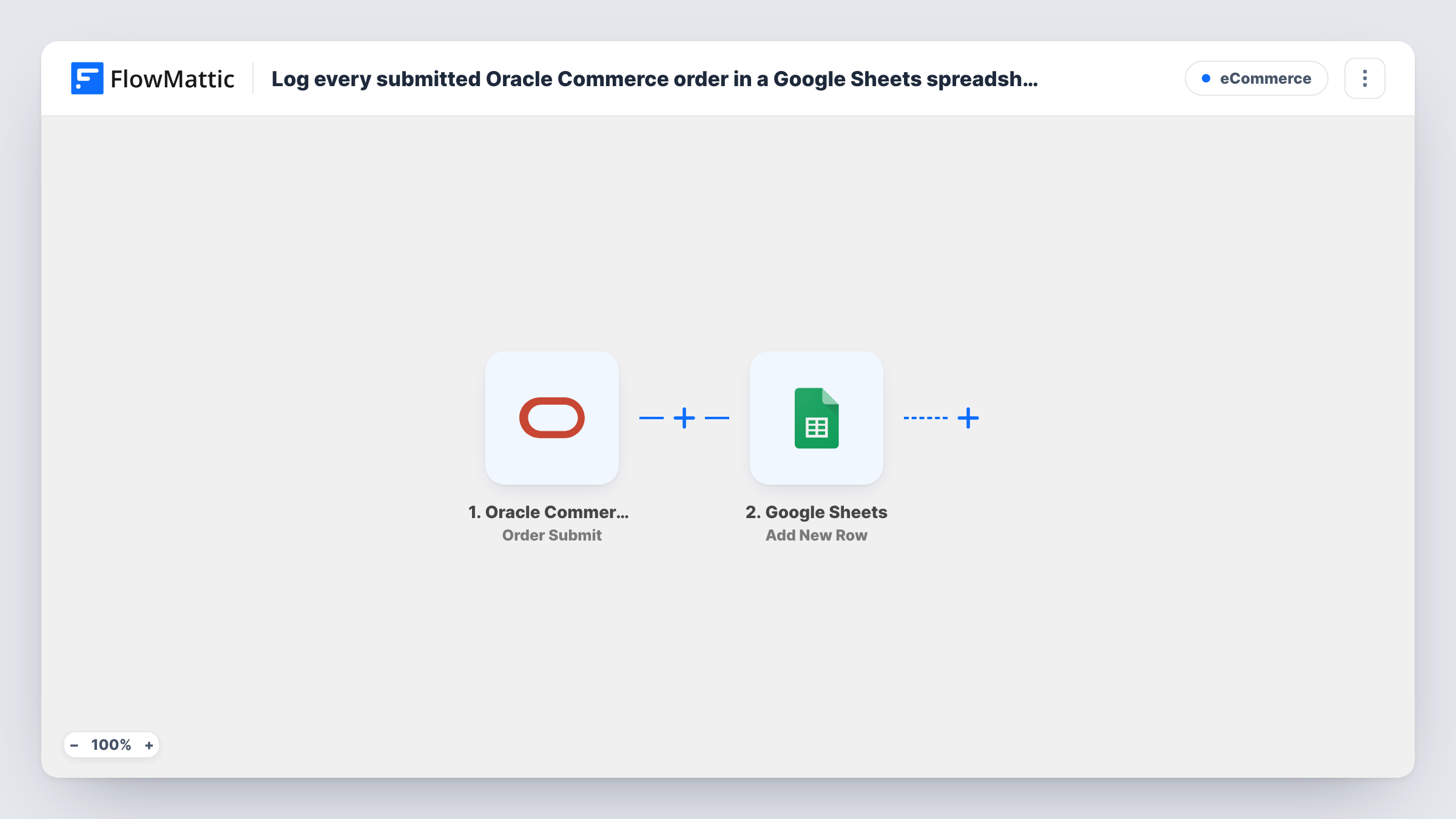
The Oracle Commerce trigger is Order Submit, which fires when an order is successfully submitted, whether by a customer on the storefront or by an agent. FlowMattic receives the order data and passes it to the Google Sheets step. That step adds a new row to the spreadsheet and sheet you choose, with each column mapped to a value from the order.
Each submitted order adds one row. Cancellations and later changes are separate events in Oracle Commerce, so they don't touch rows already written. Task History records every run, so you can check the data FlowMattic received for a given order.
Daily order review for finance
The finance team opens a shared Google Sheet to check order totals and references without needing an Oracle Commerce login.
Orders placed by call-centre agents
Orders that agents submit on behalf of customers fire the same trigger, so phone orders sit in the sheet next to web orders.
Feeding a reporting sheet
A sheet of raw orders becomes the source for pivot tables or charts on another tab, which update as new rows arrive.
How this workflow runs
What happens at each step once the workflow is on, and what you need before you import it.
 Oracle Commerce Order Submit
Fires when an order is successfully submitted in Oracle Commerce by a customer or an agent. The order data it carries is available to map into the sheet.
- Google Sheets Add New Row
Writes one new row per order to the spreadsheet and sheet you pick. Map the order values you want, such as the order ID and total, to columns, and connect your Google account.
What you need
- FlowMatticCore
- Oracle Commerce AccountAccount
- Google Sheets AccountAccount
After importing, map your own data. To keep the template universal, not every step is pre-filled. Open each step in the builder and connect your accounts and fields (channels, lists, sheets, recipients) before you switch the workflow on.
Make it yours
Changes worth making after you import it.
- Create the header row in your sheet before mapping, with one column per order value you want to keep. The Google Sheets step then shows those columns to map.
- If you also want cancellations on record, add a second workflow on the Oracle Commerce Order Cancel trigger, which fires when an agent cancels an order, and point it at another tab.
- Run one test order through after import and compare the new row with the order in Oracle Commerce before you rely on the sheet.
Questions about this workflow
Are Oracle Commerce orders placed by agents included?
Yes. The Order Submit trigger fires for orders submitted by a customer or by an agent, so both kinds get a row.
What happens in the sheet when an Oracle Commerce order is cancelled?
Nothing. This workflow only listens for submitted orders, so the row stays as it was. A separate workflow on the Order Cancel trigger can record orders that an agent cancels.
Which order details end up in the Google Sheets row?
Only the values you map to columns. Run a test order after import to see what data the trigger delivers, then choose what to keep.
More E-Commerce workflows
Other ready-to-import templates from the same category.





Import this workflow into your WordPress site
Download the JSON, import it from the Workflows screen and connect your accounts. Every run stays on your server, with no per-task fees.
30-day money-back guarantee Unlimited workflows and runs Self-hosted