

Log new Foxy.io transactions in a Google Sheets spreadsheet
Each time a transaction is created in Foxy.io, this workflow adds it as a row in Google Sheets, so you have a sales log you can share, sort and total without exporting from your store.
 Foxy.io
 Google Sheets
2 steps Setup ~5 min Used on 2.6k sites Free to import
What this workflow does
Foxy.io handles your cart and checkout, but sales data is often needed elsewhere: a bookkeeper's spreadsheet, a weekly report, a shared view for a partner. Exporting it by hand is easy to put off. This workflow writes each transaction to Google Sheets as it is created.
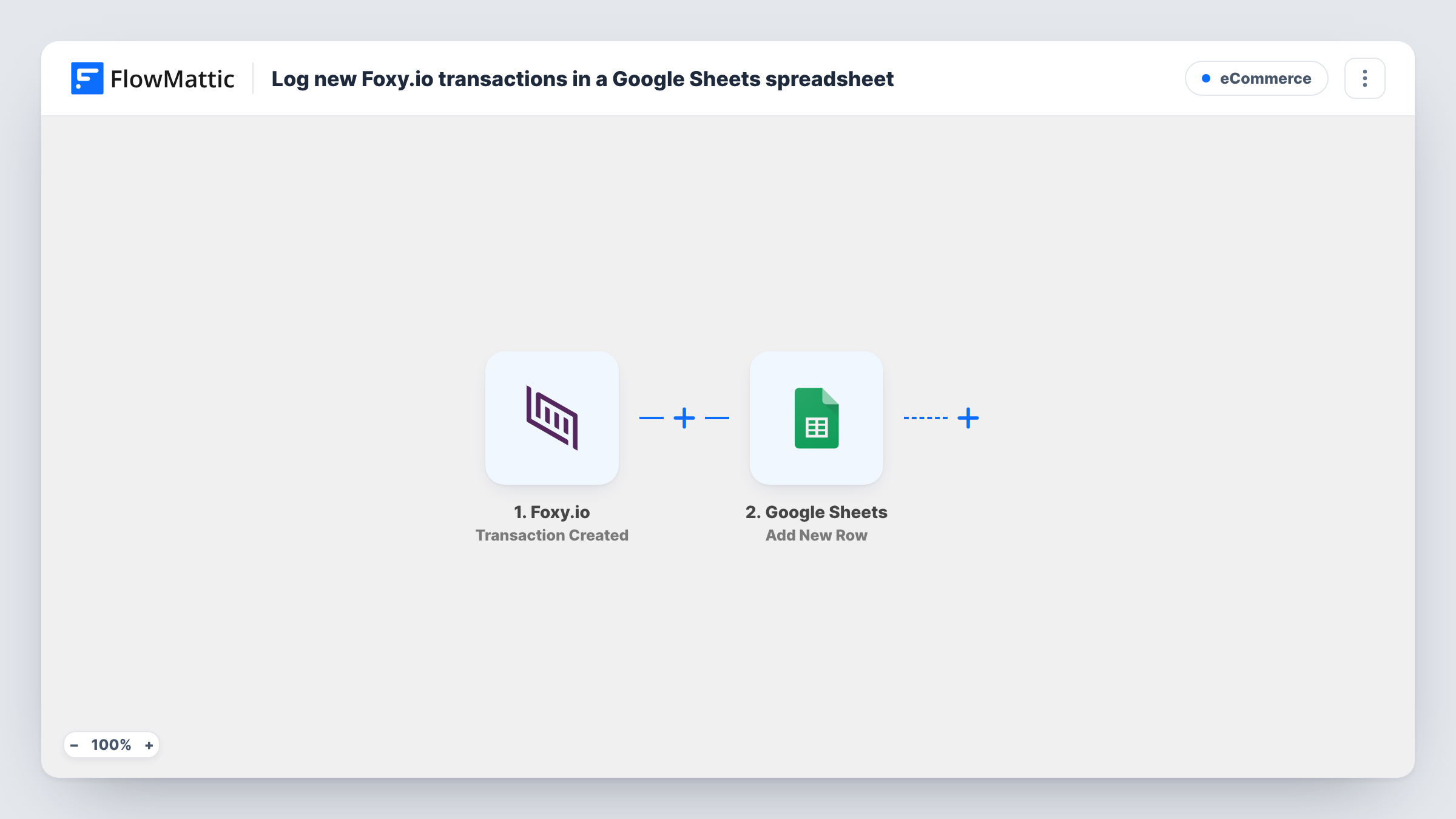
The Foxy.io trigger starts a run as soon as Foxy.io records a new transaction. FlowMattic receives the transaction data and passes it to Google Sheets, where Add New Row places it in the sheet and worksheet you choose. You decide which values go into which columns, such as the order total, customer email and date.
The sheet records each transaction once, when it is created. Later changes in Foxy.io are not copied across unless you build another workflow for them. Task History keeps a record of every run, so you can check that a transaction reached the sheet.
Bookkeeping for a small shop
Your bookkeeper works from a shared sheet of every Foxy.io sale and reconciles it against payouts each month.
Product sales reporting
A pivot table on the sheet shows which products sold most this quarter, without logging in to Foxy.io.
Sharing sales with a partner
A co-founder or supplier who has no Foxy.io access views the running sales list in Google Sheets.
How this workflow runs
What happens at each step once the workflow is on, and what you need before you import it.
 Foxy.io Transaction Created
Runs when a transaction is created in Foxy.io. The transaction's details are passed on for mapping in the Google Sheets step.
- Google Sheets Add New Row
Adds the transaction as a row in the spreadsheet and worksheet you select. Connect Google and map transaction values to each column.
What you need
- FlowMatticCore
- Foxy.io AccountAccount
- Google Sheets AccountAccount
After importing, map your own data. To keep the template universal, not every step is pre-filled. Open each step in the builder and connect your accounts and fields (channels, lists, sheets, recipients) before you switch the workflow on.
Make it yours
Changes worth making after you import it.
- Place a test order in Foxy.io after import so FlowMattic captures a transaction, then map its values to your columns.
- For one row per item instead of one per transaction, check a test run for a list of items in the event, then add an Iterator over it before the Google Sheets step.
- Add a Slack Send Channel Message step after the sheet if your team also wants a ping for each sale.
Questions about this workflow
Are Foxy.io transactions from before the import added to the sheet?
No. Only transactions created while the workflow is on start a run. Older ones need to be added to the sheet another way.
Can each product in a Foxy.io order get its own row?
Not as imported. Each transaction becomes one row. An Iterator over the order's items can give you one row per item.
What happens when a Foxy.io transaction is refunded later?
The row written at purchase stays as it was. The workflow only runs when a transaction is created.
More E-Commerce workflows
Other ready-to-import templates from the same category.







Import this workflow into your WordPress site
Download the JSON, import it from the Workflows screen and connect your accounts. Every run stays on your server, with no per-task fees.
30-day money-back guarantee Unlimited workflows and runs Self-hosted