

When a new row is added in Google Sheets, create product in Printify
Add a row to your Google Sheets product list and this workflow creates a matching product in your Printify shop from the row’s data, so you can plan new items in a spreadsheet.
 Google Sheets
 Printify
2 steps Setup ~5 min Used on 1.1k sites Free to import
What this workflow does
Print-on-demand sellers often plan new designs in a spreadsheet: titles, descriptions, which product they go on. Creating each product in Printify by hand from that list is repetitive. This workflow takes each new row and creates the product in your shop.
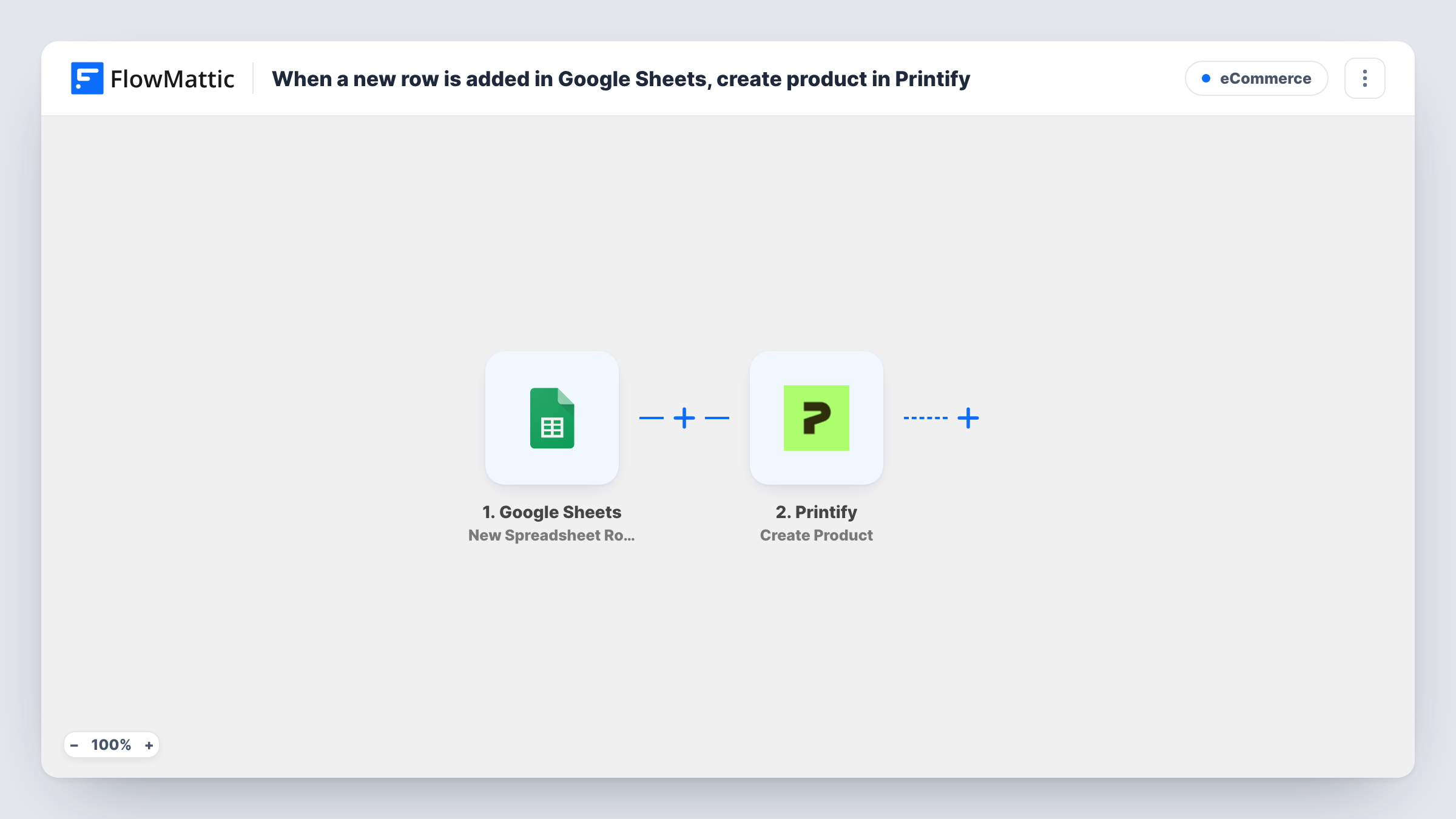
Each new row in the spreadsheet you connect to the Google Sheets trigger starts a run. Every cell is passed on as data. The Printify Create Product action then creates a new product in a shop, using the values you map from the row.
Printify products need several details to be valid, so your sheet must hold everything the step asks for. Add a test row first and check the result in Printify. Each new row creates one product, and editing a row later does not change the product. Task History shows Printify's response for every run.
Planning a seasonal collection
You list a dozen holiday designs in a sheet with titles and descriptions. As each row is added, the product appears in your Printify shop ready for review.
A designer and a shop owner working together
A designer adds finished designs to a shared sheet. Each new row creates the product in Printify, and the shop owner checks it before publishing.
Keeping a record of everything you created
Because every product starts as a row, the sheet doubles as a list of all items you have made through the workflow.
How this workflow runs
What happens at each step once the workflow is on, and what you need before you import it.
 Google Sheets New Spreadsheet Row
Fires when a new row is added to your connected Google Sheets spreadsheet. The row's cells are passed to Printify for mapping.
- Printify Create Product
Creates a new product in your Printify shop from the row. Connect Printify, map the sheet's columns into the step, and add a test row to see which details Printify needs.
What you need
- FlowMatticCore
- Google Sheets AccountAccount
- Printify AccountAccount
After importing, map your own data. To keep the template universal, not every step is pre-filled. Open each step in the builder and connect your accounts and fields (channels, lists, sheets, recipients) before you switch the workflow on.
Make it yours
Changes worth making after you import it.
- Add a Filter after the trigger that continues only when the title column is not empty, so blank or half-filled rows don't reach Printify.
- Add a status column you fill in last, and filter on it, so a row only creates a product once it is complete.
- Keep one row per product and don't reuse rows. Each new row creates a new product, so pasting the same row again makes a copy.
Questions about this workflow
Does editing a Google Sheets row update the Printify product?
No. Only a newly added row starts the workflow. Change the product in Printify, or add a new row for a new product.
Is the Printify product published to my store right away?
This workflow creates the product. Publishing to a sales channel is a separate step in Printify, so check its status after a test.
What if the Google Sheets row is missing something Printify needs?
Printify can reject the request, and the error appears on that step in Task History. Fix the row data and add it again.
Do I need a Printify shop already set up?
Yes. The step creates the product inside a shop in your Printify account, connected in FlowMattic.
More E-Commerce workflows
Other ready-to-import templates from the same category.






Import this workflow into your WordPress site
Download the JSON, import it from the Workflows screen and connect your accounts. Every run stays on your server, with no per-task fees.
30-day money-back guarantee Unlimited workflows and runs Self-hosted