

Log Reclaim AI scheduling link activity in a Google Sheets spreadsheet
Each time a meeting is booked, rescheduled or cancelled through a Reclaim AI scheduling link, this workflow adds a row to Google Sheets, giving you a running log of all your scheduling link activity.
 Reclaim AI
 Google Sheets
2 steps Setup ~5 min Used on 700 sites Free to import
What this workflow does
Reclaim AI scheduling links fill your calendar, but they don't give you an easy history of who booked, who moved a meeting and who cancelled. A spreadsheet log answers those questions and lets you count bookings over time. Here, FlowMattic keeps that record in a sheet as the activity happens.
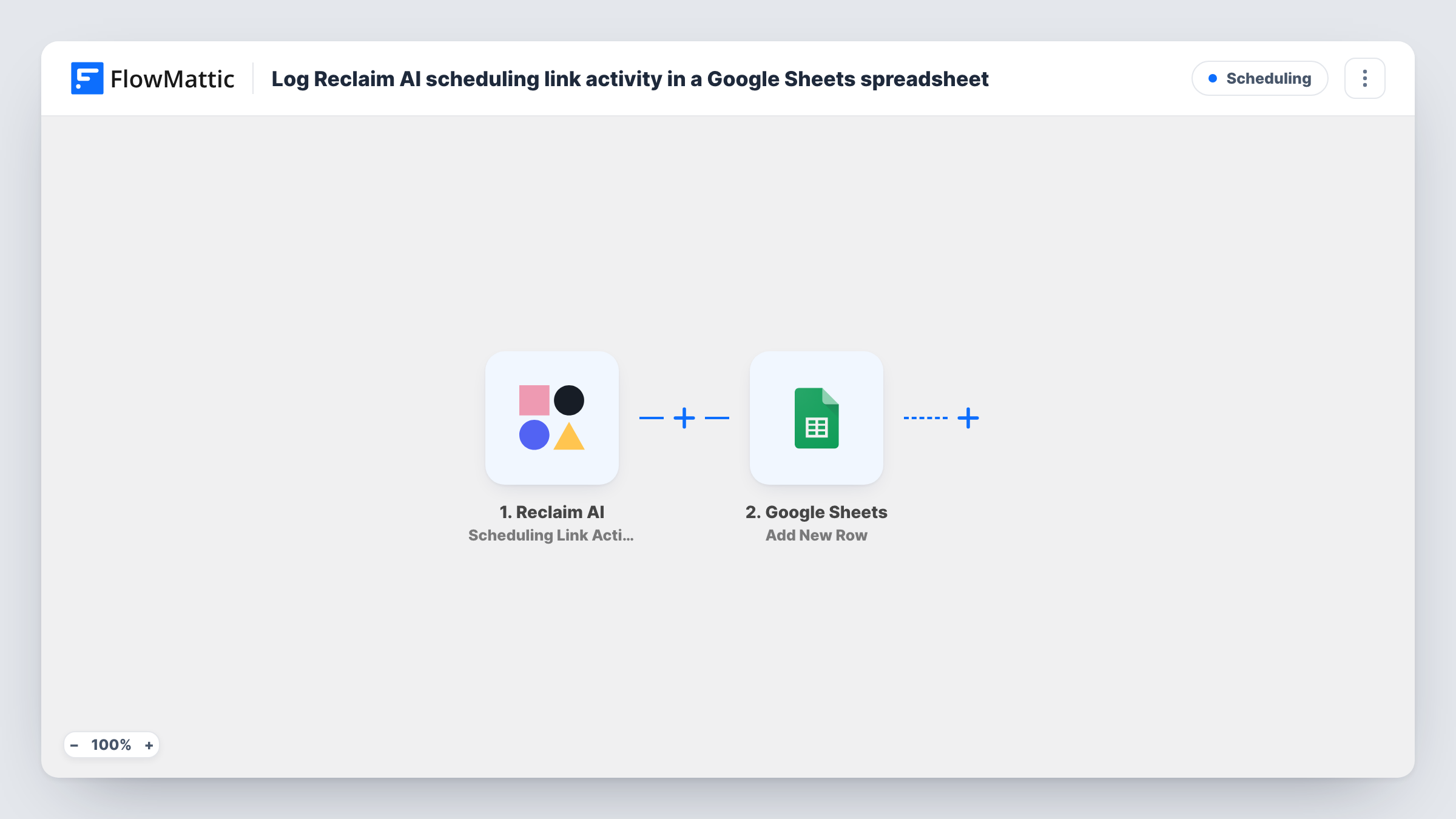
The Reclaim AI trigger fires when a meeting is booked, rescheduled or cancelled through one of your scheduling links. FlowMattic passes the activity data to Google Sheets, which adds a new row to the spreadsheet you choose. You map each column to a field from Reclaim, such as the attendee, the meeting time and the type of activity.
All three kinds of activity are logged, each as its own row. A meeting that is booked and later cancelled therefore appears twice, which is useful for spotting cancellations. Include the activity type in a column so you can sort or filter the log by it.
Tracking sales call volume
A sales rep shares a Reclaim AI link for discovery calls. The sheet shows how many calls were booked each week and how many were cancelled.
Consultant client history
A freelance consultant keeps a sheet of every session booked through their link, with each reschedule logged as a further row under the client's name.
Recruiting interview log
A recruiter sends candidates a Reclaim AI link and uses the spreadsheet to see which interviews were moved or dropped.
How this workflow runs
What happens at each step once the workflow is on, and what you need before you import it.
 Reclaim AI Scheduling Link Activity
Runs whenever a meeting is booked, rescheduled or cancelled through a Reclaim AI scheduling link. The activity details are passed on to the sheet step.
- Google Sheets Add New Row
Writes one new row per Reclaim activity to your chosen spreadsheet. Map the Reclaim fields to columns, including the activity type, and connect your Google account.
What you need
- FlowMatticCore
- Reclaim AI AccountAccount
- Google Sheets AccountAccount
After importing, map your own data. To keep the template universal, not every step is pre-filled. Open each step in the builder and connect your accounts and fields (channels, lists, sheets, recipients) before you switch the workflow on.
Make it yours
Changes worth making after you import it.
- Want only new bookings in the sheet? Add a Filter after the trigger that continues when the activity type equals the value Reclaim sends for a booking.
- Use a Router with one route per activity type to write bookings, reschedules and cancellations to separate tabs.
- Book, move and cancel one test meeting after import, so FlowMattic captures the data Reclaim sends for each kind of activity.
Questions about this workflow
Are Reclaim AI cancellations logged too?
Yes. The trigger fires for bookings, reschedules and cancellations, and each one adds a row unless you add a Filter.
Does a rescheduled Reclaim meeting update its existing row?
No. The Google Sheets step only adds rows, so a reschedule appears as a new row below the original booking.
Which scheduling links are covered?
Activity through your Reclaim AI scheduling links reaches the trigger. Test with each link you use and check Task History to confirm.
More Scheduling workflows
Other ready-to-import templates from the same category.






Import this workflow into your WordPress site
Download the JSON, import it from the Workflows screen and connect your accounts. Every run stays on your server, with no per-task fees.
30-day money-back guarantee Unlimited workflows and runs Self-hosted