

When a new post is published in WordPress, create event in AddEvent
Turn each post you publish in WordPress into a new event in AddEvent, using the post details you map, so launches, announcements or dated articles also appear as calendar events.
 WordPress
 AddEvent
2 steps Setup ~5 min Used on 643 sites Free to import
What this workflow does
Some posts are really about a date: a webinar announcement, a product launch, a sale that opens on a given day. Publishing the post is one job, and adding the same thing to your event calendar is another. This workflow links the two, so publishing a post also creates an event in AddEvent.
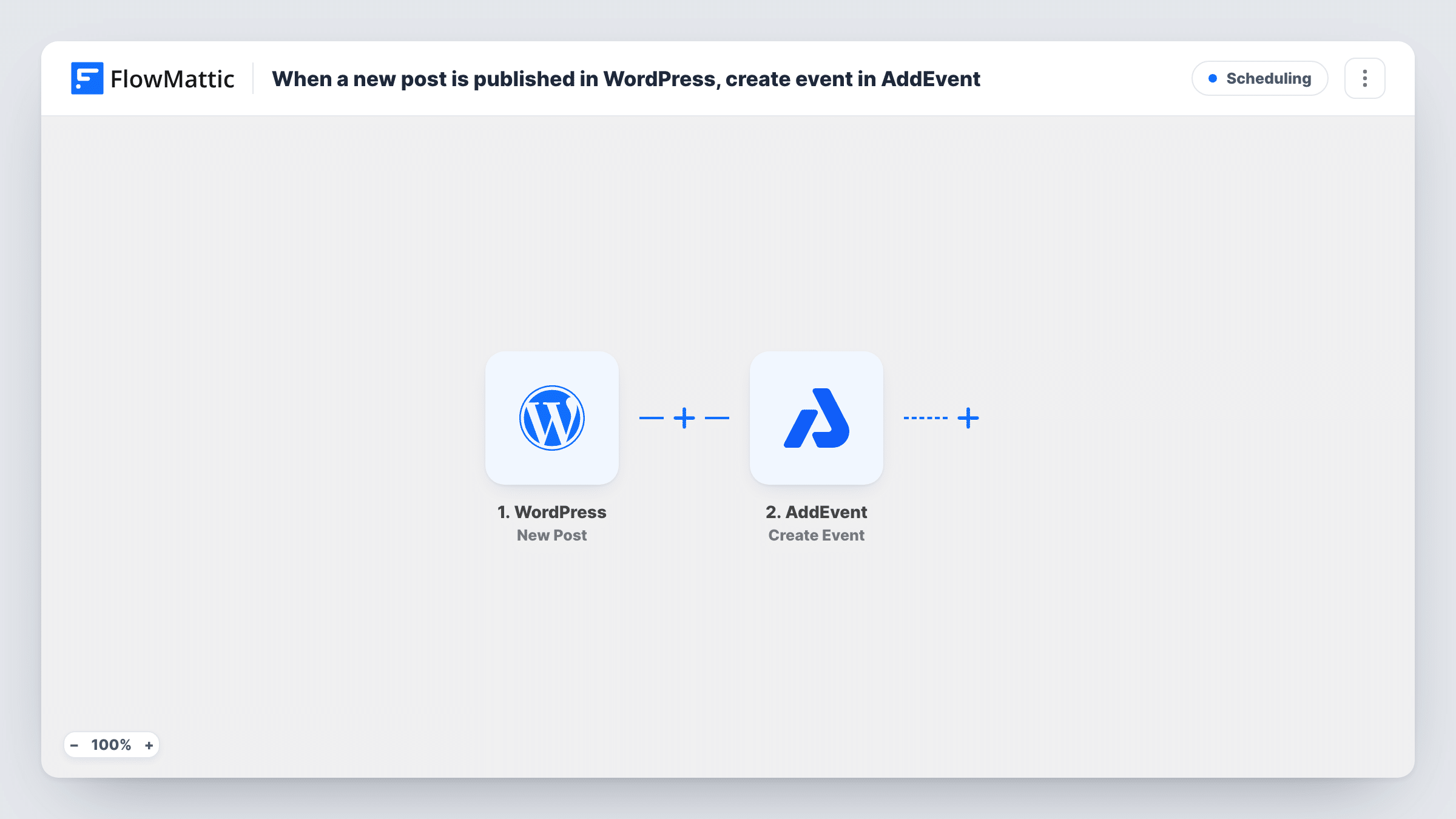
Publishing a new post on your site starts the WordPress trigger. FlowMattic hands the post data to AddEvent, and the Create Event action makes a new event from the values you map, such as the post title and its link for the description.
A post does not carry an event date by itself, so decide during setup what the event's date and time should come from, and confirm with a test run. Every published post creates one event, which suits a blog where posts announce events. You can look up the event created for each post in Task History.
Webinar announcements
You publish a post for each upcoming webinar, and the matching AddEvent event gives readers something to add to their calendars.
A calendar of everything you publish
A content team wants a calendar view of each published article, with the post link in the event, for planning and review.
Launch and sale dates
Each launch post becomes an event in AddEvent, so the date sits on the calendar your audience already follows.
How this workflow runs
What happens at each step once the workflow is on, and what you need before you import it.
 WordPress New Post
Fires when a new post is published in WordPress. The post's data becomes available to map into the AddEvent step.
- AddEvent Create Event
Creates a new event in AddEvent from the WordPress post data you map. Connect your AddEvent account, then map the post details and set how the event's date is chosen; check it with a test post.
What you need
- FlowMatticCore
- AddEvent AccountAccount
After importing, map your own data. To keep the template universal, not every step is pre-filled. Open each step in the builder and connect your accounts and fields (channels, lists, sheets, recipients) before you switch the workflow on.
Make it yours
Changes worth making after you import it.
- If only some posts announce events, add a Filter after the trigger with a condition on a value those posts share, such as a word in the title. Look at a test run to see the post data you can use.
- Put the post's link in the event description so people who open the event can read the full announcement.
- Publish a test post after import, then open the new event in AddEvent and check its date, time and text before you leave the workflow on.
Questions about this workflow
Does every WordPress post create an AddEvent event?
Yes, as imported. Each newly published post runs the workflow once. Add a Filter after the trigger if only some posts should become events.
Where does the AddEvent event date come from?
From whatever you map in the AddEvent step. A post has no event date of its own, so set this up after import and confirm it with a test post.
Will updating a WordPress post change its AddEvent event?
No. The trigger fires when a post is published, and the action only creates events. Edit the event in AddEvent if details change.
Are posts I published before importing added to AddEvent?
No. Only posts published after the workflow is switched on create events.
More Scheduling workflows
Other ready-to-import templates from the same category.






Import this workflow into your WordPress site
Download the JSON, import it from the Workflows screen and connect your accounts. Every run stays on your server, with no per-task fees.
30-day money-back guarantee Unlimited workflows and runs Self-hosted