

Loop through CSV file records, get each webpage URL information and add to Google Sheet
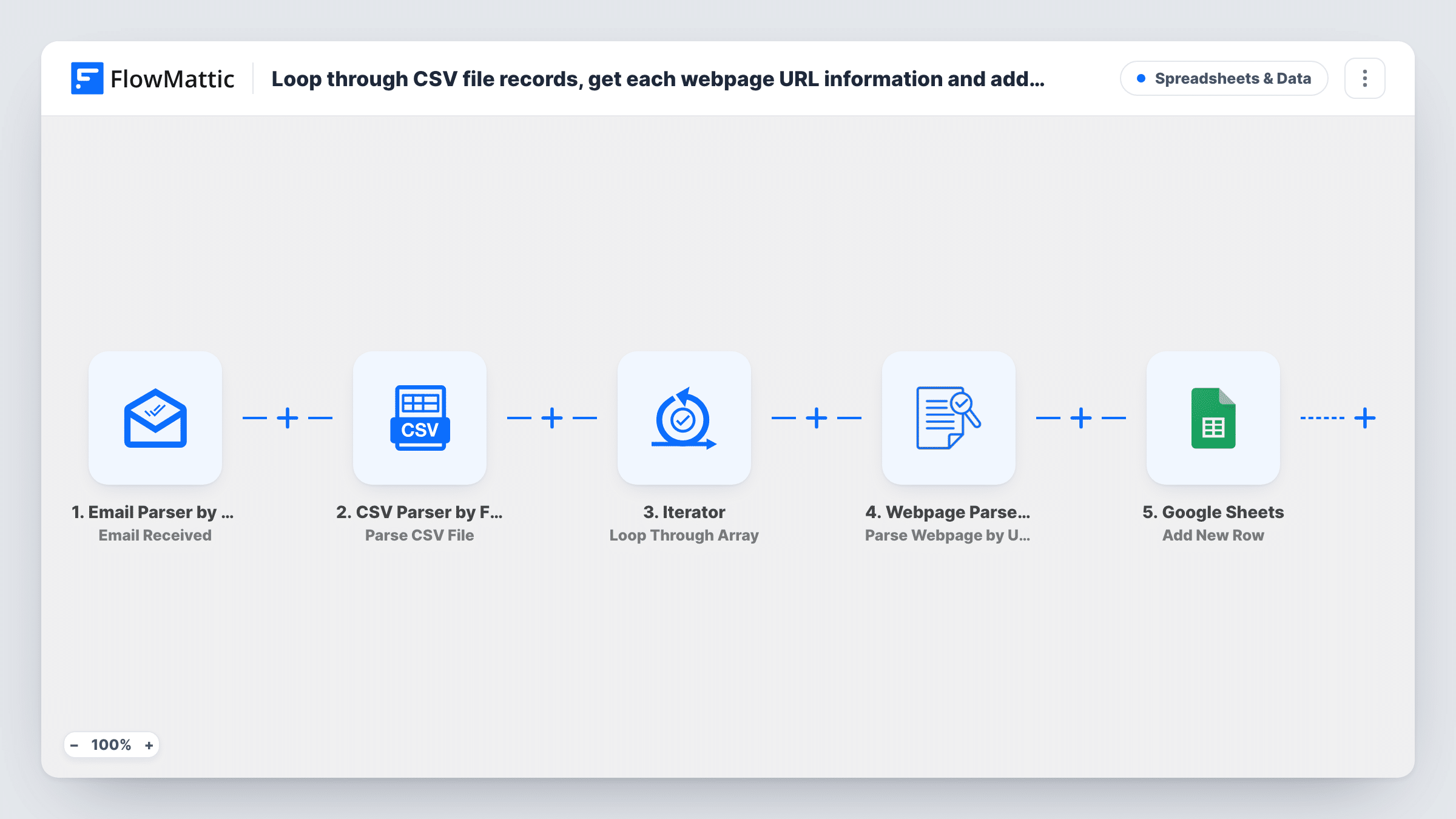
Email a CSV list of web addresses to your FlowMattic parser inbox, and the workflow opens the file, reads each page in turn and writes that page’s details to its own Google Sheets row.
 Email Parser by FlowMattic
 CSV Parser by FlowMattic
 Iterator
 Webpage Parser by FlowMattic
 Google Sheets
5 steps Setup ~8 min Used on 2.5k sites Free to import
What this workflow does
Checking a list of websites one by one is slow. You open each link, copy the title and description, look for a contact address and paste it all into a spreadsheet. This workflow does that loop for you, starting from a CSV file you send by email.
The Email Parser by FlowMattic trigger runs when a message arrives at your email parser address. Next, the CSV Parser takes a CSV file URL from that email and turns the file into JSON data. An Iterator then loops through the records, and for each one the Webpage Parser opens the URL in that record. It returns details such as the page title, description, meta tags, emails and social profiles found on the page.
Still inside the loop, Google Sheets adds a new row for that record, with whichever page details you mapped to columns. A file of 40 URLs gives you 40 rows from one email. Task History lists the run, so you can see a record whose page could not be read.
Researching a prospect list
Export a list of company websites as CSV and email it in. The sheet comes back with each site's title, description and any emails or social profiles the parser found.
Auditing your own site's meta tags
Send a CSV of your page URLs to see each page's title and description side by side in one sheet, so missing or repeated descriptions stand out.
Checking a directory of partner links
A partner sends a CSV of member websites. Forwarding it to the parser inbox turns the file into a sheet with one row of page details per member.
How this workflow runs
What happens at each step once the workflow is on, and what you need before you import it.
 Email Parser by FlowMattic Email Received
Runs when an email reaches your Email Parser by FlowMattic address. The parts of the message become data that the CSV Parser step can use.
- CSV Parser by FlowMattic Parse CSV File
Reads a CSV file from its URL and returns the records as JSON. Map the CSV file's URL from the incoming email, and send a test message to see how that URL comes through.
- Iterator Loop Through Array
Loops through the records the CSV Parser returned. The two steps after it run once for each record, so every URL in the file is handled separately.
- Webpage Parser by FlowMattic Parse Webpage by URL
Opens the URL from the current record and returns the page's details, such as its title, description, meta tags, emails and social profiles. Map the CSV column that holds the URL.
- Google Sheets Add New Row
Adds one row per record to the Google Sheets spreadsheet you pick. Map the URL and the page details you want into columns, and connect your Google account on import.
What you need
- FlowMatticCore
- Google Sheets AccountAccount
After importing, map your own data. To keep the template universal, not every step is pre-filled. Open each step in the builder and connect your accounts and fields (channels, lists, sheets, recipients) before you switch the workflow on.
Make it yours
Changes worth making after you import it.
- Send a test email with a small CSV of three or four URLs first. FlowMattic then captures the CSV columns and parsed page fields, and you can map them without waiting on a large list.
- Add a Filter inside the loop, before the Webpage Parser, that continues only when the URL column is not empty. Blank lines in the CSV then don't produce empty rows.
- If you only need titles and descriptions, swap the Webpage Parser action for its Get Meta Tags action, which returns the page's meta tags.
Questions about this workflow
How do I get the CSV file to the CSV Parser?
The CSV Parser reads a file from a URL, so the email needs to give it one. Map that URL from the Email Parser data, then send a test email to check which value holds the link to your file.
Does each URL in the CSV get its own Google Sheets row?
Yes. The Iterator runs the Webpage Parser and the Google Sheets step once per record, so each URL in the file produces one row.
What if the Webpage Parser can't open a URL?
That record's step shows the error in Task History. The loop carries on with the following records, and the Sheets step for that record runs with whatever data it received.
Can someone else email CSV files to my parser address?
Yes. Any email that reaches the Email Parser address starts a run. Keep the address private, or add a Filter after the trigger that checks the sender before the CSV is parsed.
More Spreadsheets & Data workflows
Other ready-to-import templates from the same category.



Import this workflow into your WordPress site
Download the JSON, import it from the Workflows screen and connect your accounts. Every run stays on your server, with no per-task fees.
30-day money-back guarantee Unlimited workflows and runs Self-hosted