

Notify a Discord channel when a Zoom cloud recording is ready
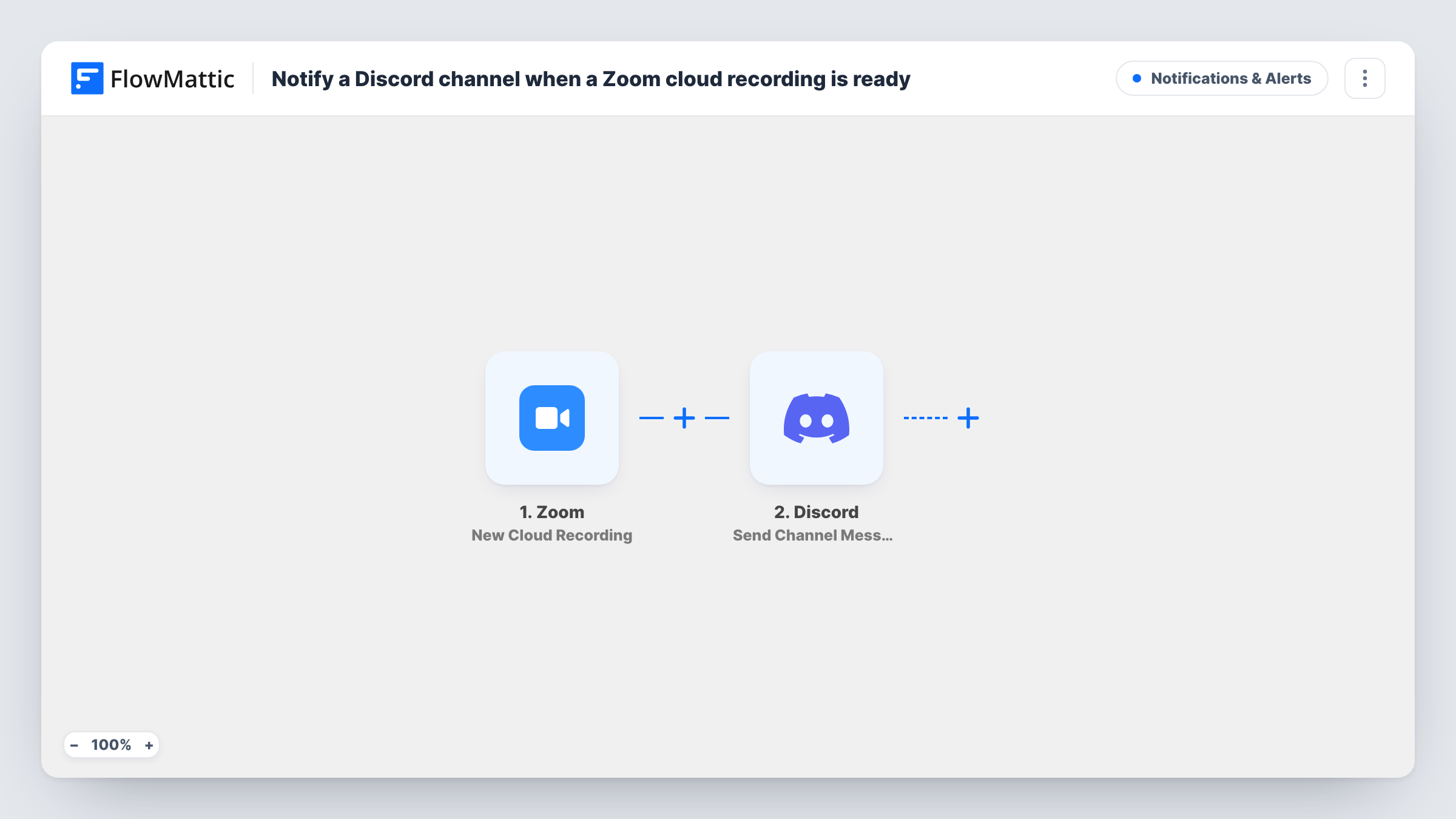
When Zoom completes a cloud recording for a meeting or webinar, this workflow posts a message in the Discord channel you choose, so your community or team knows the recording is ready.
 Zoom
 Discord
2 steps Setup ~5 min Used on 695 sites Free to import
What this workflow does
After a live session on Zoom, people who missed it ask when the recording will be available. Zoom takes a while to process cloud recordings, and checking back is a chore. This workflow tells your Discord server as soon as Zoom reports the recording is complete.
The Zoom trigger starts a run once a meeting or webinar's cloud recording has finished processing. FlowMattic receives the recording details and passes them to Discord. The Send Channel Message step posts a new message to the channel you pick, built from your own text and the Zoom values you map, such as the meeting topic.
Discord gets a text post and nothing more. This template does not move or share the recording file, so whether people can open a link in the message depends on the sharing settings of the recording in Zoom. Check one test recording after import to see which details Zoom provides and how the message looks in Discord.
Community calls on a Discord server
You host a monthly community call on Zoom. Members who could not attend see a message in #announcements once the recording is ready.
Course cohorts
An instructor records live classes. Students in the course Discord get a post for each finished recording, so they know when to catch up.
Internal team demos
A product team records weekly demos. The engineering Discord channel gets a note each time a recording is complete.
How this workflow runs
What happens at each step once the workflow is on, and what you need before you import it.
 Zoom New Cloud Recording
Fires when Zoom finishes a cloud recording for a meeting or webinar. The recording details, such as the topic, are passed to the Discord step.
- Discord Send Channel Message
Sends the recording notice to one Discord channel you pick. Connect Discord, pick the channel, and write the text with Zoom values mapped in.
What you need
- FlowMatticCore
- Zoom AccountAccount
- Discord AccountAccount
After importing, map your own data. To keep the template universal, not every step is pre-filled. Open each step in the builder and connect your accounts and fields (channels, lists, sheets, recipients) before you switch the workflow on.
Make it yours
Changes worth making after you import it.
- Add a Filter after the trigger that checks the meeting topic, so only public sessions are announced and private meetings stay quiet.
- If you also want the file stored, add a Google Drive Upload a File step after the Discord step and map the recording file from the Zoom trigger.
- Record a short test meeting after import and look at the run in Task History to see which Zoom fields you can use in the message.
Questions about this workflow
Does the Discord message include a link to the Zoom recording?
Only if you map one from the Zoom data into the message. Whether viewers can open it depends on the recording's sharing settings in Zoom, so test the link with an account that is not the host.
Will every Zoom recording post to Discord?
Yes, every completed cloud recording on the connected account, as imported. Add a Filter on the meeting topic to announce only certain sessions.
Do meetings recorded locally post a Discord message?
No. The trigger fires on completed cloud recordings, so recordings saved to a computer do not start the workflow.
Can the Zoom recording alert go to two Discord channels?
Yes. Add a second Send Channel Message step after the first and choose another channel.
More Notifications & Alerts workflows
Other ready-to-import templates from the same category.





Import this workflow into your WordPress site
Download the JSON, import it from the Workflows screen and connect your accounts. Every run stays on your server, with no per-task fees.
30-day money-back guarantee Unlimited workflows and runs Self-hosted