

Send Slack message when new item added to Notion database
When a new item is created in the Notion database you choose, FlowMattic posts a message to a Slack channel with the item’s details, so the team hears about it without watching Notion.
 Notion
 Slack
2 steps Setup ~5 min Used on 1.5k sites Free to import
What this workflow does
Notion databases collect a lot: requests, ideas, bugs, content drafts. New entries are easy to miss when nobody is looking at the database, and asking people to check it doesn't last. This workflow announces each new item in Slack, where the team already talks.
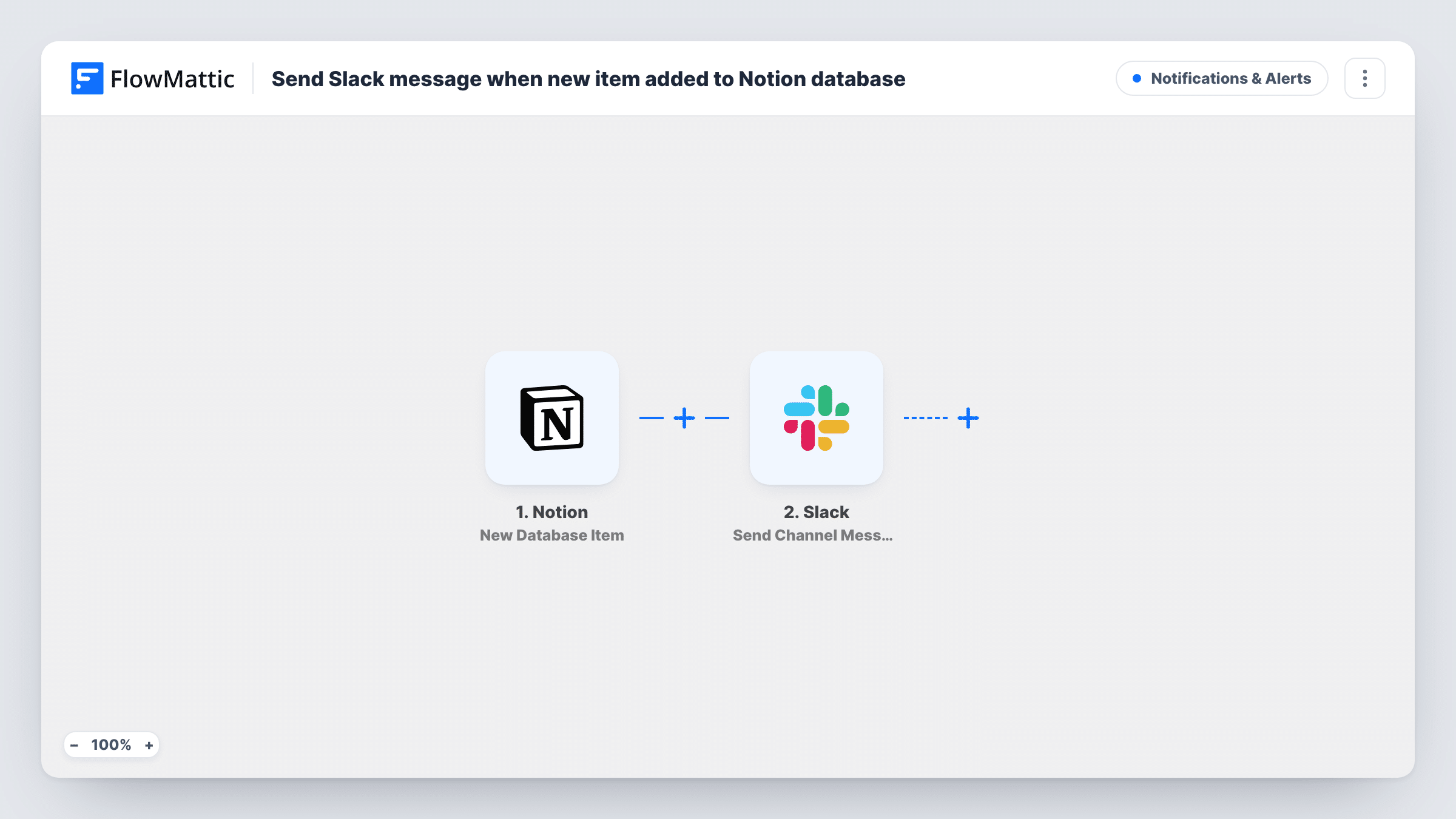
The Notion trigger watches the database you select and fires when a new item is created in it. FlowMattic passes the item's properties on to Slack, and the Send Channel Message step posts to the channel you pick. You write the message and drop in values from the item, such as its title, owner or status.
Only new items start a run. Edits to existing items don't, because Notion's Updated Database Item trigger is a separate event. Every new item in the database gets a message, so a bulk import into Notion means a burst of Slack posts. Task History logs every run and Slack's reply.
Request intake database
Colleagues file design or IT requests in a Notion database, and the team that handles them sees each one appear in their Slack channel.
Content calendar additions
When a writer adds a new article idea to the editorial database, the editor gets a Slack post with the working title and proposed date.
Bug tracker in Notion
Each new bug item posts its title and severity to the engineering channel so someone can pick it up.
How this workflow runs
What happens at each step once the workflow is on, and what you need before you import it.
 Notion New Database Item
Fires when a new item is created in the Notion database you choose. Share that database with your Notion connection, then add a test item to capture its properties.
- Slack Send Channel Message
Posts a message in the Slack channel you set. Write the text and map the Notion item's properties into it, such as the title and a link back to the item.
What you need
- FlowMatticCore
- Notion AccountAccount
- Slack AccountAccount
After importing, map your own data. To keep the template universal, not every step is pre-filled. Open each step in the builder and connect your accounts and fields (channels, lists, sheets, recipients) before you switch the workflow on.
Make it yours
Changes worth making after you import it.
- Add a Filter after the trigger on a property such as Priority, so only items marked High reach Slack and the channel stays readable.
- For a private Slack channel, swap the step for Slack's Send Private Channel Message action, which is a separate action in the Slack app.
- Map the item's Notion URL into the message if the trigger provides it, so people can open the item from Slack with one click.
Questions about this workflow
Does editing a Notion item send another Slack message?
No. This workflow uses New Database Item, which only reacts to new items. Notion's Updated Database Item trigger covers edits if you want those in a separate workflow.
Can one workflow watch several Notion databases?
The trigger watches the one database you select. Import a copy of the workflow for each additional database you want announced.
Which Notion properties can go into the Slack message?
The properties the new item carries when the trigger picks it up. Add a test item after import to see them, then map the ones you want into the text.
More Notifications & Alerts workflows
Other ready-to-import templates from the same category.




Import this workflow into your WordPress site
Download the JSON, import it from the Workflows screen and connect your accounts. Every run stays on your server, with no per-task fees.
30-day money-back guarantee Unlimited workflows and runs Self-hosted