

Notify customers waiting for the product to come back in stock
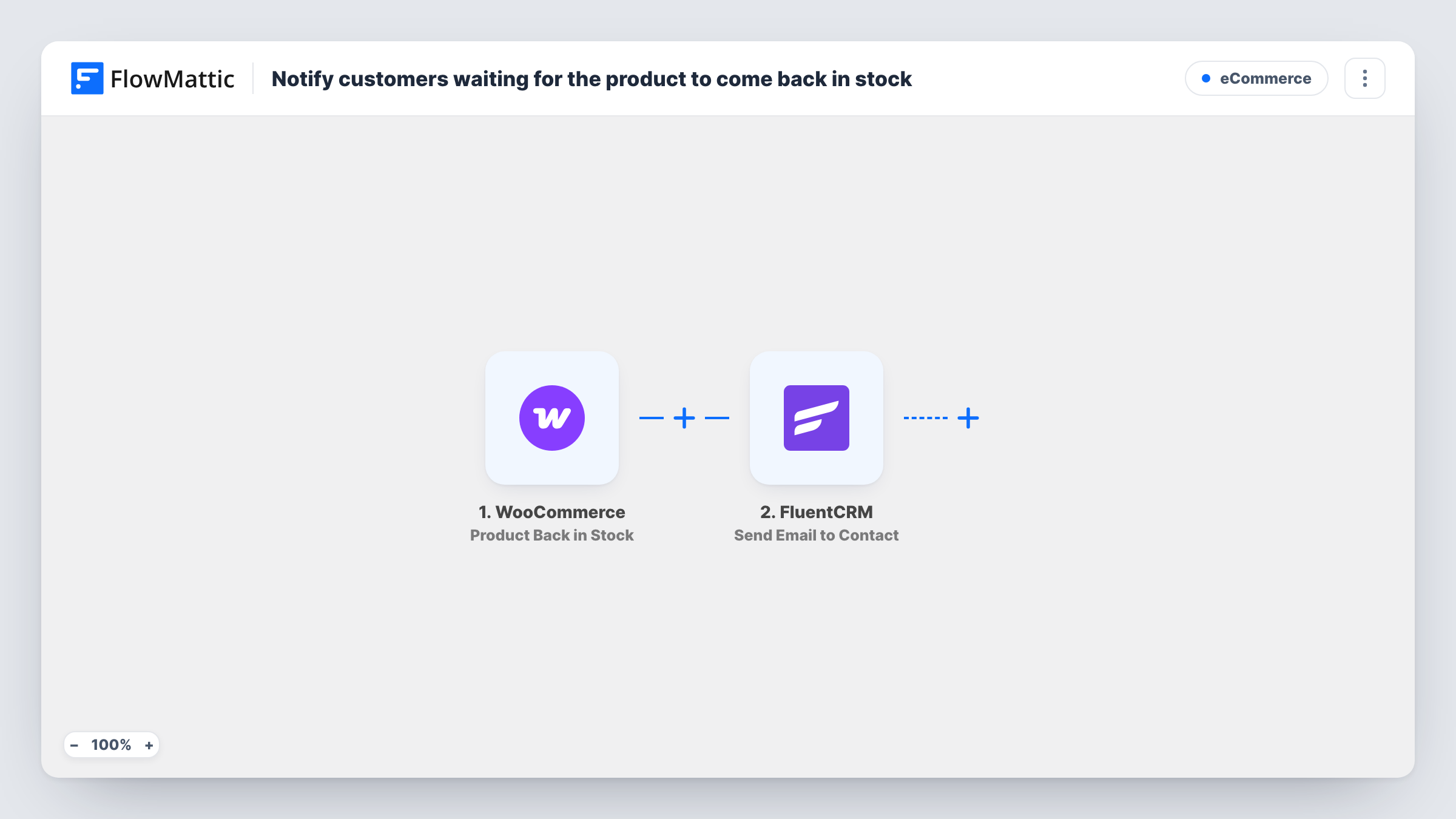
When a WooCommerce product comes back in stock, FlowMattic pulls the FluentCRM contacts carrying your waitlist tag and emails each of them that the item they wanted is available again.
 WooCommerce
 FluentCRM
 Iterator
 Email
Email4 steps Setup ~8 min Used on 2.1k sites Free to import
What this workflow does
Shoppers who ask to hear about a restock have already told you they want to buy. If the email goes out days after the shelf is filled, the moment is gone. This workflow sends the notice as soon as WooCommerce marks a product as back in stock, using a FluentCRM tag as your waiting list.
The WooCommerce trigger fires when a product returns to stock. The FluentCRM step then fetches every contact with the tag IDs you set, returned as a list. An Iterator walks through that list one contact at a time, and for each one FlowMattic's Email step sends a message to the contact's address, greeting them by first name with the subject "Good news - it is back in stock".
Two things are yours to decide. The FluentCRM step ships without a tag chosen, so pick the tag you give to people on the waiting list. That tag is one list, not a per-product one: whichever product comes back, everyone holding it gets the email. For a store with several waitlisted products, use one tag per product and a Filter on the product, as the tips explain.
The email body doesn't name the product. Map the product's name or link from the trigger into the message so customers know which item is back. Contacts keep the tag after the email, so they are emailed again at the next restock unless you remove it.
Restock alerts for a limited product
A shop that sells one popular handmade item tags everyone who asks to be told about the next batch, and they all get the email the moment stock returns.
Per-product waiting lists
A sneaker store gives each sold-out model its own FluentCRM tag and keeps one copy of this workflow per model, each with a Filter on that product.
Waiting list built from a sign-up form
A store's 'notify me' form tags each sign-up in FluentCRM, so the people who asked are exactly the contacts this workflow emails.
How this workflow runs
What happens at each step once the workflow is on, and what you need before you import it.
 WooCommerce Product Back in Stock
Fires when a WooCommerce product comes back in stock. The product's details are passed on, so you can map its name or link into the email and check its ID in a Filter.
- FluentCRM Get Contact by Tag IDs
Fetches the FluentCRM contacts that carry the tag IDs you set and returns them as a list. The template doesn't choose a tag, so select your waiting-list tag after import.
- Iterator Loop Through Array
Loops through the contact list from FluentCRM and runs the email step once for each contact, passing on that contact's email address and first name.
 Email Send Email
Sends each contact an email through FlowMattic's Email module, using WordPress mail or your SMTP account. The subject and short body are written in; add the product's name and link before going live.
What you need
- FlowMatticCore
- WooCommerce PluginPlugin
- FluentCRM PluginPlugin
After importing, map your own data. To keep the template universal, not every step is pre-filled. Open each step in the builder and connect your accounts and fields (channels, lists, sheets, recipients) before you switch the workflow on.
Make it yours
Changes worth making after you import it.
- Map the product name and its link from the WooCommerce trigger into the email body, so the message tells customers what is back and where to buy it.
- Add FluentCRM's Remove Tags From Contact action after the Email step, inside the loop, so each notified contact leaves the waiting list and isn't emailed at the next restock.
- For several products, put a Filter between the WooCommerce trigger and the FluentCRM step that continues only for one product ID, and keep one copy of the workflow per product and tag.
- Send through an SMTP account rather than plain WordPress mail if the waiting list is long, so the emails go out from your own sending service.
Questions about this workflow
How does the workflow know who is waiting for this product?
It doesn't track products per person. It emails every FluentCRM contact with the tag you pick in the second step. Tag people when they ask to be notified, and use one tag per product if you need separate lists.
Will customers be emailed again the next time the product restocks?
Yes, as imported, because the tag stays on the contact. Add a Remove Tags From Contact step after the email, inside the Iterator, to take each person off the list once they've been told.
Does the email mention which product is back?
Not as imported. The body says the product they were waiting for is available again. Edit it in the Email step and map the product name and link from the WooCommerce trigger.
Do I need FluentCRM on the same WordPress site as WooCommerce?
FluentCRM is a WordPress plugin and FlowMattic reads it on the site where FlowMattic runs, so install it there and keep your waiting-list contacts in it.
More E-Commerce workflows
Other ready-to-import templates from the same category.






Import this workflow into your WordPress site
Download the JSON, import it from the Workflows screen and connect your accounts. Every run stays on your server, with no per-task fees.
30-day money-back guarantee Unlimited workflows and runs Self-hosted