

Notify the fulfillment team on Slack when a ClickPost shipment status changes
When ClickPost reports an update on a shipment, this workflow posts it to your fulfillment team’s Slack channel, so delays and delivery problems are seen without watching the tracking panel.
 ClickPost
 Slack
2 steps Setup ~5 min Used on 653 sites Free to import
What this workflow does
Shipping problems tend to surface late. A parcel stuck at a hub or returned to origin may sit unnoticed in the ClickPost panel until a customer complains. This workflow puts every shipment update in front of the people who handle fulfillment, in the Slack channel they already watch.
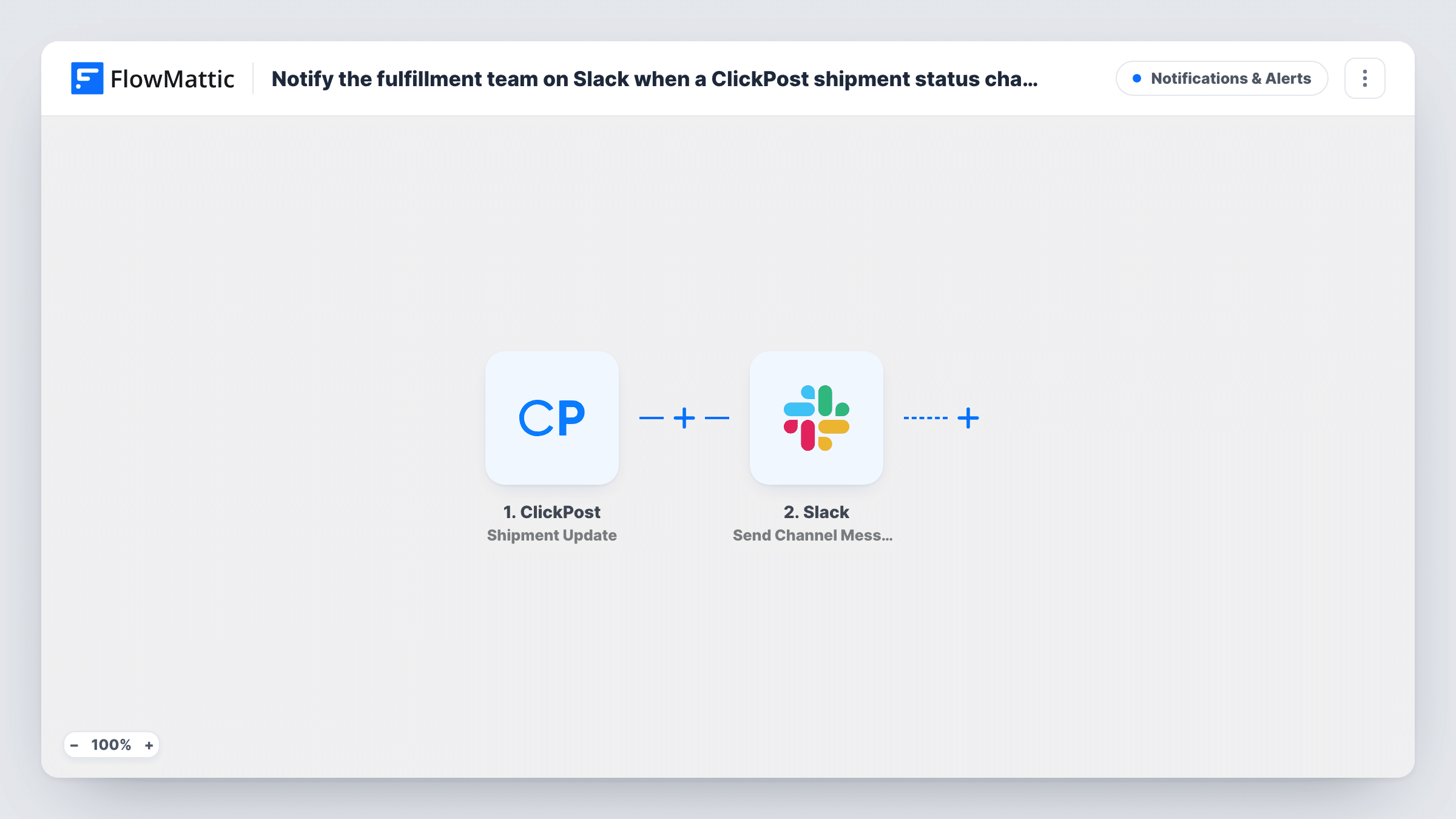
The ClickPost trigger fires whenever a shipment gets updated. FlowMattic takes the data from that update and hands it to Slack, where the Send Channel Message action posts to the channel you choose. You write the message and insert the shipment details ClickPost sends, such as the order reference and the new status.
As imported, every update for every shipment produces a message. On a busy store that can be a lot of posts, and a Filter lets you keep only the statuses that need action. The tips below show how.
Catching stuck parcels early
With a Filter on delay or exception statuses, the fulfillment channel only shows shipments that need someone to call the courier.
Return-to-origin alerts
The warehouse lead sees a Slack post when a parcel is headed back, and can plan restocking before it arrives.
Shared view for support and ops
Support agents follow the same channel, so when a customer asks about an order they can search Slack for its latest update.
How this workflow runs
What happens at each step once the workflow is on, and what you need before you import it.
 ClickPost Shipment Update
Fires each time ClickPost reports an update on one of your shipments. The update data, including its status, is passed on for the Slack message.
- Slack Send Channel Message
Drops a post about the shipment into the Slack channel your fulfillment team uses. Build the text from the ClickPost update fields and connect your Slack workspace.
What you need
- FlowMatticCore
- ClickPost AccountAccount
- Slack AccountAccount
After importing, map your own data. To keep the template universal, not every step is pre-filled. Open each step in the builder and connect your accounts and fields (channels, lists, sheets, recipients) before you switch the workflow on.
Make it yours
Changes worth making after you import it.
- Add a Filter after the trigger that continues only for the statuses your team acts on, so routine in-transit updates stay out of Slack.
- Put the order reference at the start of the message, so a Slack search for that reference brings up every update for the shipment.
- Use a Router to send delivery failures and returns to separate channels, giving each route a status value that cannot match the other.
Questions about this workflow
Which ClickPost updates post to Slack?
All of them, as imported. The trigger fires whenever a shipment gets updated, and there is no Filter. Add one to limit posts to the statuses you care about.
Can customers get these ClickPost updates too?
Not from this workflow, which only posts to Slack. You could add an email or messaging step after the trigger and map the customer's contact details if ClickPost sends them.
Does the Slack step need a bot in the channel?
The connected Slack account needs to be able to post in the channel you pick. Send a test after setup and check the channel.
More Notifications & Alerts workflows
Other ready-to-import templates from the same category.



Import this workflow into your WordPress site
Download the JSON, import it from the Workflows screen and connect your accounts. Every run stays on your server, with no per-task fees.
30-day money-back guarantee Unlimited workflows and runs Self-hosted