

Send alert email when Encharge user tagged with high-intent
When a person in Encharge receives the tag you enter in the trigger, such as high-intent, this workflow sends an email alert so someone on your team knows to follow up with that prospect.
 Encharge
 Email
2 steps Setup ~5 min Used on 2.5k sites Free to import
What this workflow does
Tags in Encharge often mark a moment that matters: a prospect visited the pricing page, booked a demo or replied to a sequence. If that tag only lives inside Encharge, nobody on your sales side may notice it. This workflow turns the tag into an email someone will read.
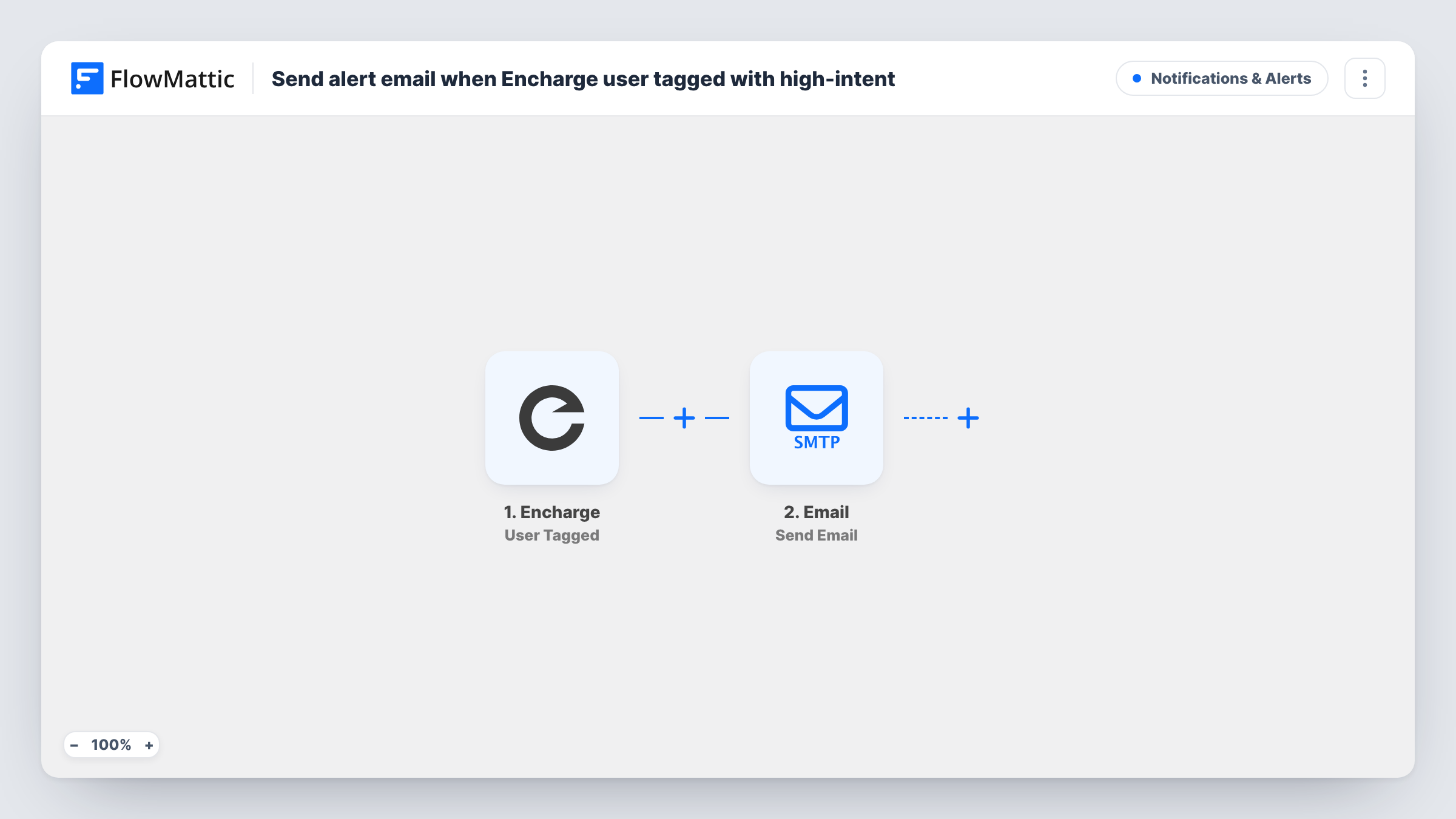
The Encharge trigger fires when a person is tagged with the tag you enter in its settings. Set it to your high-intent tag, or whatever name your team uses. FlowMattic passes the person's details to the next step, where the Email module sends a message using WordPress mail or your own SMTP settings.
You write the subject and body yourself and map in the person's data, for example their email address and name, so the alert says who to contact. The recipient can be one inbox or a shared sales address. Task History logs each run, which helps you confirm the trigger is matching the right tag.
Hand warm leads to sales
You tag prospects in Encharge as high-intent after they book a demo. Each time that tag is added, the sales inbox gets an email naming the person.
Founder alerts at a small SaaS
A founder wants to personally reply to trial users who reach a key milestone. The milestone tag in Encharge sends them an email with the user's address.
Account manager notice for upgrades
When Encharge tags a customer as interested in a higher plan, the assigned account manager receives an email and can reach out.
How this workflow runs
What happens at each step once the workflow is on, and what you need before you import it.
 Encharge User Tagged
Runs when a person in Encharge is tagged with the tag you enter in the trigger settings. That person's Encharge data is passed on for the email step.
 Email Send Email
Sends an email through WordPress mail or a custom SMTP connection. Write the subject and body, map in the tagged person's details, and set the address that should receive the alert.
What you need
- FlowMatticCore
- Encharge AccountAccount
After importing, map your own data. To keep the template universal, not every step is pre-filled. Open each step in the builder and connect your accounts and fields (channels, lists, sheets, recipients) before you switch the workflow on.
Make it yours
Changes worth making after you import it.
- Put the person's email address in the alert's subject line so the message is easy to search for later in your inbox.
- If several tags mean a hot lead, import the workflow once per tag, or duplicate it and change the tag in each copy's trigger.
- Add a Slack or Microsoft Teams step after the email if your sales team works from chat rather than an inbox.
Questions about this workflow
Does the Encharge trigger fire for every tag?
No. Per its description, it fires when a person is tagged with the tag you enter. Other tags added to that person do not start the workflow.
Do I need an SMTP service to send the alert email?
Not necessarily. The Email step can use WordPress's built-in mail function, or a custom SMTP connection if you want better delivery to your team's inbox.
What if the same Encharge person is tagged twice?
Each time the tag is applied and Encharge reports it, the workflow runs and sends another email.
More Notifications & Alerts workflows
Other ready-to-import templates from the same category.




Import this workflow into your WordPress site
Download the JSON, import it from the Workflows screen and connect your accounts. Every run stays on your server, with no per-task fees.
30-day money-back guarantee Unlimited workflows and runs Self-hosted