

Notify the team via Telegram when a Chip payout succeeds
Whenever Chip reports a successful payout, FlowMattic posts a Telegram message to your team’s chat with the payout details you map, so nobody has to keep checking the Chip dashboard.
 Chip
 Telegram
2 steps Setup ~5 min Used on 3.2k sites Free to import
What this workflow does
Payouts are easy to lose track of when they only show up in a payment dashboard. Finance, the owner and whoever reconciles the books all want to know when money has gone out. This workflow tells them in a Telegram chat as soon as Chip reports the payout as successful.
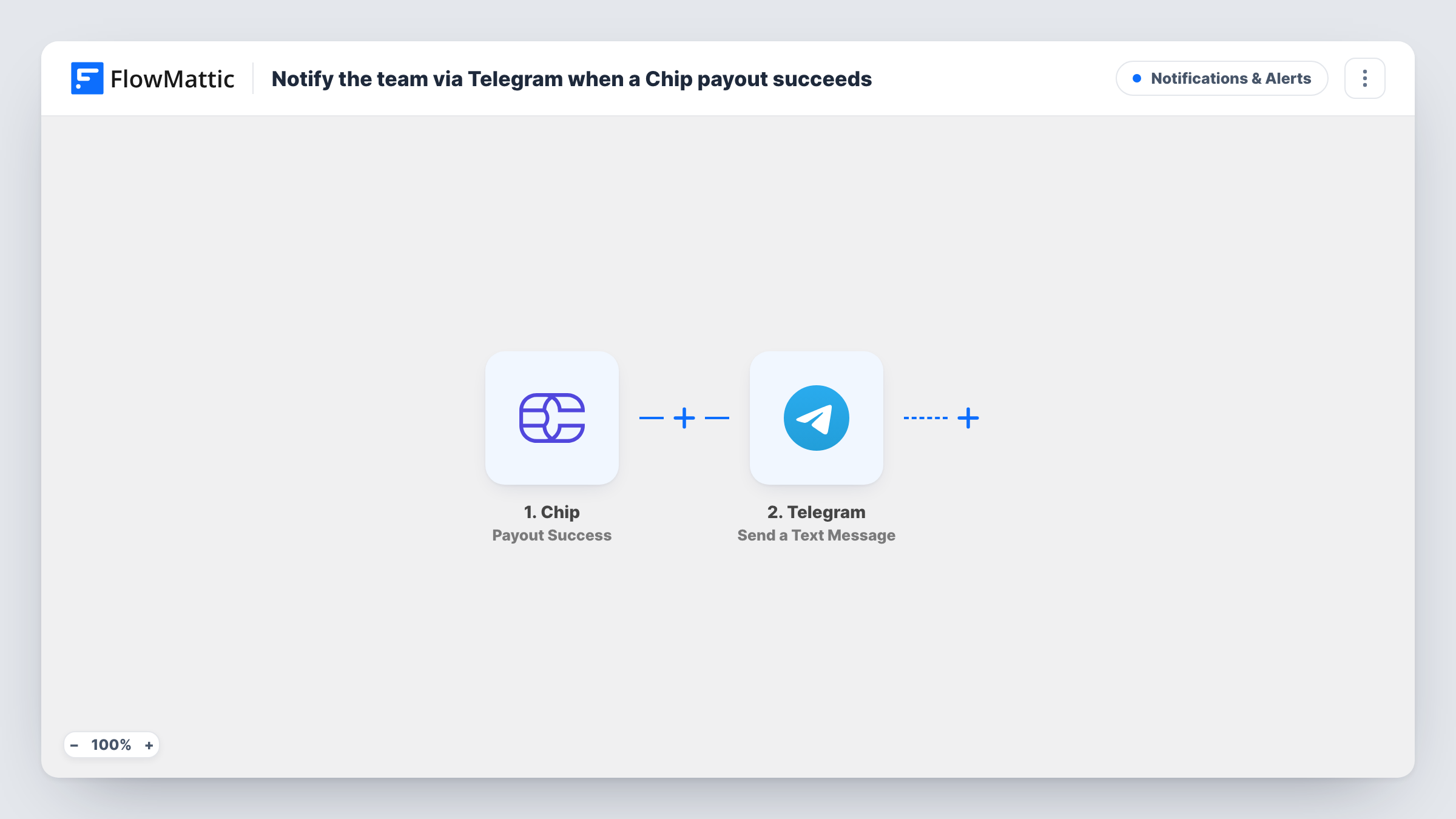
The Chip trigger fires when there is a payout success in your Chip account. FlowMattic receives the payout data and passes it to Telegram, where your bot sends a text message to the chat you choose. You write the message and drop in payout values, such as the amount and reference, from the trigger data.
Only successful payouts start this workflow. Failed and pending payouts are separate Chip triggers, so they don't send anything here. Each run is listed in Task History with the payout data and Telegram's reply.
Finance team channel
Post each successful payout to a private Telegram group for the people who reconcile accounts, so they can match it against the books the same day.
Owner alerts while away from the desk
A business owner gets payout confirmations in their own Telegram chat with the bot, without logging in to Chip on their phone.
Record of payouts in one thread
Keep a single Telegram chat as a running list of successful payouts, which is easy to scroll back through when someone asks whether a payment went out.
How this workflow runs
What happens at each step once the workflow is on, and what you need before you import it.
 Chip Payout Success
Fires when Chip reports a successful payout. Run one real or test payout after import so FlowMattic captures the fields you can use in the message.
- Telegram Send a Text Message
Your Telegram bot posts a text message into the chat you select. Write the message and map payout values from Chip, such as the amount and reference, into it.
What you need
- FlowMatticCore
- Chip AccountAccount
- Telegram AccountAccount
After importing, map your own data. To keep the template universal, not every step is pre-filled. Open each step in the builder and connect your accounts and fields (channels, lists, sheets, recipients) before you switch the workflow on.
Make it yours
Changes worth making after you import it.
- Import the same workflow again with the Chip Payout Failed trigger and a different message, so the team also hears when a payout doesn't go through.
- Add a Filter after the trigger to alert only for payouts above an amount you set. Values are compared as whole numbers, so a payout of 99.99 is checked as 99.
- Add a Google Sheets step after Telegram to keep a row for each payout, which gives you a sortable record next to the chat alert.
Questions about this workflow
Will Chip payouts that fail or stay pending send a Telegram message?
No. This workflow uses the Payout Success trigger only. Chip has separate Payout Failed and Payout Pending triggers you can use in other workflows.
How do I get the Telegram bot into my team group?
Create a bot with Telegram's BotFather, add it to the group, and connect the bot to FlowMattic. Then choose that group as the chat in the Telegram step.
Which Chip payout details can I put in the Telegram message?
Whatever Chip sends with the payout event. Capture one payout after import and the fields appear for mapping in the message text.
More Notifications & Alerts workflows
Other ready-to-import templates from the same category.





Import this workflow into your WordPress site
Download the JSON, import it from the Workflows screen and connect your accounts. Every run stays on your server, with no per-task fees.
30-day money-back guarantee Unlimited workflows and runs Self-hosted