

Pause workflow and request approval from manager before publishing new WordPress post created with Claude MCP
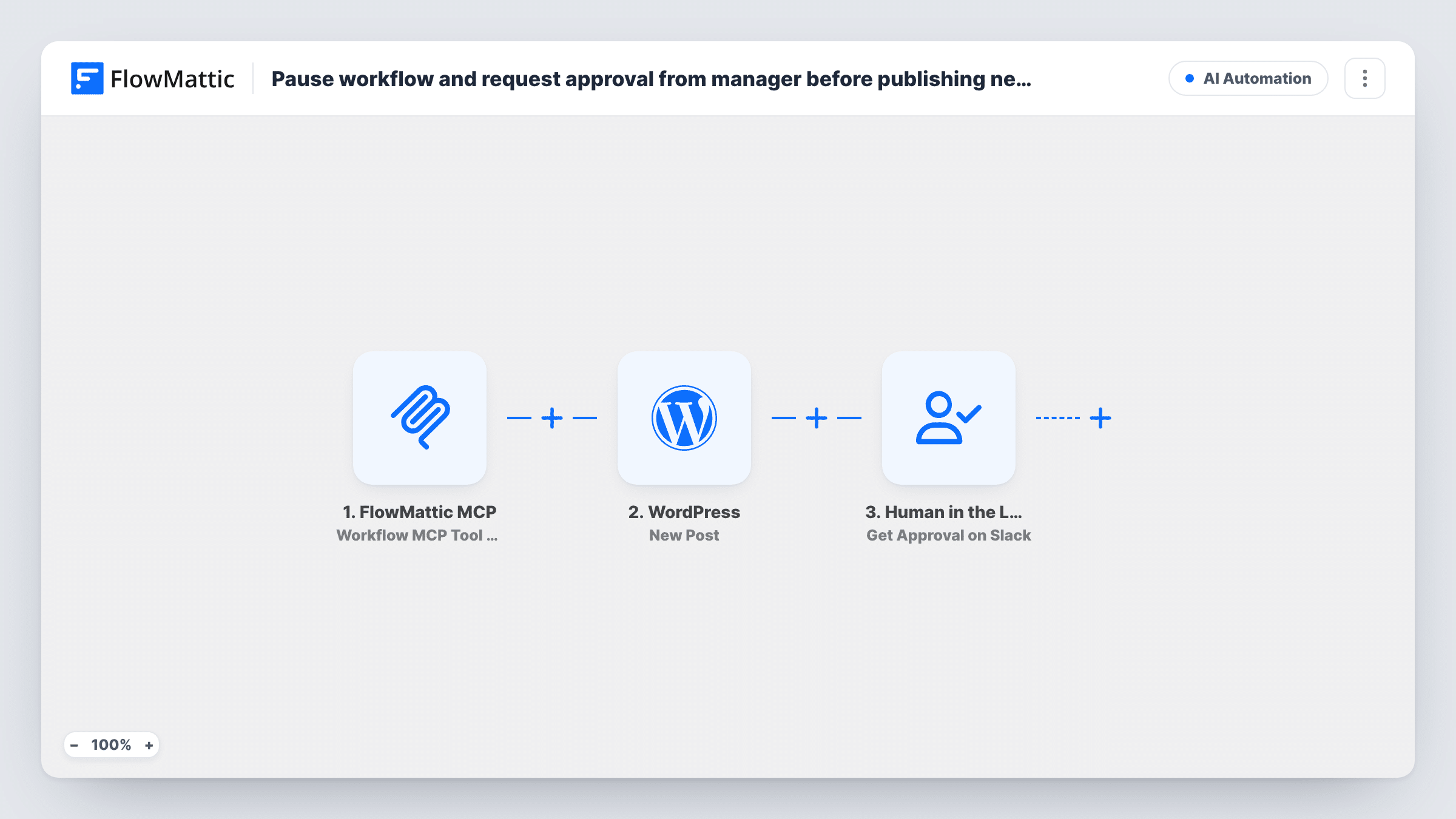
When Claude calls this workflow’s MCP tool, FlowMattic asks a manager to approve in Slack, creates the WordPress post once they approve, and sends a tool response back to Claude.
 FlowMattic MCP
 Human in the Loop
 WordPress
4 steps Setup ~8 min Used on 3.3k sites Free to import
What this workflow does
Letting an AI assistant write blog posts is handy, but most teams want a person to say yes before anything new lands on the site. This workflow gives Claude a single MCP tool for creating posts and puts a manager's approval in Slack between the request and WordPress.
The FlowMattic MCP trigger fires when this workflow's own MCP tool is executed, for example when Claude, connected to your FlowMattic MCP server, decides to use it. Whatever Claude sends with the call, such as a title and content, is available to the next steps.
The Human in the Loop step then sends an approval request to Slack with interactive buttons and waits. If the manager rejects it, the run ends there and no post is created. If nobody answers before the timeout, the default timeout action is Skip and Continue to Next Step, which would create the post without approval, so set it to End Workflow.
After approval, the WordPress New Post step creates the post, and the MCP Tool Response step returns a result to Claude. All four steps ship unmapped: after import, choose the Slack approver and message, map Claude's title and content into the post, check whether the post should go live or stay a draft, and decide what the response tells Claude.
Editor signs off on AI drafts
A content marketer asks Claude to write a post about a product update, and the editor approves it in Slack before it appears in WordPress.
Agency publishing on a client site
An agency lets Claude prepare posts for a client's blog, with the client's manager clicking approve in a shared Slack channel first.
Guardrail for a team assistant
A team gives everyone access to a Claude assistant that can create posts, while one lead keeps the final say through Slack approvals.
How this workflow runs
What happens at each step once the workflow is on, and what you need before you import it.
 FlowMattic MCP Workflow MCP Tool Triggered
Starts when the MCP tool tied to this workflow is executed, such as by Claude through your FlowMattic MCP server. The values Claude passes with the call become available for mapping.
- Human in the Loop Get Approval on Slack
Sends an approval request to Slack with interactive buttons and waits for an answer. A rejection ends the run. Set the timeout action to End Workflow so an unanswered request doesn't let the post through.
- WordPress New Post
Creates a WordPress post after approval. The step ships unmapped: map the title and content Claude sent, and check whether you want it published straight away or saved as a draft.
- FlowMattic MCP MCP Tool Response
Sends a response back to the MCP tool call so Claude learns the outcome. Map what it should say after import, for example values the WordPress step returned in your test run.
What you need
- FlowMatticCore
After importing, map your own data. To keep the template universal, not every step is pre-filled. Open each step in the builder and connect your accounts and fields (channels, lists, sheets, recipients) before you switch the workflow on.
Make it yours
Changes worth making after you import it.
- Change the Human in the Loop timeout action to End Workflow, so a request nobody answers doesn't create a post on its own.
- Include the proposed title and the first lines of the content in the Slack approval message, so the manager can judge the post without opening anything else.
- Describe the MCP tool clearly in FlowMattic, for example what inputs it expects, so Claude knows when to use it and which values to send.
Questions about this workflow
What happens when the manager rejects the post in Slack?
The rejection ends the run. The WordPress step doesn't run, so no post is created.
Does the WordPress post go live as soon as it's approved?
That depends on how you set up the New Post step after import. You can keep it as a draft if someone should give it a final edit in WordPress.
Does Claude wait while the manager decides in Slack?
The tool response is only sent after approval and post creation. If approvals take a while, test how your MCP client behaves during a long wait before relying on the reply.
Do I need a Slack account for the Human in the Loop approval?
Yes, this template uses Get Approval on Slack. To approve by email instead, replace it with Human in the Loop's Get Approval on Email action.
More AI Automation workflows
Other ready-to-import templates from the same category.







Import this workflow into your WordPress site
Download the JSON, import it from the Workflows screen and connect your accounts. Every run stays on your server, with no per-task fees.
30-day money-back guarantee Unlimited workflows and runs Self-hosted