

Post a Discord message for each new Uploadcare file upload
Each time a file lands in your Uploadcare project, this workflow posts a message about it to a Discord channel, so your team or community hears about new uploads without opening the Uploadcare dashboard.
 Uploadcare
 Discord
2 steps Setup ~5 min Used on 3.4k sites Free to import
What this workflow does
Files uploaded to Uploadcare sit in your project until someone goes looking for them. When a team reviews submitted artwork, client documents or user photos, that means checking the dashboard over and over. This workflow tells a Discord channel about each upload instead, so the people who act on new files find out where they already talk.
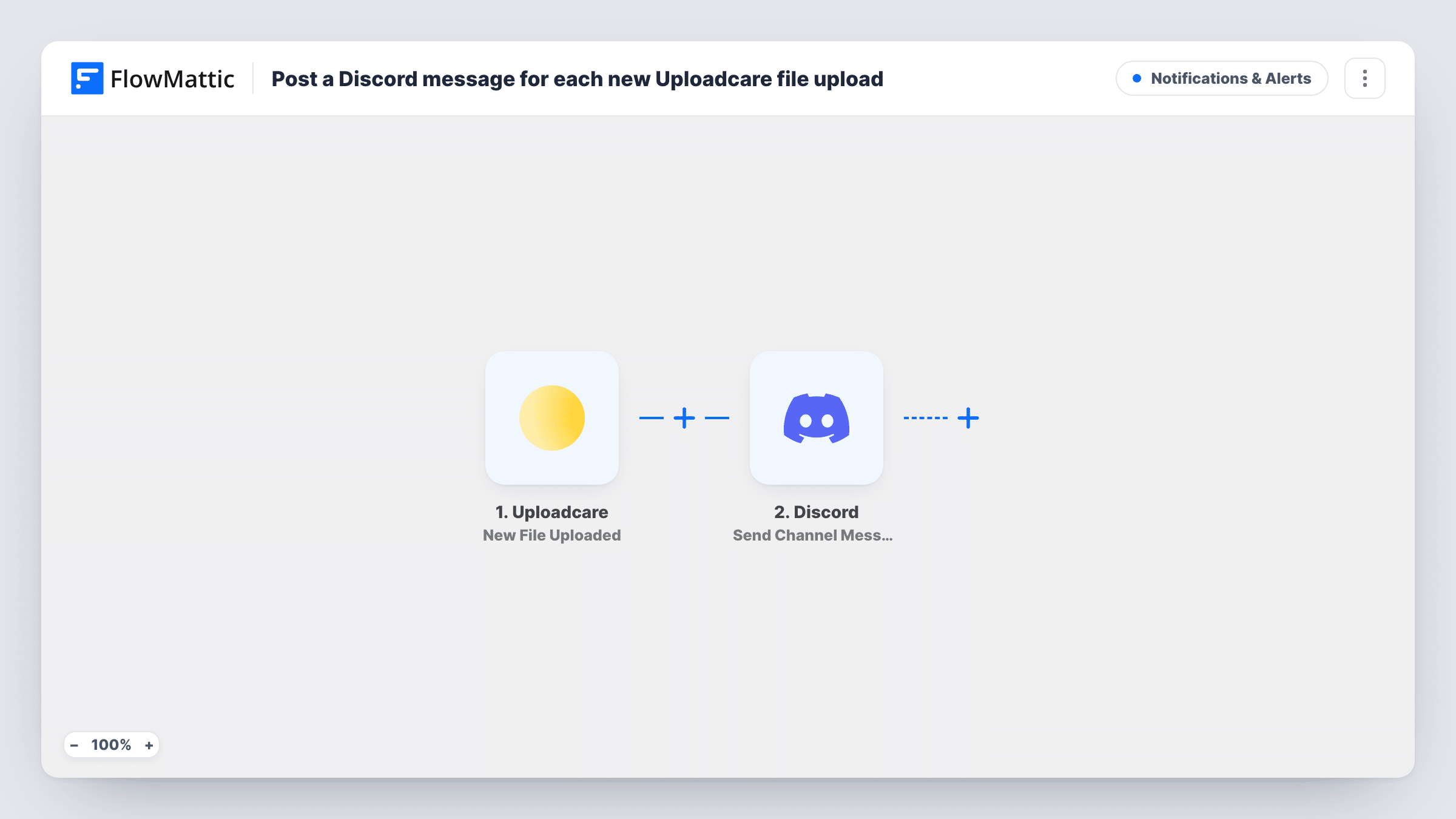
The Uploadcare trigger fires on New File Uploaded and hands the details of that upload to FlowMattic. The second step uses Discord Send Channel Message to post into a channel on your server. You decide what the message says and which upload details you map into it, so it can be a short notice or a fuller summary.
There is no Filter in this template, so every upload produces one Discord message. Run a test upload after import to see which details Uploadcare passes along, then build the message from them. Task History keeps a record of each run if a message ever fails to appear.
Design review channel
Clients upload logo drafts and mockups through an Uploadcare widget, and your design channel on Discord gets a message for each file so someone can pick it up for review.
Community submissions
Members send in screenshots or entries for a contest. Each upload posts to a moderators channel, giving the team one running list of everything that came in.
Support attachments
Customers attach files to support requests through Uploadcare. A message in your support channel tells the team a new attachment is waiting.
How this workflow runs
What happens at each step once the workflow is on, and what you need before you import it.
 Uploadcare New File Uploaded
Starts the workflow when a new file is uploaded to your connected Uploadcare project. The upload's details become data you can use in the Discord step.
- Discord Send Channel Message
Posts a message to a Discord channel on your server. Write the message text and map in details from the upload, then run a test to confirm it lands in the right channel.
What you need
- FlowMatticCore
- Uploadcare AccountAccount
- Discord AccountAccount
After importing, map your own data. To keep the template universal, not every step is pre-filled. Open each step in the builder and connect your accounts and fields (channels, lists, sheets, recipients) before you switch the workflow on.
Make it yours
Changes worth making after you import it.
- Add a Filter after the trigger if only some uploads matter, for example files whose name or type matches a value you choose, so the channel isn't flooded.
- If uploads arrive in bursts, consider sending these notices to a dedicated channel so they don't bury conversation in your main one.
- Upload a sample file right after import. FlowMattic captures what Uploadcare sends, and you can then pick those values when writing the Discord message.
Questions about this workflow
Does every Uploadcare upload post to Discord?
Yes, as imported. Each new file runs the workflow once and posts one message. Add a Filter after the trigger if you only want some uploads announced.
Is the file itself sent to Discord?
The step sends a channel message, not an attachment. You choose which upload details go into the text. Use a test run to see what Uploadcare provides before you decide.
Do I need admin rights on the Discord server?
You need to connect Discord to FlowMattic with access to the server and channel you want to post in. If the message does not appear, check that connection and the channel's permissions.
Will files uploaded before I turn it on be announced?
No. The trigger reacts to new uploads, so only files added to Uploadcare after the workflow is active produce a Discord message.
More Notifications & Alerts workflows
Other ready-to-import templates from the same category.




Import this workflow into your WordPress site
Download the JSON, import it from the Workflows screen and connect your accounts. Every run stays on your server, with no per-task fees.
30-day money-back guarantee Unlimited workflows and runs Self-hosted