

Post a Slack alert when a new HappyFox ticket is created
Whenever a ticket is created in HappyFox, FlowMattic posts a message about it to a Slack channel, using the ticket details you pick, so your support team notices new requests without keeping the queue open.
 HappyFox
 Slack
2 steps Setup ~5 min Used on 3.2k sites Free to import
What this workflow does
Support agents spend most of the day in Slack, not staring at the HappyFox queue. New tickets can sit unseen until someone thinks to refresh it. This workflow puts each new ticket in front of the team in the channel they already watch.
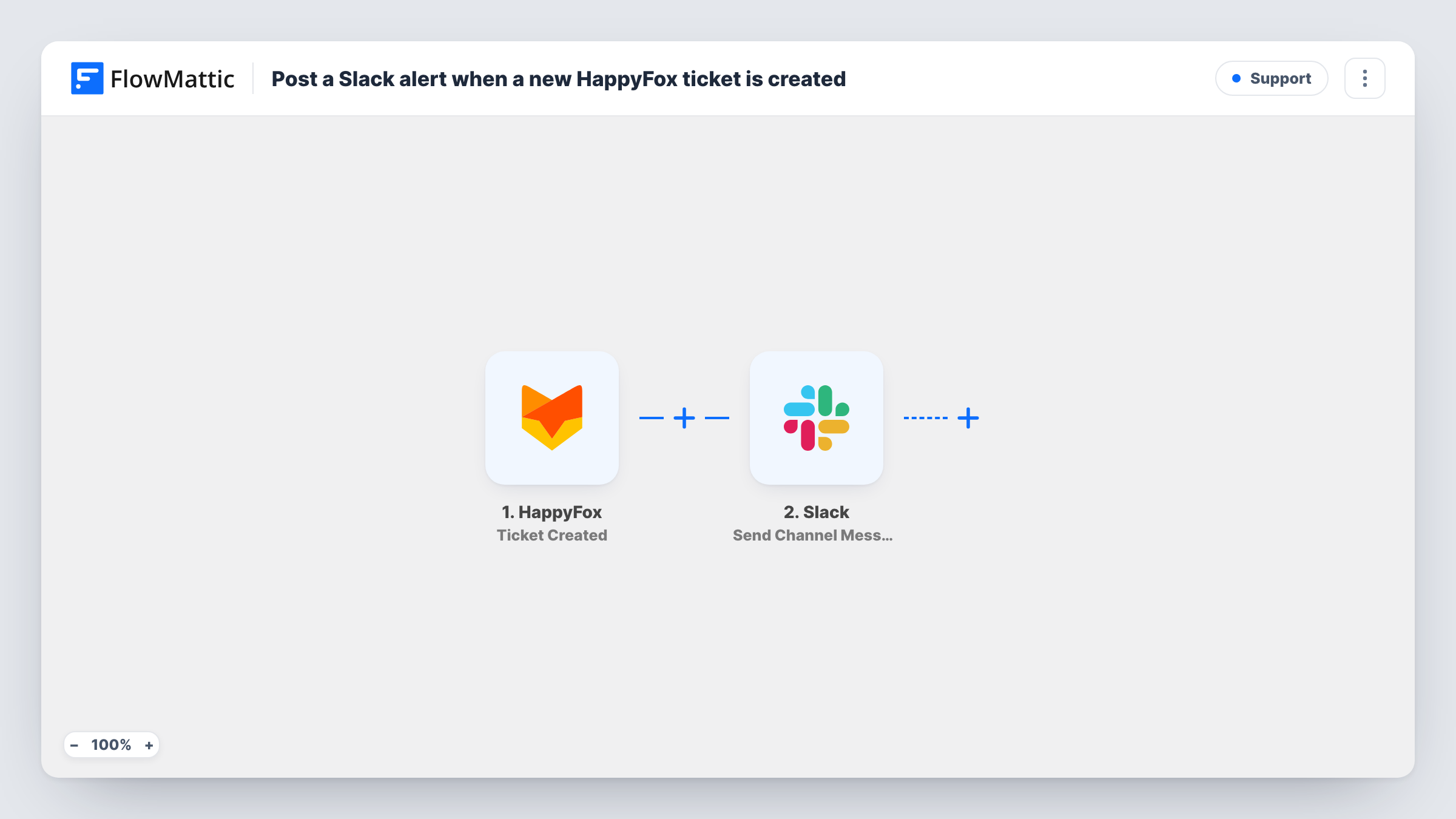
The HappyFox trigger fires on Ticket Created and passes the ticket's details to FlowMattic. The next step uses Send Channel Message in Slack to post into your support channel.
The template does not include message text. After import, create a test ticket so FlowMattic sees the fields HappyFox sends, then write the alert with the ones your agents need, such as the subject, the customer and a ticket number. The ticket itself stays in HappyFox; Slack only gets the details you place in the message. Each new ticket gives one post, and Task History shows every run.
Small team without a dedicated queue watcher
Everyone on the team sees a Slack post for each new HappyFox ticket and whoever is free replies in the thread to take it.
After-hours cover
The on-call person keeps Slack notifications on their phone, so a ticket that arrives late in the day shows up there.
Account managers following their clients
Posting the customer name in the alert lets account managers spot when one of their clients opens a ticket and check in.
How this workflow runs
What happens at each step once the workflow is on, and what you need before you import it.
 HappyFox Ticket Created
Runs when a new ticket is created in HappyFox. The ticket's details become available to write into the Slack alert.
- Slack Send Channel Message
Sends an alert to a channel in your Slack workspace. The message is blank in the template, so after a test ticket compose it from the HappyFox fields your agents want to see.
What you need
- FlowMatticCore
- HappyFox AccountAccount
- Slack AccountAccount
After importing, map your own data. To keep the template universal, not every step is pre-filled. Open each step in the builder and connect your accounts and fields (channels, lists, sheets, recipients) before you switch the workflow on.
Make it yours
Changes worth making after you import it.
- Include a ticket number or link field from the trigger in the Slack message, if HappyFox sends one, so agents can jump straight to the ticket.
- Add a Filter after the trigger to alert only on certain tickets, for example when the priority or category field equals a value you pick after a test run.
- Use a Router to post tickets from different categories to different Slack channels, with one distinct category value as each route's condition.
Questions about this workflow
What ticket details appear in the Slack alert?
Only the HappyFox fields you put in the message after import. The template leaves the text blank so you can decide.
Are HappyFox ticket replies or updates posted to Slack too?
No. The trigger is Ticket Created, so the workflow runs once per new ticket. Later replies and status changes are not posted.
Can agents answer the HappyFox ticket from Slack?
No. The workflow only sends an alert one way. Agents open the ticket in HappyFox to reply.
Will every new HappyFox ticket post to Slack?
Yes, as imported, since nothing sits between the trigger and the Slack step. Add a Filter to limit which tickets post.
More Support workflows
Other ready-to-import templates from the same category.








Import this workflow into your WordPress site
Download the JSON, import it from the Workflows screen and connect your accounts. Every run stays on your server, with no per-task fees.
30-day money-back guarantee Unlimited workflows and runs Self-hosted