

Post Discord channel messages with new caught webhooks
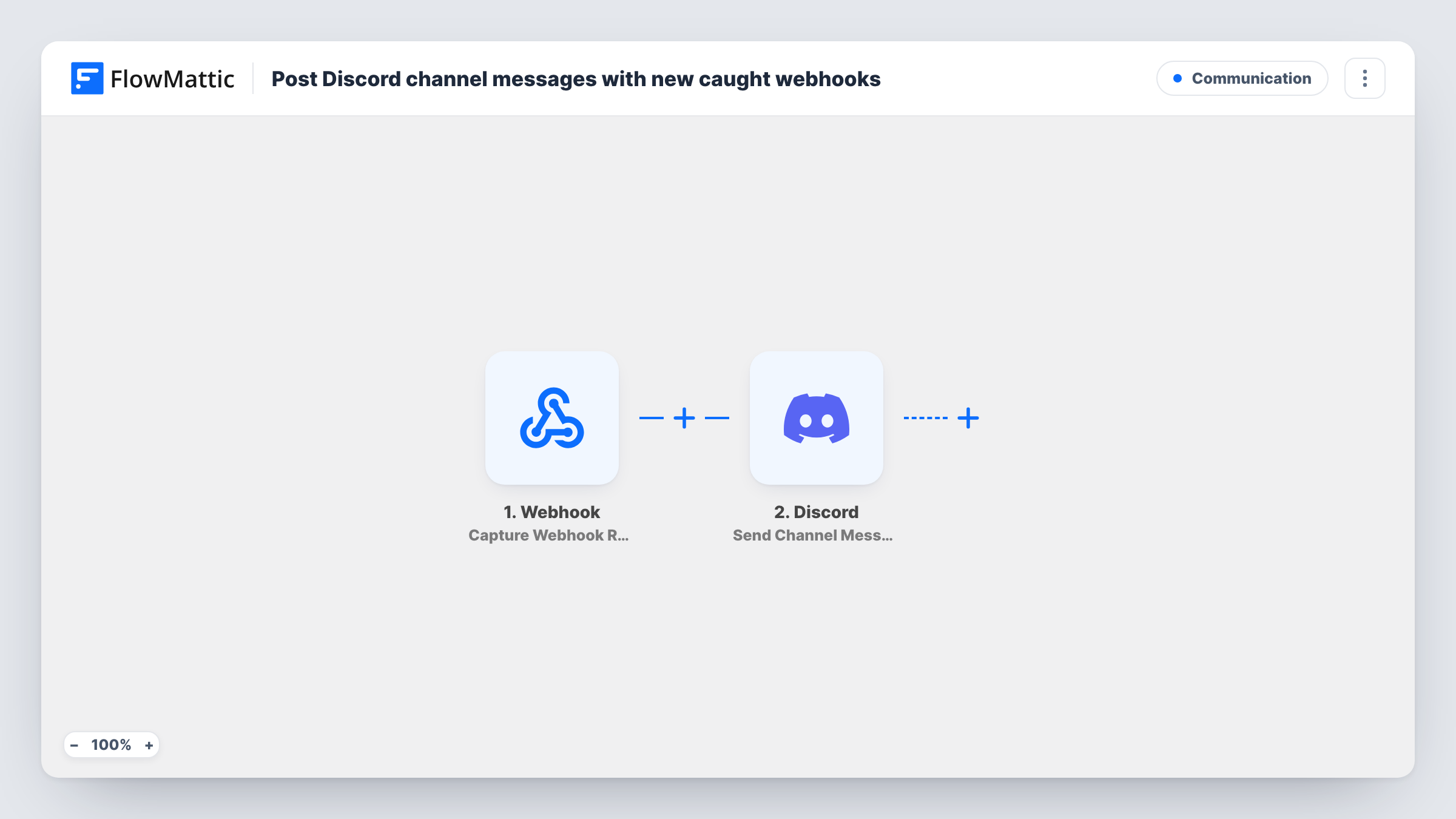
Give FlowMattic a webhook URL, point any app or script at it, and every request it catches is posted as a message in the Discord channel you choose, so your team sees those events where it already talks.
 Webhook
 Discord
2 steps Setup ~5 min Used on 1.7k sites Free to import
What this workflow does
Plenty of tools can send a webhook when something happens: a deploy finishes, a form posts, a monitoring check fails. Few of them post to Discord on their own. This workflow gives you one webhook address that any of them can call, and turns each call into a Discord message.
The Webhook trigger gives you a unique URL when you set up the workflow. Any app, service or script that sends data to that URL starts a run, and FlowMattic captures what was sent. The Discord step then posts a new message to the channel you pick, built from the webhook data you map into it.
Every request the URL receives becomes one message. FlowMattic does not check where the data came from, so keep the URL private and share it only with the services you set up. Task History lists each run with the data received, which helps when a message looks wrong.
Deploy notices for a dev team
Your hosting or CI tool calls the webhook when a deploy finishes. The Discord message names the project and branch, so the team knows the update is live.
Orders from a store without a Discord app
An online shop that can send webhooks but has no Discord connection posts each new order to a staff channel through this workflow.
Alerts from your own scripts
A cron script on your server sends a webhook when a backup finishes or a disk fills up, and the message appears in your ops channel.
How this workflow runs
What happens at each step once the workflow is on, and what you need before you import it.
 Webhook Capture Webhook Response
Gives you a webhook URL and runs each time data is sent to it. FlowMattic captures the request so its values can be mapped into the Discord message.
- Discord Send Channel Message
Posts a new message to the Discord channel you choose. Connect your Discord account, pick the channel, and write the message using values from the captured webhook data.
What you need
- FlowMatticCore
- Discord AccountAccount
After importing, map your own data. To keep the template universal, not every step is pre-filled. Open each step in the builder and connect your accounts and fields (channels, lists, sheets, recipients) before you switch the workflow on.
Make it yours
Changes worth making after you import it.
- Send one sample request to the webhook URL right after import, so FlowMattic captures the data structure and you can map real values into the Discord message.
- Add a Filter after the webhook trigger when a sender posts many kinds of events, so only the ones your team needs reach the channel.
- Need several channels? Use a Router after the trigger with a condition on a value in the payload, and give each route its own Discord step for a different channel.
Questions about this workflow
Which apps can send data to this Discord workflow?
Any app, service or script that can send an HTTP request to a URL. You paste the FlowMattic webhook URL into the sender's webhook settings, or call it from your own code.
Can I choose the wording of the Discord post?
You decide. Write the message text in the Discord step and insert values from the captured webhook data, such as a name, status or link from the payload.
Can someone else post to my channel through the webhook URL?
With authentication off, yes: any request to the URL becomes a Discord message. Enable the Webhook trigger's Require authentication on incoming requests option and have your senders include the authentication key, so stray requests are turned away.
Does FlowMattic need access to my Discord server?
Yes. You connect a Discord account when you import, and the channel you pick must be one that connection can post to.
More Communication workflows
Other ready-to-import templates from the same category.



Import this workflow into your WordPress site
Download the JSON, import it from the Workflows screen and connect your accounts. Every run stays on your server, with no per-task fees.
30-day money-back guarantee Unlimited workflows and runs Self-hosted