

When Member Uncancelled From Level in Wishlist Member, Send Template Message in WhatsApp Cloud API
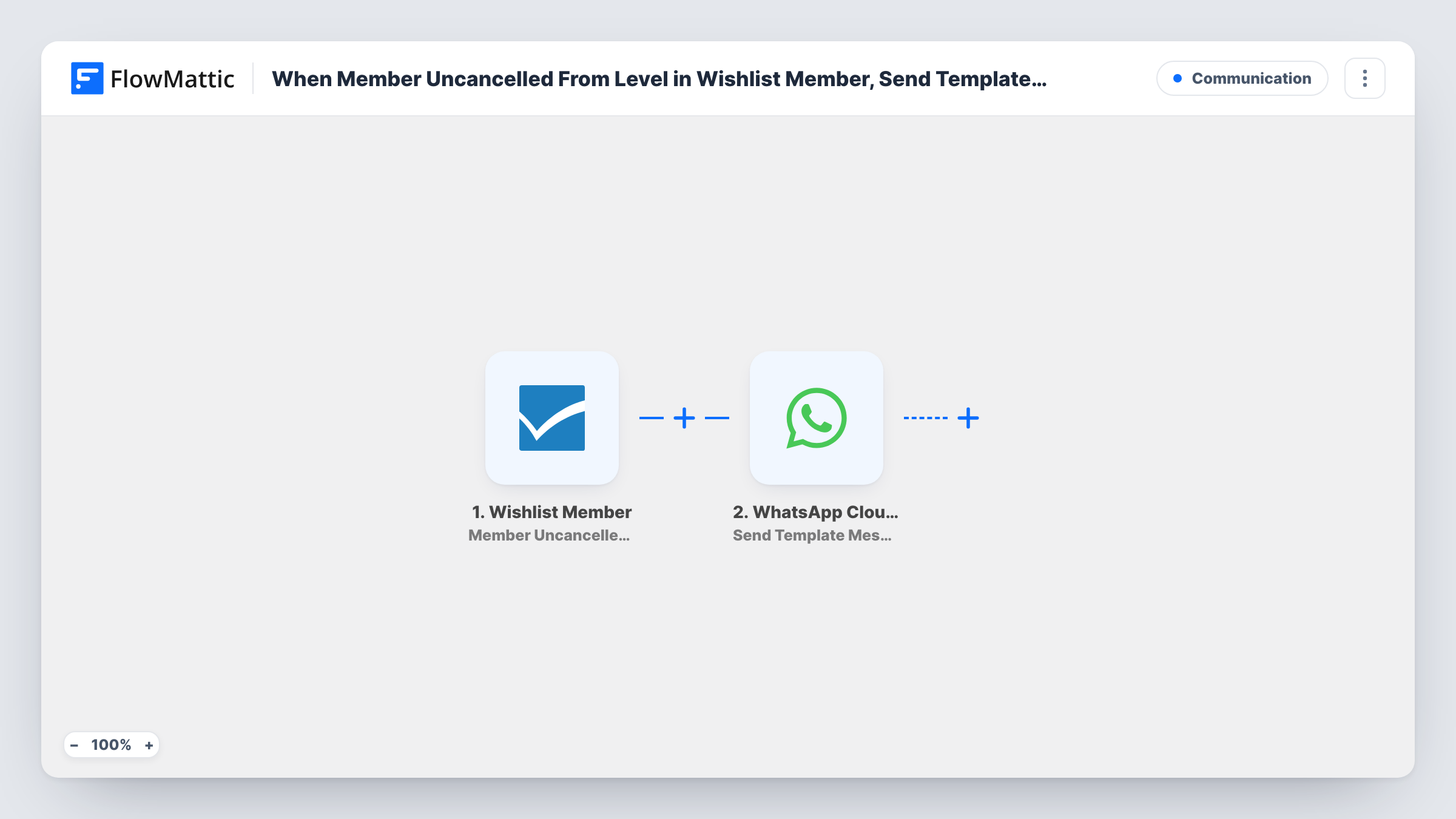
When a Wishlist Member membership is uncancelled on a level, this workflow sends the member an approved WhatsApp template message through the WhatsApp Cloud API.
 Wishlist Member
 WhatsApp Cloud API
2 steps Setup ~5 min Used on 2.6k sites Free to import
What this workflow does
A member whose cancelled level is restored has a reason to hear from you: access is back, and they may not know it yet. Writing to each one yourself is easy to miss, and email may not be where they look first. This workflow sends a WhatsApp message each time a level is uncancelled.
The Wishlist Member trigger fires when a member is uncancelled on one or more levels on your WordPress site. FlowMattic passes the member and level data to the WhatsApp Cloud API Send Template Message action, which sends one of your approved message templates from your WhatsApp business number.
Template messages are the type WhatsApp allows you to send first, so the member doesn't need to have messaged you before. The message needs a phone number to go to, so run a test and check that the member data carries one in a usable format before you switch the workflow on. Task History shows what WhatsApp returned for each run.
Access restored after a payment issue
You uncancel a member once their payment problem is sorted. They get a WhatsApp template telling them their level is active again.
Members who change their mind
A member cancels, then asks support to undo it. Uncancelling the level sends a confirmation on WhatsApp, so they know the request went through.
Restoring access for a group
You restore several members on a course level after fixing a setup mistake. Each uncancel sends that member the same template, with no manual messaging.
How this workflow runs
What happens at each step once the workflow is on, and what you need before you import it.
 Wishlist Member Member Uncancelled From Level
Fires when a Wishlist Member member is uncancelled on one or more membership levels. The member and level data is passed to the WhatsApp step for mapping.
- WhatsApp Cloud API Send Template Message
Delivers an approved template from your business number to the restored member via the WhatsApp Cloud API. Map the member's phone number and any template values, then check the result with a test run.
What you need
- FlowMatticCore
- Wishlist Member PluginPlugin
- WhatsApp Cloud API AccountAccount
After importing, map your own data. To keep the template universal, not every step is pre-filled. Open each step in the builder and connect your accounts and fields (channels, lists, sheets, recipients) before you switch the workflow on.
Make it yours
Changes worth making after you import it.
- Add a Filter after the trigger if only some levels should send a message, using the level value you see in a test run.
- If the trigger data has no phone number, add Wishlist Member Get Member Information before the WhatsApp step and check whether your member records hold one you can map.
- Build a second workflow on Wishlist Member's Member Cancelled From Level trigger to send a different template when a member's access ends.
Questions about this workflow
Why does this use a WhatsApp template message instead of a plain text message?
Plain text on WhatsApp reaches a person only inside the 24-hour window after they last wrote to your business number. An approved template can be sent first, which suits members who may never have messaged you.
Do I need an approved template before I import this?
Yes. Create the template in your WhatsApp Business account and wait for approval, then set the Send Template Message step to use it.
What if the Wishlist Member record has no phone number?
The WhatsApp step has no number to send to and returns an error for that run, which you can see in Task History. Members without a stored phone number won't get the message.
Does uncancelling several levels at once send several WhatsApp messages?
The trigger covers one or more levels per event. Do a test with more than one level to see whether your setup gives one run or several.
More Communication workflows
Other ready-to-import templates from the same category.





Import this workflow into your WordPress site
Download the JSON, import it from the Workflows screen and connect your accounts. Every run stays on your server, with no per-task fees.
30-day money-back guarantee Unlimited workflows and runs Self-hosted