

Send a Gmail notification when a Whereby transcription finishes
When Whereby finishes processing a meeting transcription, FlowMattic sends an email from your Gmail account to tell the people you choose that it’s ready.
 Whereby
 Gmail
2 steps Setup ~5 min Used on 1.1k sites Free to import
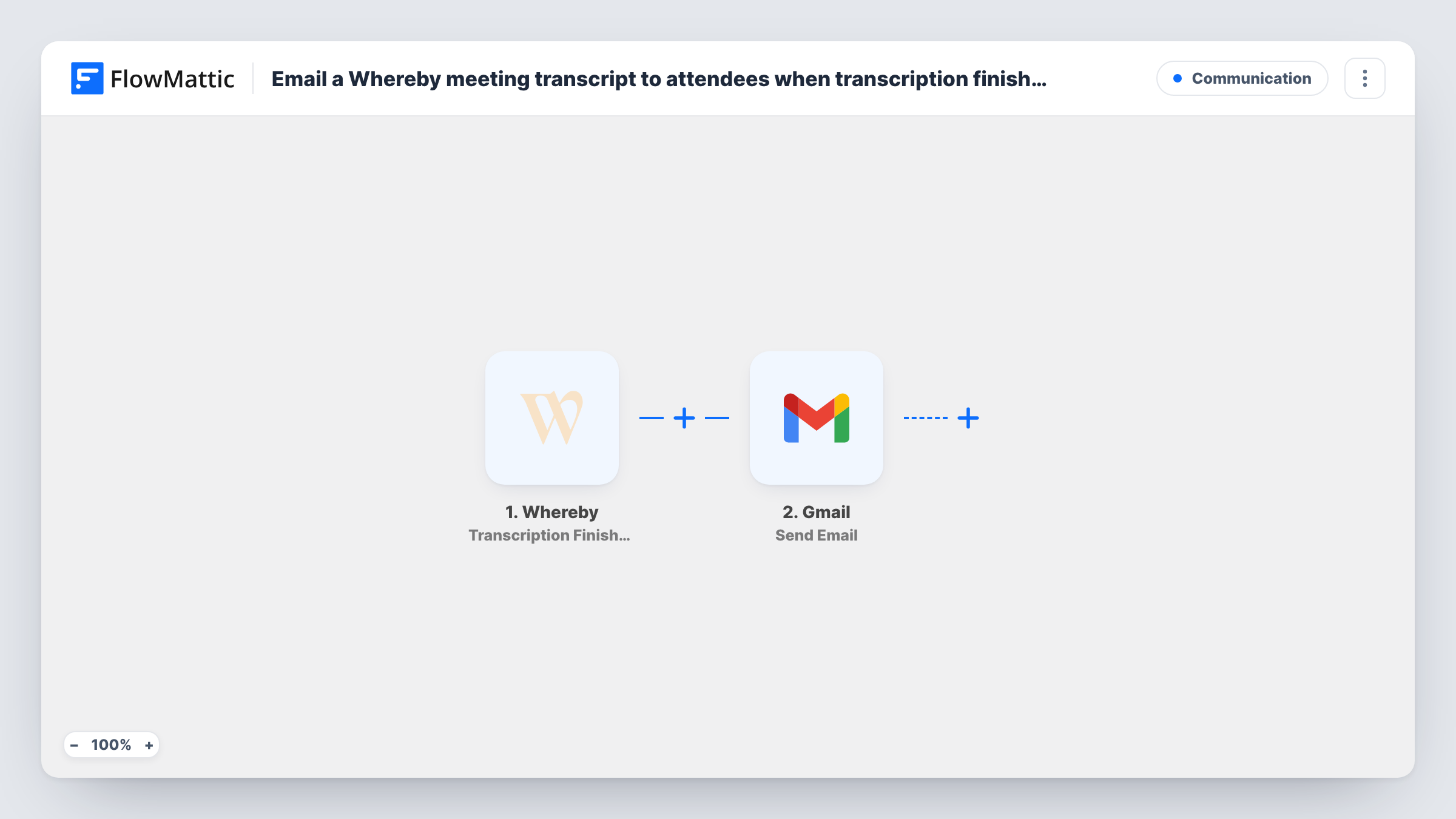
What this workflow does
Transcriptions take a while to process after a Whereby meeting ends, and nobody wants to keep checking whether one is done. This workflow sends a Gmail message the moment Whereby reports a finished transcription, so the host or the team can go and read it.
The Whereby Transcription Finished trigger fires when a transcription has finished processing. Whereby's details about it are passed to the next step. Run a test meeting with transcription on to see what arrives, such as the room or a reference to the transcript.
The Gmail Send Email step then sends the notification. It ships unmapped, so after import you connect your Gmail account, enter the recipient, and write the subject and body, mapping in the Whereby details. The recipient can be a fixed address, such as the host or a team inbox. If you want attendees to get it, check whether Whereby's data includes their addresses before you rely on that.
Think of the message as a heads-up. The workflow doesn't fetch the transcript text or attach a file, so the message should say where to find it. Each run, and what Gmail answered, appears in Task History.
Host reminder to review the transcript
A coach who transcribes Whereby sessions gets a Gmail note when each transcription is ready, so they can pull out action points for the client.
Team inbox for meeting records
An operations team sends every transcription-ready notice to a shared inbox, where someone files the transcript with the project notes.
Researchers waiting on interview transcripts
A research group is emailed as soon as an interview transcription finishes, so analysis can start without someone checking Whereby.
How this workflow runs
What happens at each step once the workflow is on, and what you need before you import it.
 Whereby Transcription Finished
Fires when a Whereby transcription has finished processing. The transcription's details from Whereby are handed to the Gmail step for the email.
- Gmail Send Email
Emails the people you name from your connected Gmail. The step ships unmapped: set the recipient, subject and body after import, and map in the Whereby details you want to show.
What you need
- FlowMatticCore
- Whereby AccountAccount
- Gmail AccountAccount
After importing, map your own data. To keep the template universal, not every step is pre-filled. Open each step in the builder and connect your accounts and fields (channels, lists, sheets, recipients) before you switch the workflow on.
Make it yours
Changes worth making after you import it.
- Put the room name in the subject line, so recipients can tell several transcription emails apart.
- Set up a second workflow on Whereby's Transcription Failed trigger, also sending a Gmail message, so the host hears about it when a transcription doesn't process.
- Send to a shared address rather than one person if several people handle meeting follow-ups.
- Put a Filter between the Whereby trigger and the Gmail step on the room name, if only certain rooms' transcriptions should send an email. The room is an example to change.
Questions about this workflow
Does the Gmail email include the Whereby transcript?
Not as imported. The trigger reports that a transcription has finished, and the email tells people about it. Check a test run to see what Whereby sends; the template doesn't fetch the transcript text or attach it.
Who receives the transcription email?
The address you set in the Send Email step. It can be a fixed address, or a value from Whereby's data if a test run shows one you can use.
What if a Whereby transcription fails?
This trigger only fires for finished transcriptions. FlowMattic's Whereby integration has a separate Transcription Failed trigger you can use in another workflow.
Do I need a Gmail account, or will any email work?
This step sends through the Gmail account you connect. To send from another provider, swap it for FlowMattic's Email step with your SMTP details.
More Communication workflows
Other ready-to-import templates from the same category.





Import this workflow into your WordPress site
Download the JSON, import it from the Workflows screen and connect your accounts. Every run stays on your server, with no per-task fees.
30-day money-back guarantee Unlimited workflows and runs Self-hosted