

Predict age in Agify for new contacts in FluentCRM to apply age-based tags for automation
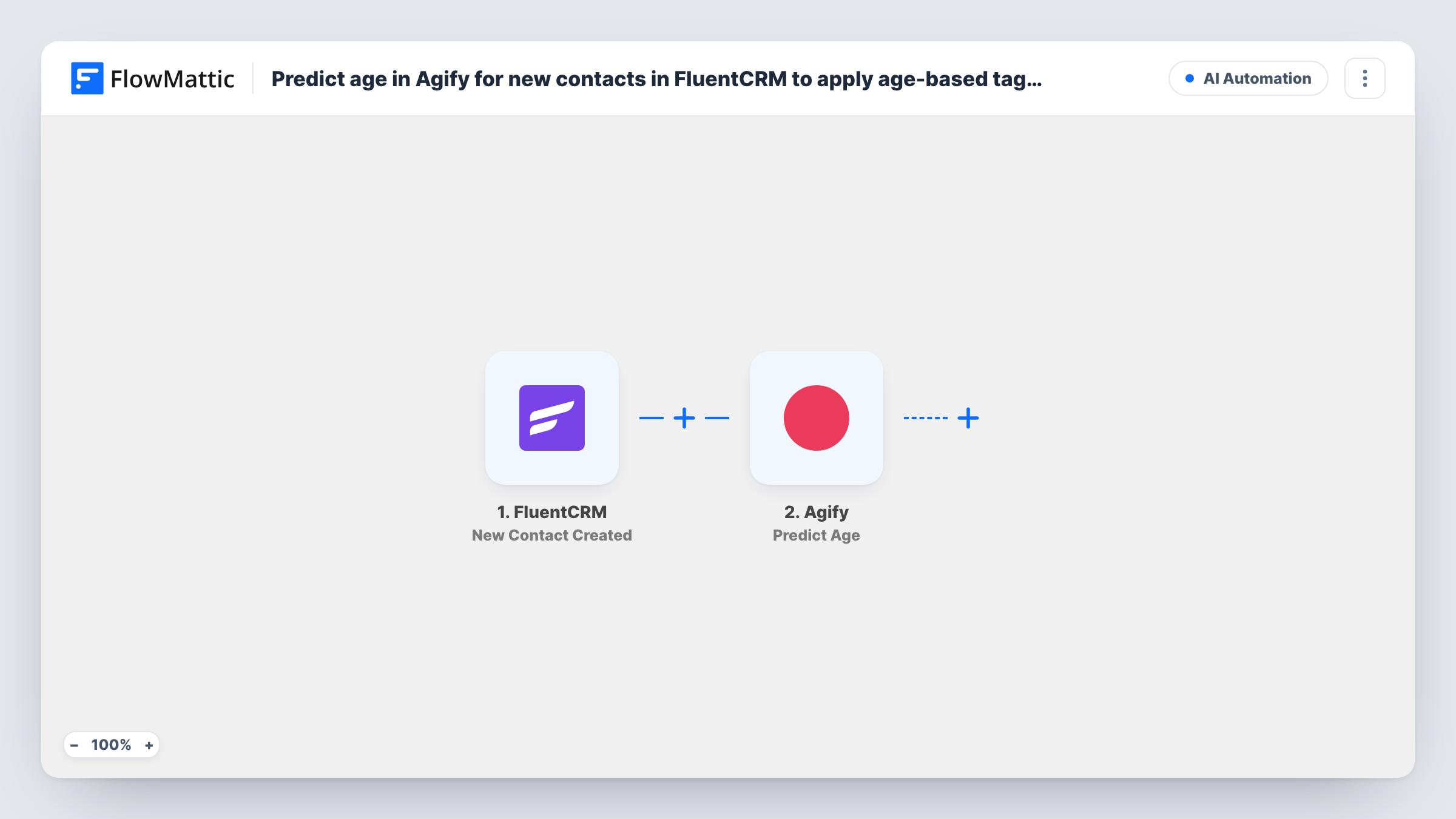
When a contact is created in FluentCRM, Agify predicts an age from their first name and a Router adds the FluentCRM tag for one of three age bands: under 30, 30 to 49, or 50 and over.
 FluentCRM
 Agify
Agify
 Router
6 steps Setup ~12 min Used on 2.9k sites Free to import
What this workflow does
Age bands can help you choose which email sequence, product line or tone fits a new contact, but few sign-up forms ask for a birth date. This workflow adds an estimate instead. Agify predicts an age from a first name, and FluentCRM tags the contact with the matching band so your automations and segments can use it.
The FluentCRM trigger starts a run when a new contact is created. The Agify step sends the contact's first name and returns a predicted age. Treat it as a guess based on the name, not a fact about the person.
A Router then checks that age on three routes: under 30, 30 to 49, and 50 and over. The bands don't overlap, so each contact follows one route. Each route ends in an Add Tags to Contact step that finds the contact by email. No tags are chosen in the template; after import you pick a tag for each route.
Router number checks treat a blank value as 0. If Agify returns no age, for instance because the contact has no first name, the contact goes down the under 30 route. The tips show how to stop that.
Age-matched welcome sequences
A wellness brand starts a different FluentCRM email sequence for each age tag, with product suggestions picked for that band.
Segmenting newsletter content
A financial blog sends retirement planning articles to the 50 and over tag and first-job budgeting tips to the under 30 tag.
Reviewing who your list attracts
A course creator counts contacts per age tag in FluentCRM to see which age groups the latest lead magnet is drawing in.
How this workflow runs
What happens at each step once the workflow is on, and what you need before you import it.
 FluentCRM New Contact Created
Runs each time FluentCRM gains a new contact. The contact's first name and email are passed on for the age prediction and the tagging steps.
- Agify Predict Age
Sends the contact's first name to Agify, which returns a predicted age. The name is already mapped from the FluentCRM trigger; connect your Agify account after import.
- Router 3 paths
Checks the predicted age on three routes: under 30, 30 to 49 (greater than 29 and less than 50), and 50 and over (greater than 49). The bands can't overlap, so each contact takes one route.
- FluentCRM Add Tags to Contact
On the under 30 route, adds tags to the contact, found by the email from the trigger. Pick the tag, such as Age under 30, after import. Contacts with no predicted age also land here.
- FluentCRM Add Tags to Contact
On the 30 to 49 route, adds the tag you choose to the same FluentCRM contact, matched by their email address. The template leaves the tag for you to select.
- FluentCRM Add Tags to Contact
On the 50 and over route, tags the contact in FluentCRM with the band you set after import. Like the other routes, it identifies the contact by the email from the trigger.
What you need
- FlowMatticCore
- FluentCRM PluginPlugin
- Agify AccountAccount
After importing, map your own data. To keep the template universal, not every step is pre-filled. Open each step in the builder and connect your accounts and fields (channels, lists, sheets, recipients) before you switch the workflow on.
Make it yours
Changes worth making after you import it.
- Put a Filter between the Agify step and the Router that continues only when the predicted age is not empty, so contacts Agify can't estimate get no age tag at all instead of the under 30 one.
- Create the three age tags in FluentCRM before importing, so you can pick them in each route's Add Tags to Contact step straight away.
- Use the tags as starting points for FluentCRM automations or segments, and keep a way for contacts to correct their age, since a name-based estimate can be wrong.
Questions about this workflow
How accurate is the Agify age for a FluentCRM contact?
It is a prediction from the first name alone, so it can be far off for any one person. Use the tags for broad segments, not for anything that needs a verified age.
Can one contact get two age tags from the Router?
No. The three conditions cover separate whole-number ranges, so a predicted age matches only one route. A blank age counts as 0 and matches the under 30 route.
Do I need to map anything before turning this on?
Yes. Connect Agify and FluentCRM, then choose the tag for each of the three Add Tags to Contact steps. The name and email mapping is already in place.
Does this tag contacts already in FluentCRM?
No. The trigger reacts to contacts added from now on. Existing contacts keep the tags they have.
More AI Automation workflows
Other ready-to-import templates from the same category.






Import this workflow into your WordPress site
Download the JSON, import it from the Workflows screen and connect your accounts. Every run stays on your server, with no per-task fees.
30-day money-back guarantee Unlimited workflows and runs Self-hosted