

Predict gender in batch in Genderize for new contacts in MailerLite
Each new MailerLite subscriber’s name is sent to Genderize’s batch prediction action for a gender estimate. As imported the result stays in the run, ready for a step you add to store or use it.
 MailerLite
 Genderize
2 steps Setup ~5 min Used on 3.0k sites Free to import
What this workflow does
Some senders want a rough split of their audience, or a starting point for testing different subject lines. Genderize estimates gender from a first or full name. This workflow asks it about every new MailerLite subscriber as they arrive.
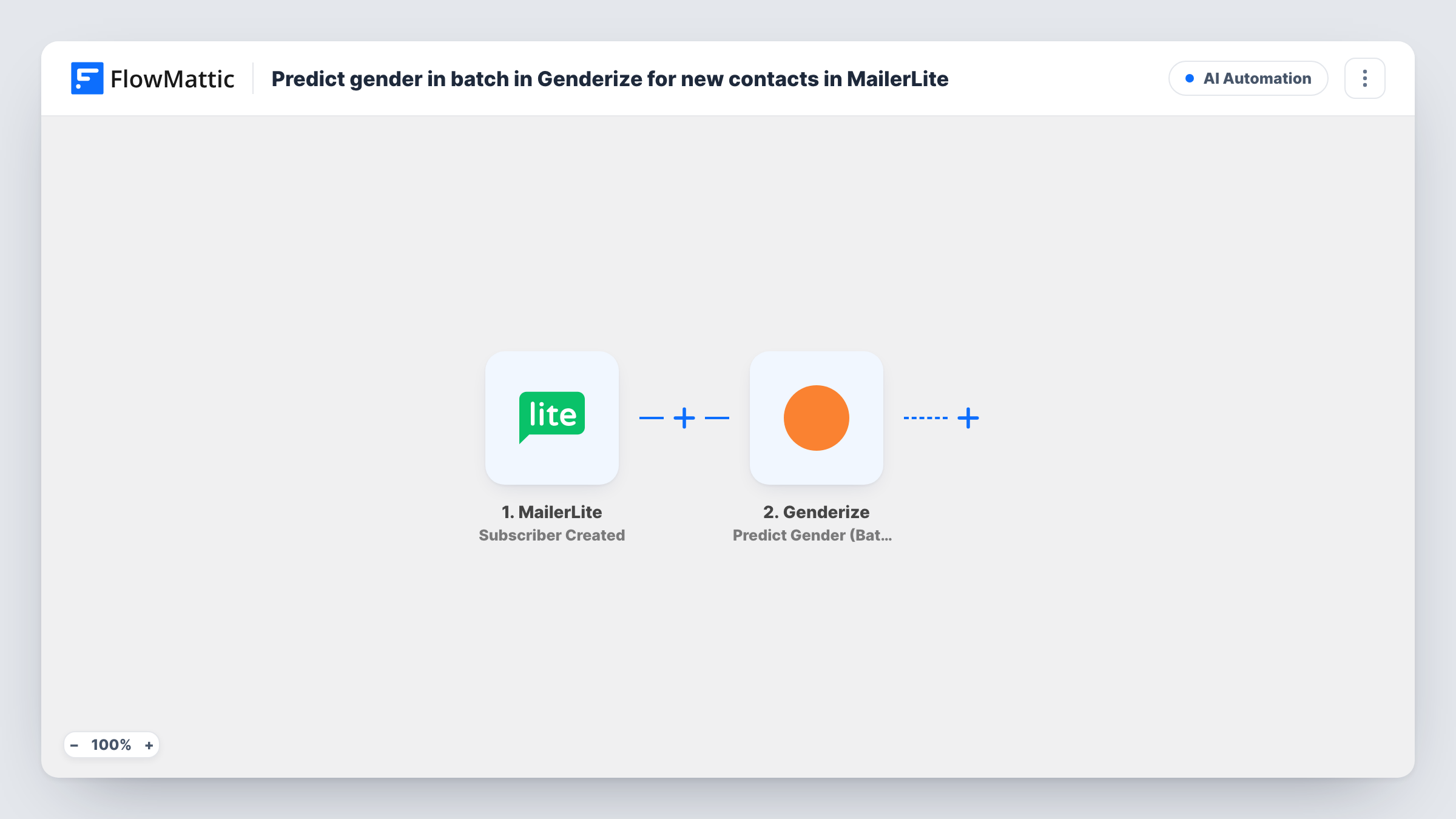
The MailerLite Subscriber Created trigger fires when a new subscriber is added to your account. FlowMattic passes the subscriber's details to Genderize, where the Predict Gender (Batch) action takes names and returns an estimate for each. Here each run carries one new subscriber, so you map that person's name into the step.
The template ends at the prediction. The estimate isn't written back to MailerLite or saved anywhere until you add a step, so as imported you'll only see it in Task History. Names are an imperfect signal, and a subscriber who signs up without a name gives Genderize nothing to work from.
Audience profile for a newsletter
Add a Google Sheets step to log each estimate, then look at the totals after a few weeks to see who your sign-up forms attract.
Trying Genderize before a bigger build
Run the template as imported and read the estimates in Task History to judge how well your subscribers' names work before adding more steps.
Store-wide segment experiments
A shop saves each estimate to a MailerLite custom field and uses it to test alternative product picks in campaigns, while still reaching everyone.
How this workflow runs
What happens at each step once the workflow is on, and what you need before you import it.
 MailerLite Subscriber Created
Starts a run for every person newly added to MailerLite. Their subscriber data, including any name they gave, becomes available to map. Add a test subscriber to check the fields.
- Genderize Predict Gender (Batch)
Sends names to Genderize and returns a gender estimate for each. Map the new subscriber's name into the step. As imported, no later step uses the result.
What you need
- FlowMatticCore
- MailerLite AccountAccount
- Genderize AccountAccount
After importing, map your own data. To keep the template universal, not every step is pre-filled. Open each step in the builder and connect your accounts and fields (channels, lists, sheets, recipients) before you switch the workflow on.
Make it yours
Changes worth making after you import it.
- Add MailerLite's Create or Update Subscriber action after Genderize and map the estimate into a custom field you create, so it sits on the subscriber's record.
- Add a Filter after the trigger that continues only when the subscriber's name is not empty. Sign-ups with just an email address then skip the Genderize call.
- Since each run handles one subscriber, you can swap in Genderize's single Predict Gender action if you find it easier to map.
Questions about this workflow
Why does a MailerLite workflow use the batch Genderize action?
The template ships with Predict Gender (Batch), which accepts several names. Each run still handles only the one subscriber who triggered it. You can swap in the single Predict Gender action if you prefer.
Is the Genderize result saved to MailerLite?
Not as imported. The workflow stops after Genderize. Add MailerLite's Create or Update Subscriber step, or a Google Sheets step, to keep the estimate.
What if a new MailerLite subscriber has no name?
Genderize works from a first or full name. With no name mapped, it has nothing to predict from, so check how such runs look in Task History or add a Filter to skip them.
Are existing MailerLite subscribers included?
No. Genderize only sees people who join MailerLite once the workflow is active. Earlier sign-ups are left alone.
More AI Automation workflows
Other ready-to-import templates from the same category.





Import this workflow into your WordPress site
Download the JSON, import it from the Workflows screen and connect your accounts. Every run stays on your server, with no per-task fees.
30-day money-back guarantee Unlimited workflows and runs Self-hosted