

Retrieve the MeetGeek summary when a meeting has been analyzed and email it
When MeetGeek finishes analyzing a meeting, FlowMattic fetches the AI-generated summary and sends it by email, so you or your team get the recap in an inbox without opening MeetGeek.
 MeetGeek
 Email
3 steps Setup ~5 min Used on 3.4k sites Free to import
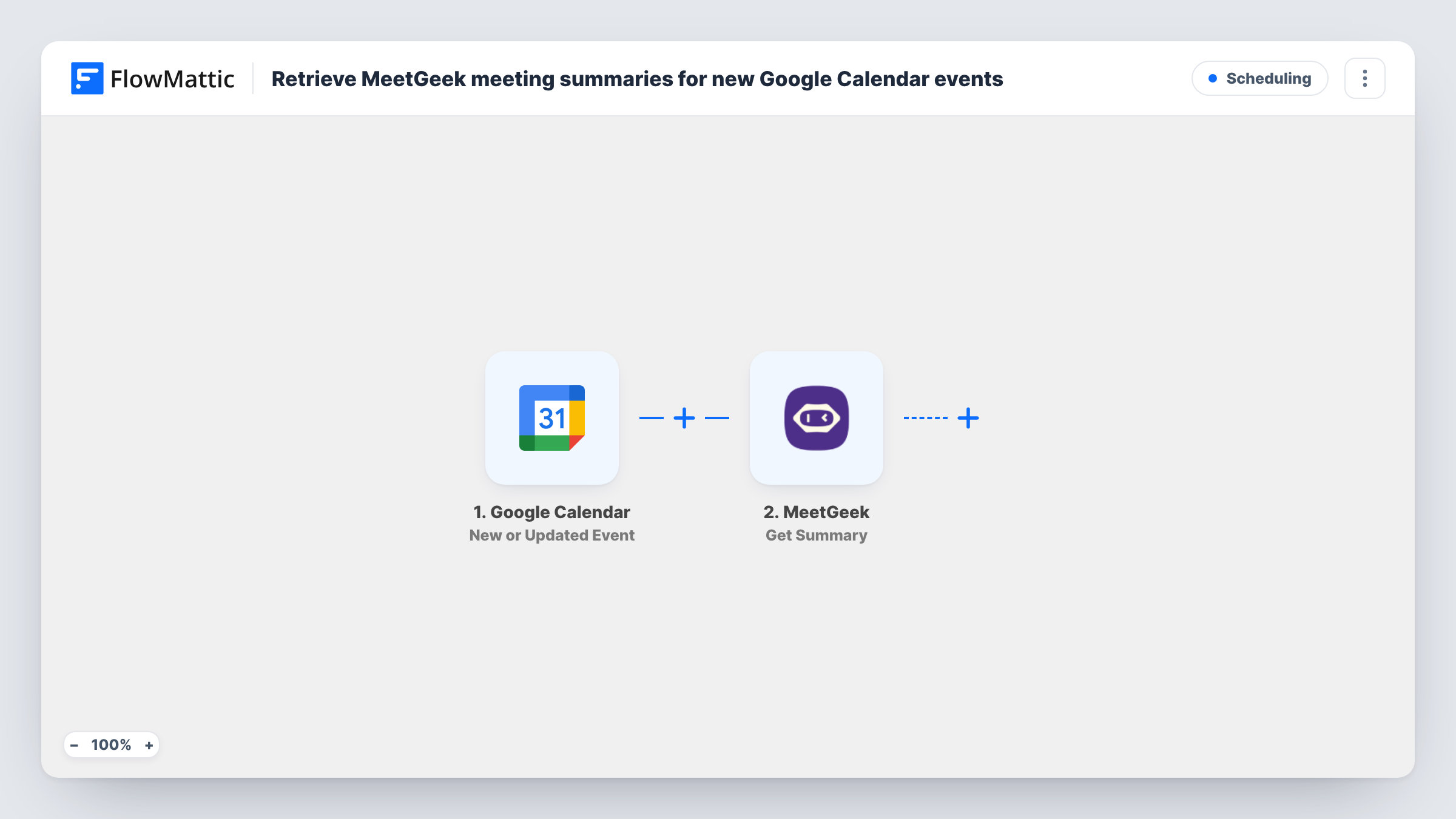
What this workflow does
Meeting recaps are most useful while the conversation is still fresh, but few people log in to a recording tool to read them. Sending the summary by email puts it where people already look, and gives you a copy you can forward or file.
The MeetGeek Meeting Analyzed trigger fires when MeetGeek has analyzed a recorded meeting successfully. The next step, Get Summary, asks MeetGeek for the AI-generated summary of that meeting. Map the meeting from the trigger into it so MeetGeek knows which summary to return.
Delivery is handled by FlowMattic's Email module, using either WordPress mail or an SMTP account you connect. The subject is already set to "Your MeetGeek meeting summary". After import you choose the recipient and map the summary text from step 2 into the body, along with anything else you want, such as the meeting title.
Every analyzed meeting sends an email, including internal stand-ups if MeetGeek records them. Check a test run in Task History to see what the summary looks like before your team starts receiving it.
Recap for a manager who missed the call
A team lead who couldn't join a client meeting receives the MeetGeek summary by email and catches up between other calls.
Client meeting notes for the account file
An agency sends each summary to a shared mailbox, so the account history holds a written record of every call.
Sales call notes for the rep
A sales rep gets the summary of each discovery call in their inbox and copies key points into the CRM.
How this workflow runs
What happens at each step once the workflow is on, and what you need before you import it.
 MeetGeek Meeting Analyzed
Fires when MeetGeek finishes analyzing a meeting successfully. It passes the meeting's details on, so the next step can ask for that meeting's summary.
- MeetGeek Get Summary
Fetches the AI-generated summary of the analyzed meeting from MeetGeek. After import, map the meeting from the trigger into this step and run a test to see the summary it returns.
 Email Send Email
Sends the summary by email through WordPress mail or your SMTP account. The subject reads "Your MeetGeek meeting summary"; set the recipient and map the summary from step 2 into the body.
What you need
- FlowMatticCore
- MeetGeek AccountAccount
After importing, map your own data. To keep the template universal, not every step is pre-filled. Open each step in the builder and connect your accounts and fields (channels, lists, sheets, recipients) before you switch the workflow on.
Make it yours
Changes worth making after you import it.
- Add MeetGeek's Get Highlights step between the Get Summary step and the Email step and map the highlights into the email body, so readers see the key moments too.
- Map the meeting title into the subject line next to the fixed text, so recipients can tell several summaries apart.
- If only some meetings should be emailed, put a Filter between the Meeting Analyzed trigger and the Get Summary step on a meeting detail such as the title. Set the condition to match your own meetings.
Questions about this workflow
Who receives the MeetGeek summary email?
The address you enter in the Send Email step. The template only fills in the subject, so add the recipient yourself, such as your own address or a team mailbox, or map an email from the meeting data if MeetGeek sends one.
Can I send the MeetGeek summary through Gmail instead?
Yes. Enter Gmail's SMTP details in the Email module, or replace the step with the Gmail app's Send Email action.
Is an email sent when a MeetGeek analysis fails?
No. This workflow uses Meeting Analyzed, which only fires on a successful analysis. FlowMattic's MeetGeek integration also has a Meeting Analysis Failed trigger if you want an alert for those.
Can the email include the full transcript?
Add MeetGeek's Get Transcript step before the Email step and map its result into the body. A full transcript can make the email much longer than the summary.
More Scheduling workflows
Other ready-to-import templates from the same category.





Import this workflow into your WordPress site
Download the JSON, import it from the Workflows screen and connect your accounts. Every run stays on your server, with no per-task fees.
30-day money-back guarantee Unlimited workflows and runs Self-hosted