

When a new Orufy Bookings appointment is booked, add it to Google Calendar and create a follow-up task in Todoist
Every appointment newly scheduled in Orufy Bookings is added to Google Calendar as a detailed event, and a Todoist task is created for the follow-up, so the booking reaches both your schedule and your to-do list.
 Orufy Bookings
 Google Calendar
 Todoist
3 steps Setup ~5 min Used on 3.5k sites Free to import
What this workflow does
A booked appointment usually brings two jobs: block the time, and do something afterwards, such as send notes, an invoice or a check-in message. When bookings live in Orufy Bookings, both jobs start as manual copying. This workflow handles the copying in one run.
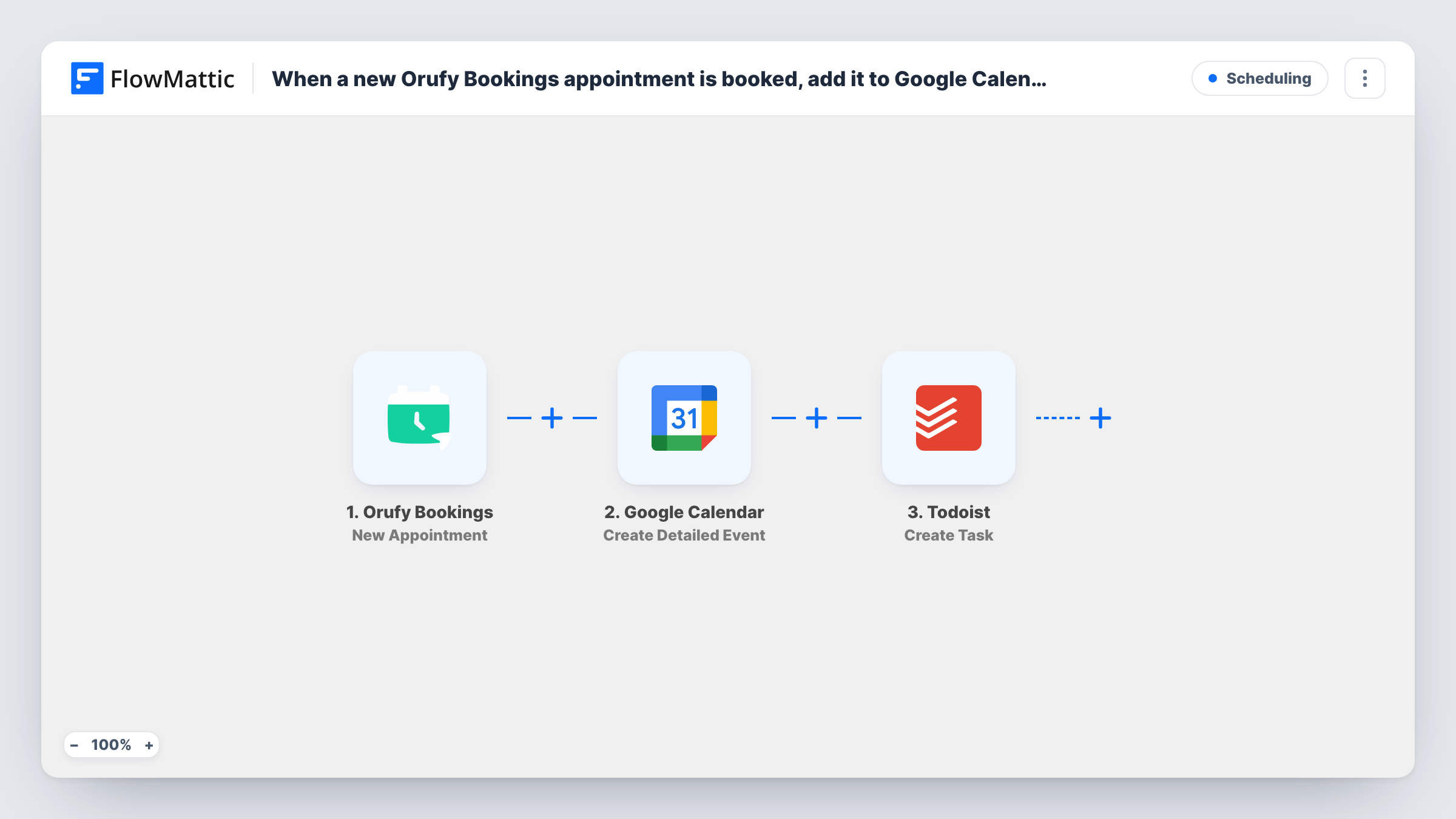
The Orufy Bookings trigger starts the run as soon as a client books a new appointment. First, Google Calendar receives an event built from the appointment's time and details through Create Detailed Event. Then Todoist gets a new task, which you word as the follow-up and fill with the client and appointment data.
Both steps run for every new appointment, one after the other, and Task History shows what each step returned. Reschedules and cancellations aren't handled, so the event and task stay as first created.
Consultant sending session notes
Each booked consultation lands on the calendar, and a Todoist task reminds the consultant to send notes to that client once the session is over.
Photographer delivering galleries
A shoot booked in Orufy Bookings blocks the date in Google Calendar and adds a Todoist task to edit and deliver that client's photos.
Clinic collecting intake forms
The appointment goes on the practitioner's calendar, and a task reminds front-desk staff to check that the patient's intake form is in.
How this workflow runs
What happens at each step once the workflow is on, and what you need before you import it.
 Orufy Bookings New Appointment
Fires for each appointment a client books in Orufy Bookings. The booking's data is available to both later steps.
- Google Calendar Create Detailed Event
Adds the appointment to the Google Calendar you choose as a detailed event. Map the start and end time, a title and a description from the booking data.
- Todoist Create Task
Creates a Todoist task for the follow-up. Map the client's name and appointment time into the task so you know whom it's for and when it's due.
What you need
- FlowMatticCore
- Orufy Bookings AccountAccount
- Google Calendar AccountAccount
- Todoist AccountAccount
After importing, map your own data. To keep the template universal, not every step is pre-filled. Open each step in the builder and connect your accounts and fields (channels, lists, sheets, recipients) before you switch the workflow on.
Make it yours
Changes worth making after you import it.
- Word the Todoist task as the follow-up itself, such as Send notes to followed by the client's name, so it reads as an action rather than a copy of the booking.
- Need the task later? Add a Delay between the calendar step and the Todoist step so the task shows up some time after the booking instead of straight away.
- Book a test appointment after import and check both the calendar event time and the new task before you share your booking page.
Questions about this workflow
When is the Todoist follow-up task created?
Straight after the Google Calendar step, in the same run, which is when the appointment is booked. Add a Delay before the Todoist step if you'd rather it appear later.
Which Google Calendar receives the Orufy Bookings appointments?
Whichever calendar the Create Detailed Event step points at after you connect Google. Map the appointment's start and end time from the booking data, then book a test slot to check the event lands at the right time.
Are cancelled Orufy Bookings appointments removed from Google Calendar and Todoist?
No. The trigger only covers new appointments. Cancelled or moved bookings leave the event and task as they are.
More Scheduling workflows
Other ready-to-import templates from the same category.




Import this workflow into your WordPress site
Download the JSON, import it from the Workflows screen and connect your accounts. Every run stays on your server, with no per-task fees.
30-day money-back guarantee Unlimited workflows and runs Self-hosted