

Create a Google Calendar event for each confirmed imeetify appointment
When an appointment is confirmed in imeetify, this workflow creates a detailed Google Calendar event from the booking details you map, so confirmed meetings show up in the calendar you already use.
 imeetify
 Google Calendar
2 steps Setup ~5 min Used on 1.3k sites Free to import
What this workflow does
If you take bookings in imeetify but plan your day in Google Calendar, every confirmed appointment has to be entered twice. Forget one and you can book over it. This workflow adds each confirmed appointment to Google Calendar for you.
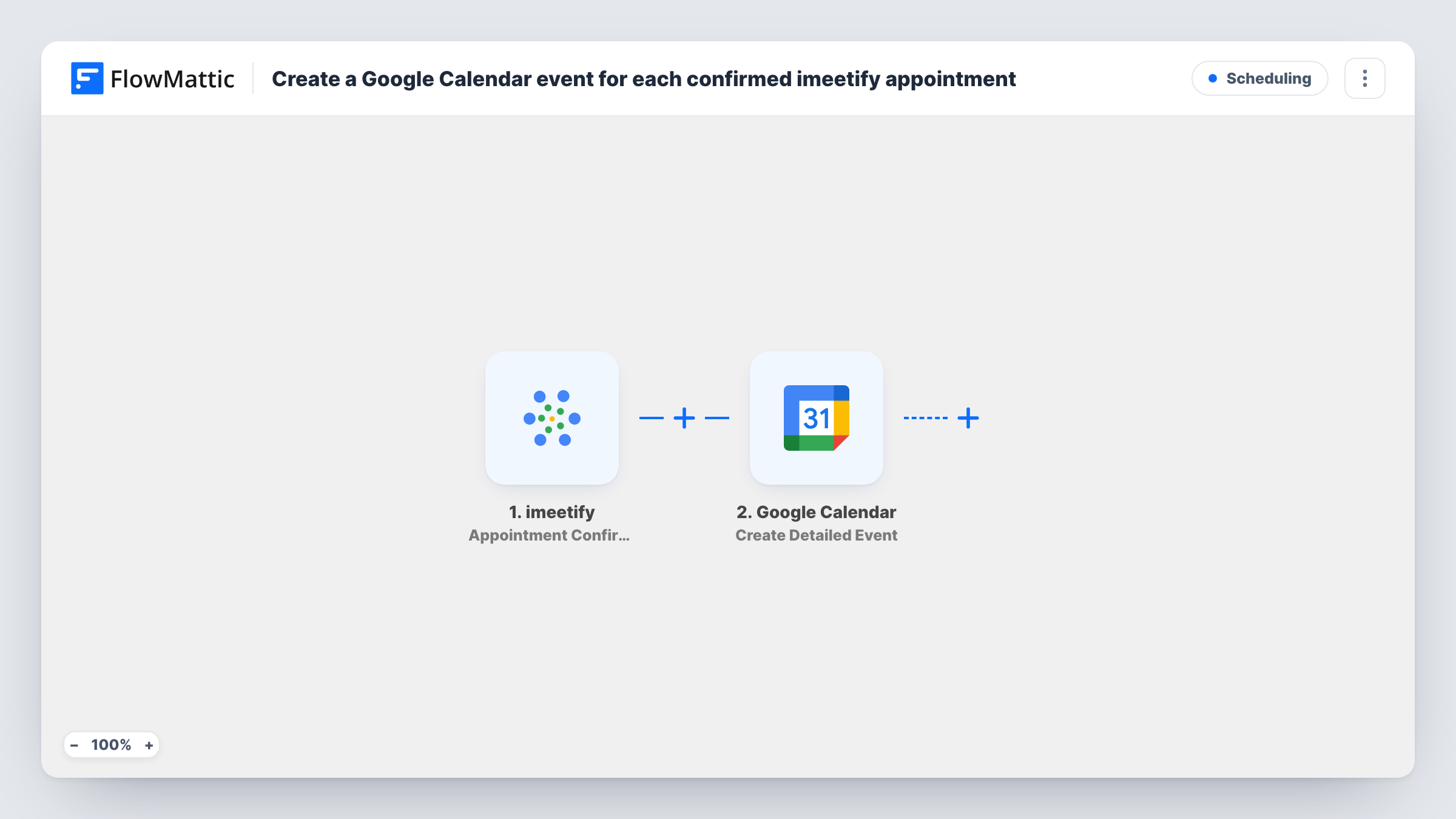
The imeetify trigger is Appointment Confirmation, which fires when a new appointment is confirmed. FlowMattic receives the booking data and makes it available to map. The Google Calendar step then runs Create Detailed Event, which creates a new event with detailed options. You map the appointment's date and time to the event, and add a title and description built from booking details such as the client's name.
Cancelling an imeetify appointment doesn't start a run, so a cancelled booking stays on your calendar until you remove it or extend the workflow. Each run is listed in Task History with the response from Google Calendar.
Consultants with one working calendar
A consultant takes client bookings through imeetify and sees each confirmed session in Google Calendar next to their other commitments.
Clinic front desk
Reception confirms appointments in imeetify, and each one appears on a shared Google Calendar the practitioners check during the day.
Tutors juggling several students
A tutor's confirmed lessons land in Google Calendar with the student's name in the event title, so the week's schedule is visible in one place.
How this workflow runs
What happens at each step once the workflow is on, and what you need before you import it.
 imeetify Appointment Confirmation
Fires when a new appointment is confirmed in imeetify. Confirm a test booking after setup so the appointment's date, time and client details can be mapped.
- Google Calendar Create Detailed Event
Creates an event in Google Calendar with detailed options. Map the appointment's start and end into the event, write a title using the client's name, and connect your Google account.
What you need
- FlowMatticCore
- imeetify AccountAccount
- Google Calendar AccountAccount
After importing, map your own data. To keep the template universal, not every step is pre-filled. Open each step in the builder and connect your accounts and fields (channels, lists, sheets, recipients) before you switch the workflow on.
Make it yours
Changes worth making after you import it.
- Check the time zone on a test event. If the appointment shows at the wrong hour, adjust the date and time mapping before you rely on the calendar.
- Put the client's email or phone number in the event description so you have their contact details when the meeting starts.
- Want cancelled imeetify appointments handled as well? Build a second workflow on imeetify's Appointment Cancellation trigger that alerts you or updates your records.
Questions about this workflow
Does an unconfirmed imeetify booking create a calendar event?
No. The trigger fires only when an appointment is confirmed, so a booking reaches Google Calendar only once it is confirmed.
What happens to the Google Calendar event if the appointment is cancelled?
Nothing, as imported. The workflow only listens for confirmations, so you remove the event yourself or add a workflow for imeetify's Appointment Cancellation trigger.
Can the event go to a shared Google Calendar?
It should, as long as your connected Google account can add events to that calendar. Confirm with a test booking that the event lands where you expect.
Will appointments confirmed before import be added?
No. Only confirmations that happen while the workflow is on create events.
More Scheduling workflows
Other ready-to-import templates from the same category.






Import this workflow into your WordPress site
Download the JSON, import it from the Workflows screen and connect your accounts. Every run stays on your server, with no per-task fees.
30-day money-back guarantee Unlimited workflows and runs Self-hosted