

When a speaker application is submitted in WPForms, create a speaker in Eventee and email details
Each speaker application sent through your WPForms form creates a speaker profile in your Eventee event, then FlowMattic emails the event details you write.
 WPForms
 Eventee
 Email
3 steps Setup ~5 min Used on 3.4k sites Free to import
What this workflow does
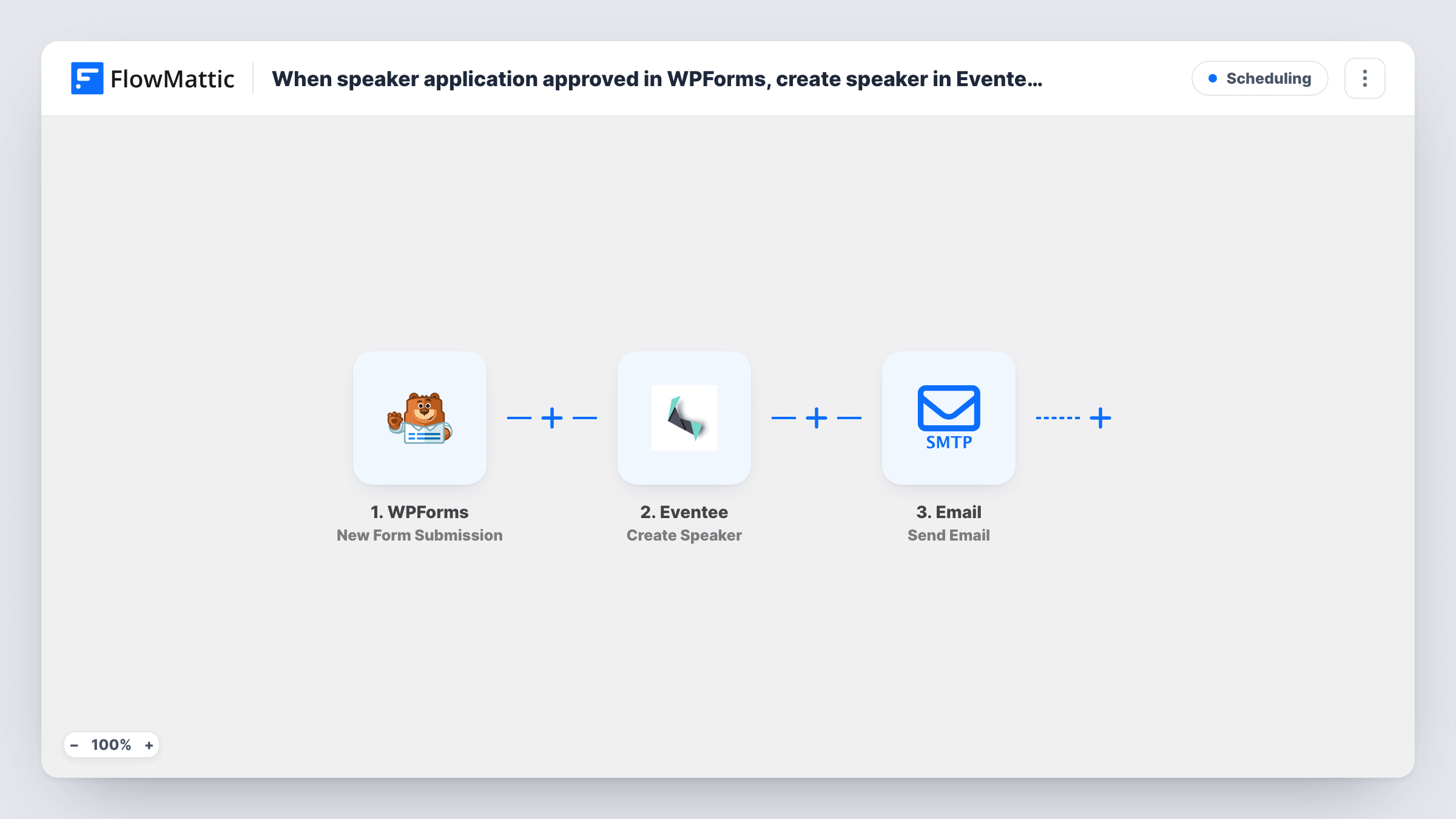
Conference organisers who collect speaker applications on their own site still have to re-type each applicant into the event app. This workflow takes the WPForms submission and creates the speaker in Eventee, then sends an email, so the profile and the follow-up happen without copying anything by hand.
The WPForms trigger fires on each submission of the form you choose after import. Pick your speaker application form there. Every submission of that form runs the workflow, because no step reviews or approves the applicant first.
The Eventee Create Speaker step then adds a speaker profile to your event. It ships unmapped: connect Eventee and map the form fields, such as the name, bio and photo link your form collects, into the profile. The Email step sends a message through WordPress mail or your SMTP account. It is empty too, so you choose who gets it, the applicant or your programme team, and write the event details yourself.
Because each application becomes a speaker straight away, use this when submissions come from invited speakers, or add an approval step first. Task History shows what Eventee and the email step returned.
Invited speakers fill in their own details
An organiser sends confirmed speakers a link to a WPForms form, and each one's bio and session title end up on their Eventee profile.
Meetup talks added to the event app
A community meetup collects talk submissions through WPForms and lists every speaker in Eventee for attendees to browse.
Practical details sent with each profile
A one-day conference emails each speaker the venue address, arrival time and slide deadline right after their profile is created.
How this workflow runs
What happens at each step once the workflow is on, and what you need before you import it.
 WPForms New Form Submission
Fires when someone submits the WPForms form you select after import. The submitted fields, such as the applicant's name, email and bio, are passed to Eventee and the email.
- Eventee Create Speaker
Creates a speaker profile in your Eventee event. The step ships unmapped: after import, connect Eventee and map the WPForms answers into the speaker's details.
 Email Send Email
Emails the speaker or your team once the Eventee profile exists. Nothing is set yet: choose the recipient, such as the applicant's email from the form, and write the subject and event details.
What you need
- FlowMatticCore
- WPForms PluginPlugin
- Eventee AccountAccount
After importing, map your own data. To keep the template universal, not every step is pre-filled. Open each step in the builder and connect your accounts and fields (channels, lists, sheets, recipients) before you switch the workflow on.
Make it yours
Changes worth making after you import it.
- Add a Human in the Loop step between the WPForms trigger and the Create Speaker step if every application needs approval first. Set its timeout action to End Workflow so nobody is added without a decision.
- Put a Filter between the WPForms trigger and the Eventee step on a form answer such as "I have been invited", if only some applicants should become speakers. That field is an example to set from your own form.
- Add a second Email step after the first, sent to your programme team, so they know a new speaker profile is in Eventee.
Questions about this workflow
Does every WPForms application create a speaker in Eventee?
Yes, as imported. Each submission of the chosen form runs both action steps. Add a Human in the Loop or Filter step between the trigger and Create Speaker if you want to review applicants first.
Which WPForms answers reach the Eventee profile?
Only the ones you map. The Create Speaker step is empty in the template, so you match each form field to the speaker detail it should fill.
Who receives the email after the speaker is created?
Whoever you set in the Email step. Map the applicant's email from the form to send them the event details, or enter your own address to get a notification instead.
Does a rejected applicant in Human in the Loop still get added to Eventee?
If you place a Human in the Loop step before Create Speaker, a rejection ends the run, so that applicant isn't added and gets no email.
More Scheduling workflows
Other ready-to-import templates from the same category.






Import this workflow into your WordPress site
Download the JSON, import it from the Workflows screen and connect your accounts. Every run stays on your server, with no per-task fees.
30-day money-back guarantee Unlimited workflows and runs Self-hosted