

Save Aircall call notes to a Notion database
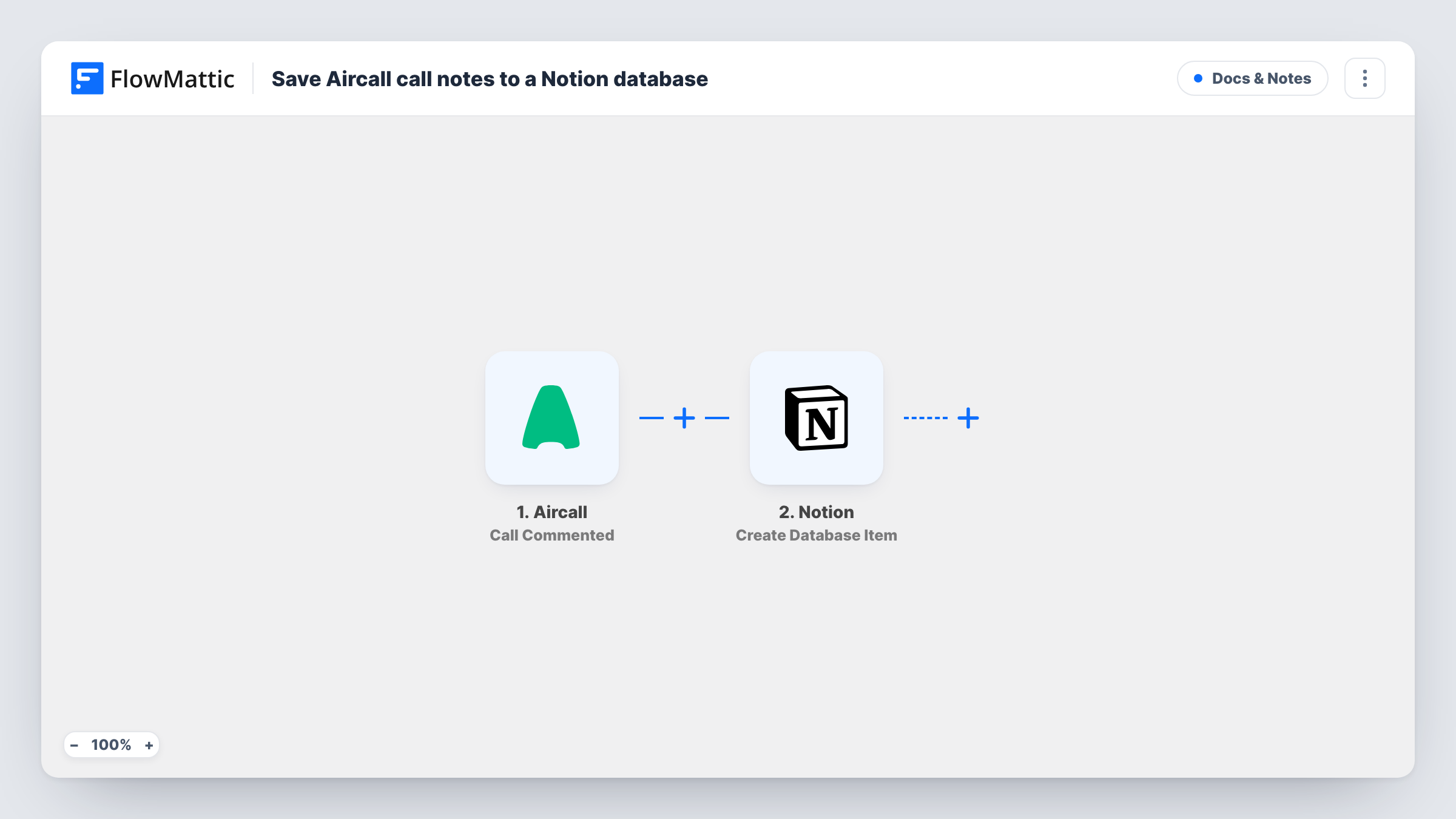
When an agent adds a comment to a call in Aircall, this workflow creates an item in your Notion database with that note and the call details you map, so call notes are kept where your team already works.
 Aircall
 Notion
2 steps Setup ~5 min Used on 1.0k sites Free to import
What this workflow does
Agents often jot a quick note on an Aircall call: what the caller wanted, what was promised, what to do next. Those notes stay attached to the call in Aircall, which is fine for the phone team but awkward for anyone who plans work in Notion. This workflow copies each note into a Notion database as it is written.
The Aircall trigger, Call Commented, fires when a new comment is created on a call. FlowMattic receives the comment along with the call data Aircall sends. The Notion step, Create Database Item, then adds an item to the database you pick, with properties filled from the comment and call details you map.
Each comment makes its own Notion item, so a call with three comments gives you three items. Nothing is merged or filtered. Task History in FlowMattic shows each run and what Notion returned.
Sales call log in Notion
Reps comment on calls after speaking with prospects. Each note becomes a Notion item the sales manager can sort by rep or date during the weekly review.
Support follow-up board
Support agents note what a caller still needs. The notes land in a Notion database where the team assigns and tracks the follow-ups.
Customer research from calls
Product managers ask agents to note feature requests on calls. Every request collects in a Notion database they read when planning.
How this workflow runs
What happens at each step once the workflow is on, and what you need before you import it.
 Aircall Call Commented
Fires when a comment is added to a call in Aircall. The comment text and the call data Aircall sends with it come into FlowMattic for the Notion step.
- Notion Create Database Item
Writes one Notion database item per Aircall comment. Connect your Notion workspace, pick the database, then map the comment and call details to its properties.
What you need
- FlowMatticCore
- Aircall AccountAccount
- Notion AccountAccount
After importing, map your own data. To keep the template universal, not every step is pre-filled. Open each step in the builder and connect your accounts and fields (channels, lists, sheets, recipients) before you switch the workflow on.
Make it yours
Changes worth making after you import it.
- Share the Notion database with the FlowMattic connection before mapping. Notion only lets an integration add items to pages and databases shared with it.
- Add a comment to a test call after import and check Task History. You will see which Aircall values arrive, such as the caller number or agent, before mapping properties.
- If you only want notes with a certain word, such as follow-up, add a Filter after the trigger that continues when the comment contains it.
Questions about this workflow
Does every Aircall comment create a separate Notion item?
Yes. Each new comment on a call starts its own run, so several comments on one call produce several Notion items.
Will older Aircall call notes be copied to Notion?
No. Only comments created while the workflow is on reach Notion. Earlier notes stay on their calls in Aircall.
Can I add the call recording link to the Notion item?
Only if Aircall includes it in the comment event. Check a test run in Task History to see the call data, then map any link it holds.
Does editing the Notion item change the Aircall note?
No. The workflow copies the note one way, from Aircall to Notion. Changes in Notion stay in Notion.
More Docs & Notes workflows
Other ready-to-import templates from the same category.






Import this workflow into your WordPress site
Download the JSON, import it from the Workflows screen and connect your accounts. Every run stays on your server, with no per-task fees.
30-day money-back guarantee Unlimited workflows and runs Self-hosted