

Save each new Fantastical openings appointment requested to a Notion database
When someone requests an appointment through Fantastical Openings, this workflow creates an item in a Notion database with the request details, so every booking request is logged where you track your work.
 Fantastical
 Notion
2 steps Setup ~5 min Used on 3.4k sites Free to import
What this workflow does
Fantastical Openings lets people request time with you from a booking page. The requests land in your calendar, but if you plan clients, sales calls or projects in Notion, you end up copying details across. This workflow logs each request in a Notion database as it arrives.
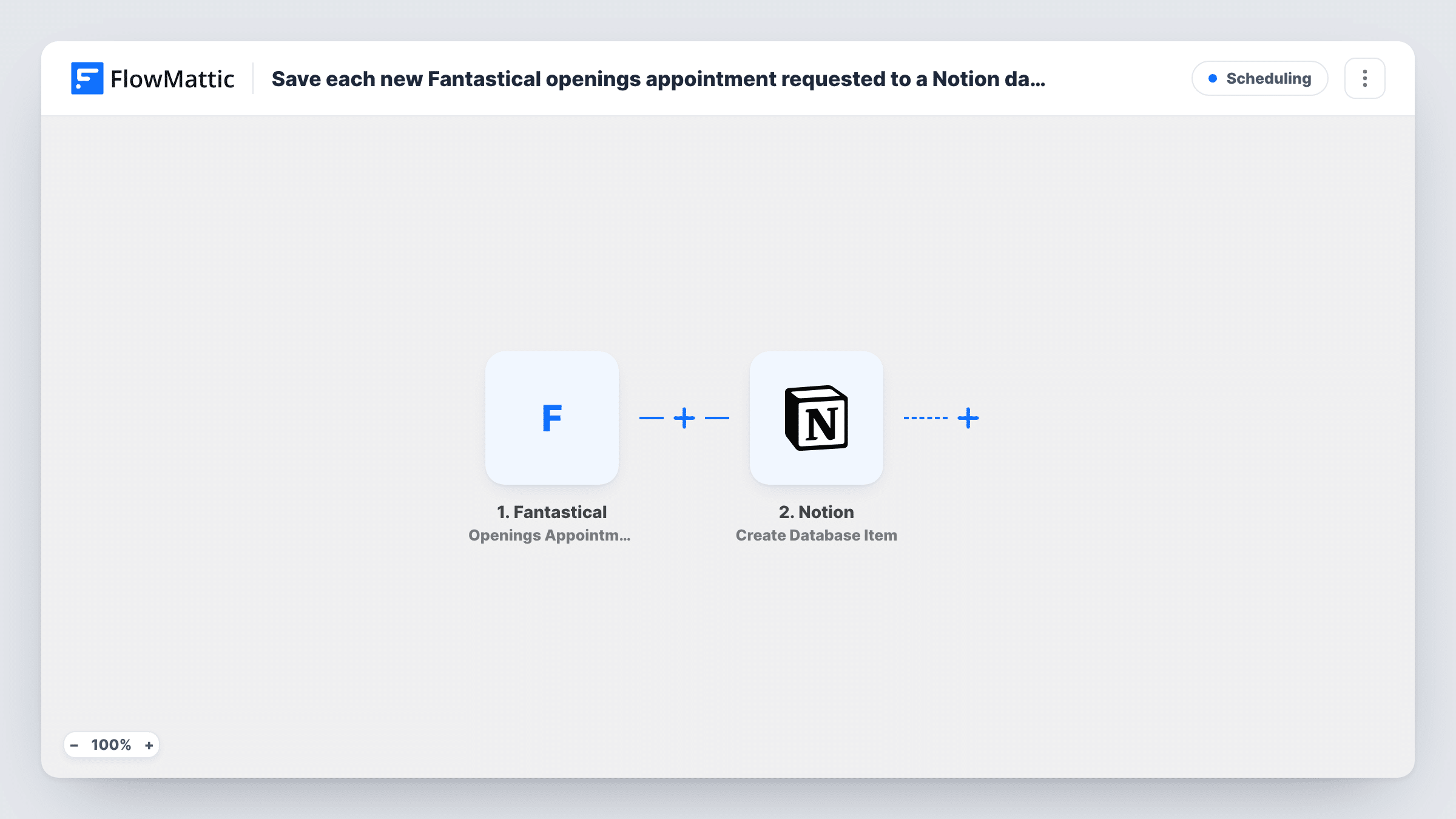
The Fantastical trigger, Openings Appointment Requested, fires when someone requests an appointment in Fantastical Openings. The request's details go to Notion, where Create Database Item adds an item to the database you choose. You map the details into the database's properties.
This template reacts to requests, not confirmations. FlowMattic has a separate Openings Appointment Confirmed trigger for Fantastical, so if you only want confirmed bookings in Notion, swap the trigger. Each request creates its own item, and Task History keeps a record of each run.
Consultant tracking discovery calls
Each call request from your Openings page becomes a Notion item where you add notes before the call and the outcome after it.
Coach managing a client pipeline
Requests from new and returning clients land in a Notion database you sort by status to see who still needs a reply.
Small team sharing a booking log
Teammates who don't use Fantastical can see incoming appointment requests in a shared Notion database.
How this workflow runs
What happens at each step once the workflow is on, and what you need before you import it.
 Fantastical Openings Appointment Requested
Fires when someone requests an appointment through Fantastical Openings. The details of the request are passed on for mapping into Notion.
- Notion Create Database Item
Logs the Fantastical request as a new item in the Notion database you choose. Share the database with your Notion connection, then map request details to its properties.
What you need
- FlowMatticCore
- Fantastical AccountAccount
- Notion AccountAccount
After importing, map your own data. To keep the template universal, not every step is pre-filled. Open each step in the builder and connect your accounts and fields (channels, lists, sheets, recipients) before you switch the workflow on.
Make it yours
Changes worth making after you import it.
- Add a Status property in Notion and set it to Requested in the mapping, so you can move each item along once the appointment is confirmed.
- Use Openings Appointment Confirmed as the trigger instead if your Notion database should hold only bookings that went ahead.
- Make one test request on your Openings page after import, then map the captured fields into the database properties.
Questions about this workflow
Does the Notion item update when the Fantastical appointment is confirmed?
No. This workflow only creates an item for each request. Confirmation is a separate Fantastical trigger that this template does not use.
Do I need a Notion database ready before importing?
Yes. Create Database Item adds to an existing database, so set up its properties first and share it with the Notion connection you use in FlowMattic.
Which details from a Fantastical Openings request can go into Notion?
Whatever Fantastical sends with the request. Make a test request and look at the captured data in the trigger step to see what you can map.
More Scheduling workflows
Other ready-to-import templates from the same category.






Import this workflow into your WordPress site
Download the JSON, import it from the Workflows screen and connect your accounts. Every run stays on your server, with no per-task fees.
30-day money-back guarantee Unlimited workflows and runs Self-hosted