

Save each new NeetoCal booking to a Notion database
Every new booking made through NeetoCal becomes an item in a Notion database, holding the booking details you map, so your appointments live next to the notes and projects you already keep in Notion.
 NeetoCal
 Notion
2 steps Setup ~5 min Used on 1.1k sites Free to import
What this workflow does
NeetoCal takes care of scheduling, but the meeting itself often needs prep notes, follow-up tasks or a client record, and those live in Notion. Starting each page by hand means copying names, times and answers from the booking. This workflow creates the Notion item as soon as the booking exists.
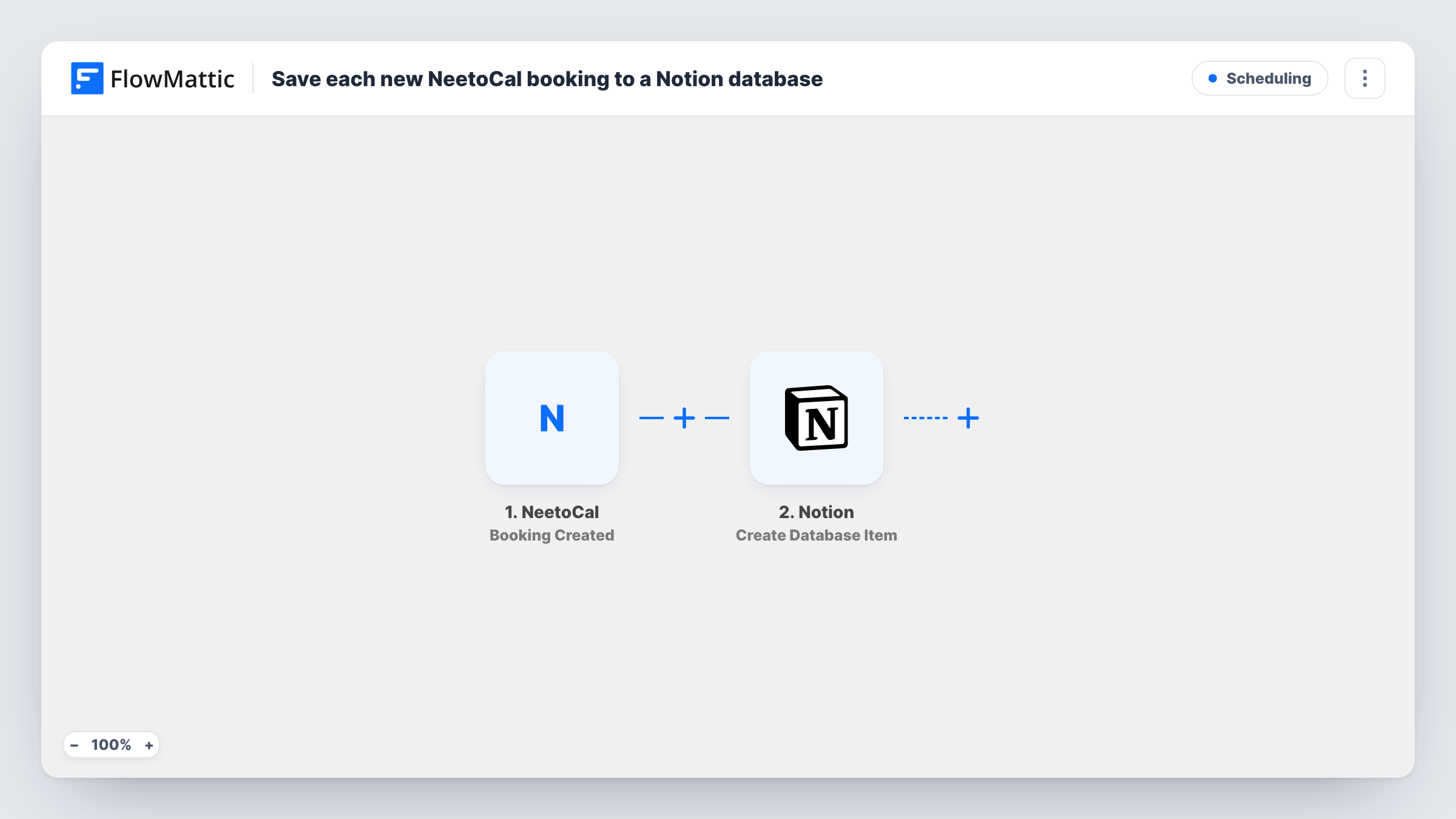
The NeetoCal trigger runs when a new booking is created. FlowMattic sends the booking data to Notion, and Create Database Item adds an entry to the database you choose. Map the guest's name to the title property and the meeting time, email or booking answers to other properties.
The workflow only handles new bookings. Reschedules and cancellations do not change the Notion item it created. Each run, with Notion's reply, is kept in Task History.
Consultant client log
A consultant shares a NeetoCal link with prospects. Each booking adds a Notion item where they write prep notes before the call.
Interview pipeline
Candidates book interview slots in NeetoCal. A Notion hiring database gets one entry per interview for the panel to add feedback.
Tutoring sessions record
Students book lessons through NeetoCal, and each lesson becomes a Notion entry where the tutor records what was covered.
How this workflow runs
What happens at each step once the workflow is on, and what you need before you import it.
 NeetoCal Booking Created
Runs each time a booking is created in NeetoCal. The booking's details, such as who booked and when, can be mapped into Notion.
- Notion Create Database Item
Adds an entry to the Notion database you pick for bookings. Connect your Notion account and map the NeetoCal booking data to the database's properties.
What you need
- FlowMatticCore
- NeetoCal AccountAccount
- Notion AccountAccount
After importing, map your own data. To keep the template universal, not every step is pre-filled. Open each step in the builder and connect your accounts and fields (channels, lists, sheets, recipients) before you switch the workflow on.
Make it yours
Changes worth making after you import it.
- Use a Date property in your Notion database for the meeting time, so you can view bookings on a Notion calendar.
- Make a test booking on your own NeetoCal page after import. The captured data shows which booking fields you can map into Notion.
- If several NeetoCal meeting types feed one database, map the meeting name to a property so you can group entries by type.
Questions about this workflow
Does a rescheduled NeetoCal booking update the Notion item?
No. Only a freshly created NeetoCal booking starts a run. A reschedule does not change the item it created earlier.
Can NeetoCal bookings go into an existing Notion database?
Yes. Select any database your Notion connection can access, and map booking data to the properties it already has.
Are bookings made before import added to Notion?
No. Only bookings created after the workflow is switched on produce Notion items.
More Scheduling workflows
Other ready-to-import templates from the same category.





Import this workflow into your WordPress site
Download the JSON, import it from the Workflows screen and connect your accounts. Every run stays on your server, with no per-task fees.
30-day money-back guarantee Unlimited workflows and runs Self-hosted