

Send an SMS via Twilio when a FareHarbor booking notification arrives
Each time FareHarbor sends FlowMattic a booking notification, Twilio texts the phone number you map, so guests or staff hear about the booking by SMS.
 Fareharbor
 Twilio
2 steps Setup ~5 min Used on 1.9k sites Free to import
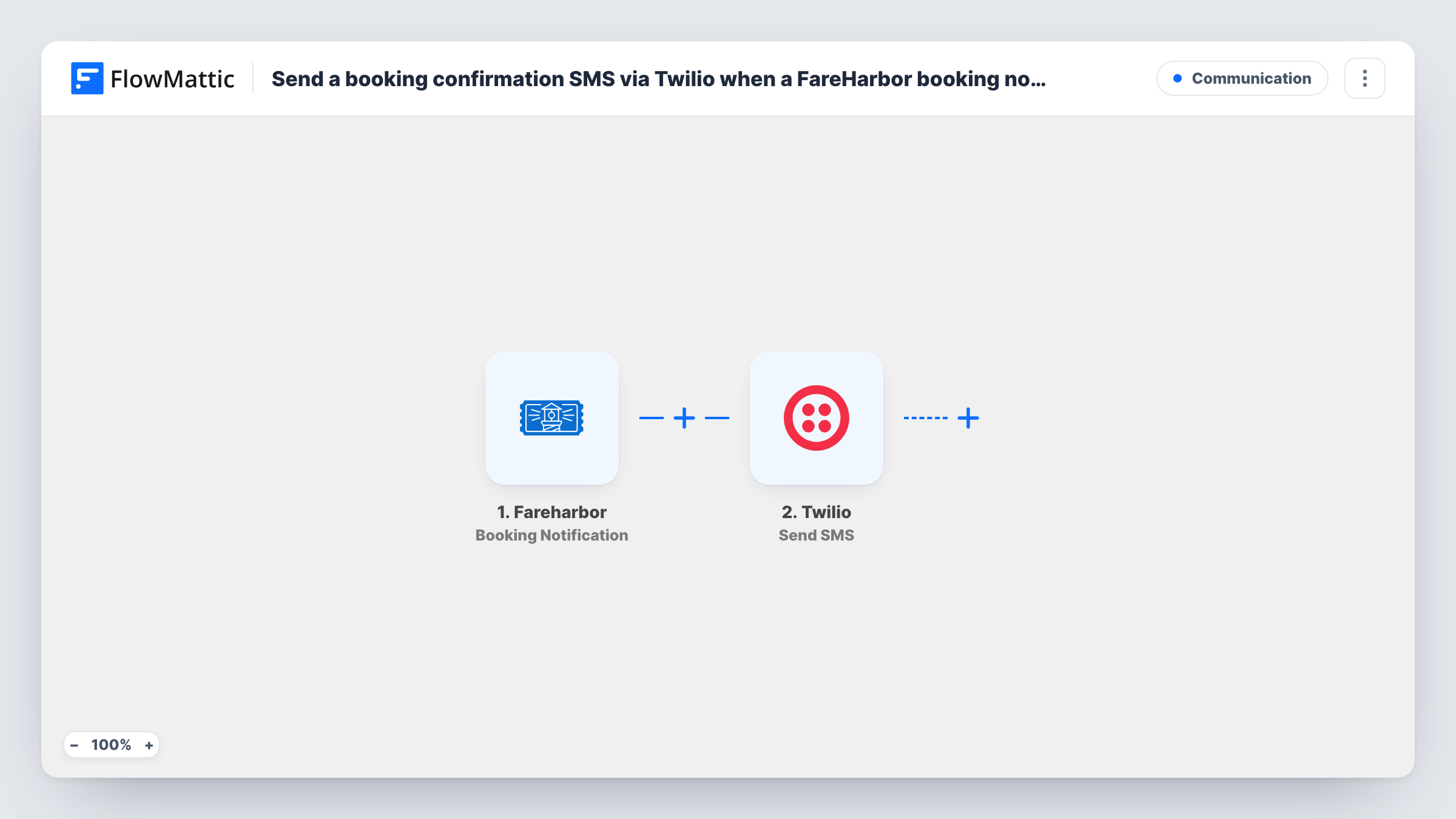
What this workflow does
Tour and activity operators take bookings around the clock, and guests like a text they can find again on the day. This workflow sends one SMS through Twilio whenever FareHarbor reports a booking event, without anyone copying details from the dashboard.
The FareHarbor trigger listens for booking notifications. FlowMattic describes this event as a booking-related event, so it isn't limited to brand-new reservations: changes to a booking can arrive the same way. Look at a test notification to see which booking details come through, such as the contact name, phone number, item and start time.
The Twilio Send SMS step then texts a number. It ships unmapped: after import you connect your Twilio account, choose the sending number, map the guest's phone from the booking, and write the message with booking fields mapped in. Because any booking event can start a run, word the text so it reads well for a new booking and for a change.
Every notification sends one SMS. Task History shows each run, what FareHarbor sent and what Twilio returned.
Booking details on the guest's phone
A kayak tour company texts each guest the activity name and start time from the booking, so they have it without searching their email.
Heads-up for the guide on duty
A small walking-tour business maps the guide's own mobile number instead of the guest's, so the guide gets a text whenever a booking comes in or changes.
Update notices for changed bookings
An escape room uses a neutral message, such as "Your booking has been updated", with the booking time mapped in, so the same text fits new and changed reservations.
How this workflow runs
What happens at each step once the workflow is on, and what you need before you import it.
 Fareharbor Booking Notification
Starts a run whenever FareHarbor sends a booking notification. FlowMattic describes it as a booking-related event, so run a test to see which booking fields, such as the contact and start time, are included.
- Twilio Send SMS
Texts the guest, or any number you map, from a phone number on your Twilio account. The step ships unmapped: after import, map the recipient's phone number from the booking and write the message body, mapping in booking details where you want them.
What you need
- FlowMatticCore
- FareHarbor AccountAccount
- Twilio AccountAccount
After importing, map your own data. To keep the template universal, not every step is pre-filled. Open each step in the builder and connect your accounts and fields (channels, lists, sheets, recipients) before you switch the workflow on.
Make it yours
Changes worth making after you import it.
- Put a Filter between the FareHarbor trigger and the Twilio step if you only want texts for some notifications, for example a status field your test run shows. The field and value are examples to set from your own data.
- Make sure guest phone numbers include the country code, since Twilio needs the full international number to deliver the text.
- Add a Delay between the trigger and the Twilio step if you'd rather the text arrive a little after the booking than at the same moment.
- Add a second Send SMS step after the first and map your own number to it, so you get a copy of what each guest was sent.
Questions about this workflow
Does the FareHarbor trigger fire only for new bookings?
Not necessarily. FlowMattic describes Booking Notification as a booking-related event, so updates to a booking can start a run too. Send yourself a test booking, change it, and check Task History to see what arrives each time.
Which number do FareHarbor guests see the text come from?
The guest sees whichever Twilio number you choose. You connect Twilio and pick that sending number in the Send SMS step after import, so you need one set up in Twilio first.
What does the SMS say as imported?
Nothing yet. The Send SMS step has no message or recipient set, so you write the text and map the phone number and any booking details from the FareHarbor notification yourself.
Can I text the guest and my staff from the same FareHarbor booking?
Yes. Keep the first Send SMS step for the guest, then add another Twilio Send SMS step after it with your staff number and a message written for them.
More Communication workflows
Other ready-to-import templates from the same category.





Import this workflow into your WordPress site
Download the JSON, import it from the Workflows screen and connect your accounts. Every run stays on your server, with no per-task fees.
30-day money-back guarantee Unlimited workflows and runs Self-hosted