

Send a confirmation email via Gmail when a Cal ID booking is created
When a new Cal ID booking is created, this workflow sends the invitee a confirmation email from your Gmail account, written in your words and filled with the booking details you map.
 Cal ID
 Gmail
Gmail2 steps Setup ~5 min Used on 1.0k sites Free to import
What this workflow does
A booking confirmation is often the first message a new client gets from you. Sending it from your own Gmail address, in your own words, means it comes from you rather than from a booking system. This workflow sends that email for each new Cal ID booking.
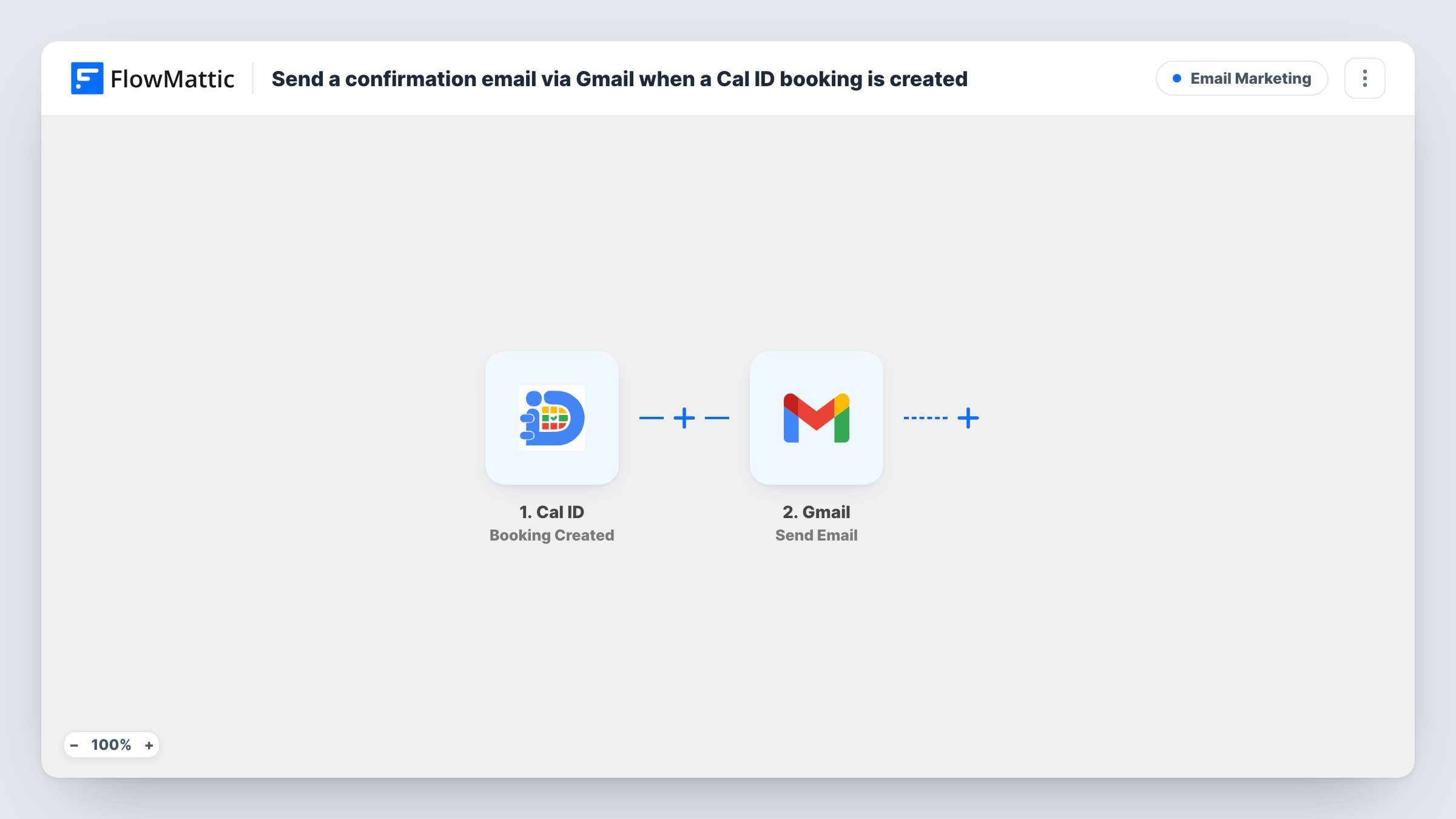
The Cal ID trigger fires when a new booking is created and passes the booking details to FlowMattic. Next, Gmail mails the confirmation out under your own address. You set the recipient to the invitee's email from the booking, write the subject and body, and map in the date, time and anything else from the booking.
The email goes out once, when the booking is created. Cal ID has separate FlowMattic triggers for rescheduled and cancelled bookings, so changes don't send a new confirmation unless you build workflows for them. Your Cal ID account may also send its own notices, so check its settings to avoid sending two confirmations.
Freelance discovery calls
A designer takes discovery calls through Cal ID. Each new booking gets a Gmail confirmation with a short note on what to prepare for the call.
Tutoring sessions
Students book lessons in Cal ID, and the confirmation from the tutor's Gmail lists the session time and the materials to bring.
Clinic consultations
A small clinic confirms each Cal ID booking from its Gmail inbox, with the address and arrival instructions in the body.
How this workflow runs
What happens at each step once the workflow is on, and what you need before you import it.
 Cal ID Booking Created
Fires when a new Cal ID booking is created. The booking details, including the invitee's email if Cal ID returns it, become available for the Gmail message.
- Gmail Send Email
Emails the confirmation from your linked Gmail account. Map the invitee's email from the booking as the recipient, then write the subject and body with the booking date and time.
What you need
- FlowMatticCore
- Cal ID AccountAccount
- Gmail AccountAccount
After importing, map your own data. To keep the template universal, not every step is pre-filled. Open each step in the builder and connect your accounts and fields (channels, lists, sheets, recipients) before you switch the workflow on.
Make it yours
Changes worth making after you import it.
- Set up a second workflow on Cal ID's Booking Rescheduled trigger with its own Gmail message, so invitees get the new time when a booking moves.
- Put the meeting date and time in the subject line, so the invitee can find the confirmation in their inbox without opening it.
- Create a test booking in Cal ID with your own email after import, so you can see the confirmation exactly as an invitee would.
Questions about this workflow
Will invitees get two confirmations, one from Cal ID and one from Gmail?
They may, if your Cal ID account also sends its own booking emails. Review Cal ID's notification options and switch off any that this workflow replaces, where Cal ID allows it.
Does a rescheduled Cal ID booking send a new confirmation?
Not with this template, which uses Booking Created only. Cal ID's Booking Rescheduled trigger can drive a separate workflow for that.
Which address sends the Cal ID confirmation?
Whichever Google account you link while setting up this Gmail step. The confirmation shows in that account's Sent folder, and replies come back to it.
Can I include a meeting link in the Gmail confirmation?
Yes, if the Cal ID trigger returns one for the booking. Make a test booking and look at the captured data to find it, then map it into the body.
More Email Marketing workflows
Other ready-to-import templates from the same category.






Import this workflow into your WordPress site
Download the JSON, import it from the Workflows screen and connect your accounts. Every run stays on your server, with no per-task fees.
30-day money-back guarantee Unlimited workflows and runs Self-hosted