

Send a Gmail email for each new BugBug suite
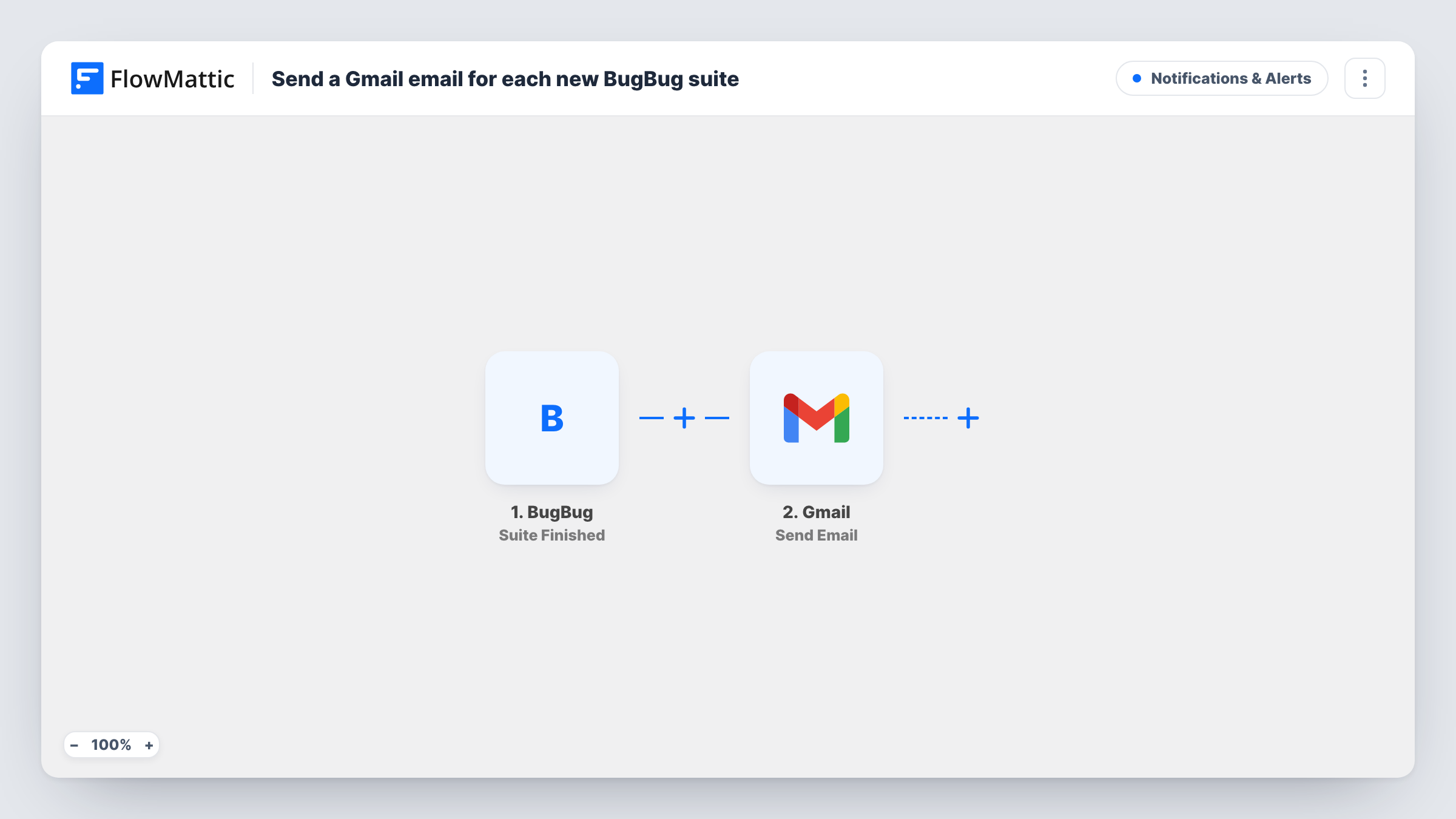
Each time a BugBug suite run finishes, this workflow sends an email from your Gmail account to the address you set, so stakeholders get word of every suite run in their inbox.
 BugBug
 Gmail
2 steps Setup ~5 min Used on 2.0k sites Free to import
What this workflow does
Not everyone who cares about test results logs in to BugBug. Product owners and clients often just want an email when the test suite has run. This workflow sends one from your Gmail account at the end of each suite run.
The BugBug trigger is Suite Finished. BugBug offers no trigger for a newly created suite, so the workflow starts when a suite run finishes. Every finished run counts, re-runs of the same suite included, and each one sends its own email.
FlowMattic hands the run details to Gmail, and the Send Email step sends a message to the recipient you set. You write the subject and body and drop in the BugBug values you want readers to see. The template has nothing mapped yet, so let one suite run finish after import and build the email from the captured data.
Task History keeps a record of every run, including the data BugBug passed and the response from Gmail.
Keeping a client informed
An agency runs a BugBug suite against a client's site. The client gets an email from the agency's Gmail account after every suite run.
Release day sign-off
The release manager receives an email for each suite run on release day and can reply in the same thread to approve or hold the release.
A record in your inbox
Send the emails to a shared QA address so there is a searchable trail of suite runs in Gmail alongside the rest of the team's mail.
How this workflow runs
What happens at each step once the workflow is on, and what you need before you import it.
 BugBug Suite Finished
Fires when a suite run finishes in BugBug. Every finished run starts the workflow, repeat runs of the same suite included, and its details are passed to Gmail.
- Gmail Send Email
Emails the suite run details from your connected Gmail account to the address you enter. Write the subject and body, insert BugBug values where you want them, and connect Gmail on import.
What you need
- FlowMatticCore
- BugBug AccountAccount
- Gmail AccountAccount
After importing, map your own data. To keep the template universal, not every step is pre-filled. Open each step in the builder and connect your accounts and fields (channels, lists, sheets, recipients) before you switch the workflow on.
Make it yours
Changes worth making after you import it.
- After import, let a BugBug suite run finish once so the trigger captures its data. Use those values in the subject line so each email is easy to tell apart.
- If a suite runs many times a day, add a Filter after the trigger on a value from the run data so only the runs you want reach the inbox.
- Add a Google Sheets step after Gmail to keep a row per suite run as well as the email.
Questions about this workflow
Will I get an email when I create a new suite in BugBug?
No. FlowMattic's BugBug triggers react to runs starting or finishing. This template uses Suite Finished, so the email goes out only after a suite run ends.
Does re-running a BugBug suite send another Gmail email?
Yes. Each finished run starts the workflow, so every re-run sends its own email.
Can I email more than one person about each suite run?
Set the recipient in the Gmail step to the people you want to reach. A shared team address is the simplest way to reach a group with one email.
Does a single BugBug test run send an email?
No. This template listens for suite runs. Use BugBug's Test Finished trigger instead if you want an email for individual test runs.
More Notifications & Alerts workflows
Other ready-to-import templates from the same category.




Import this workflow into your WordPress site
Download the JSON, import it from the Workflows screen and connect your accounts. Every run stays on your server, with no per-task fees.
30-day money-back guarantee Unlimited workflows and runs Self-hosted