

Send a Gmail email for each new Fantastical openings appointment
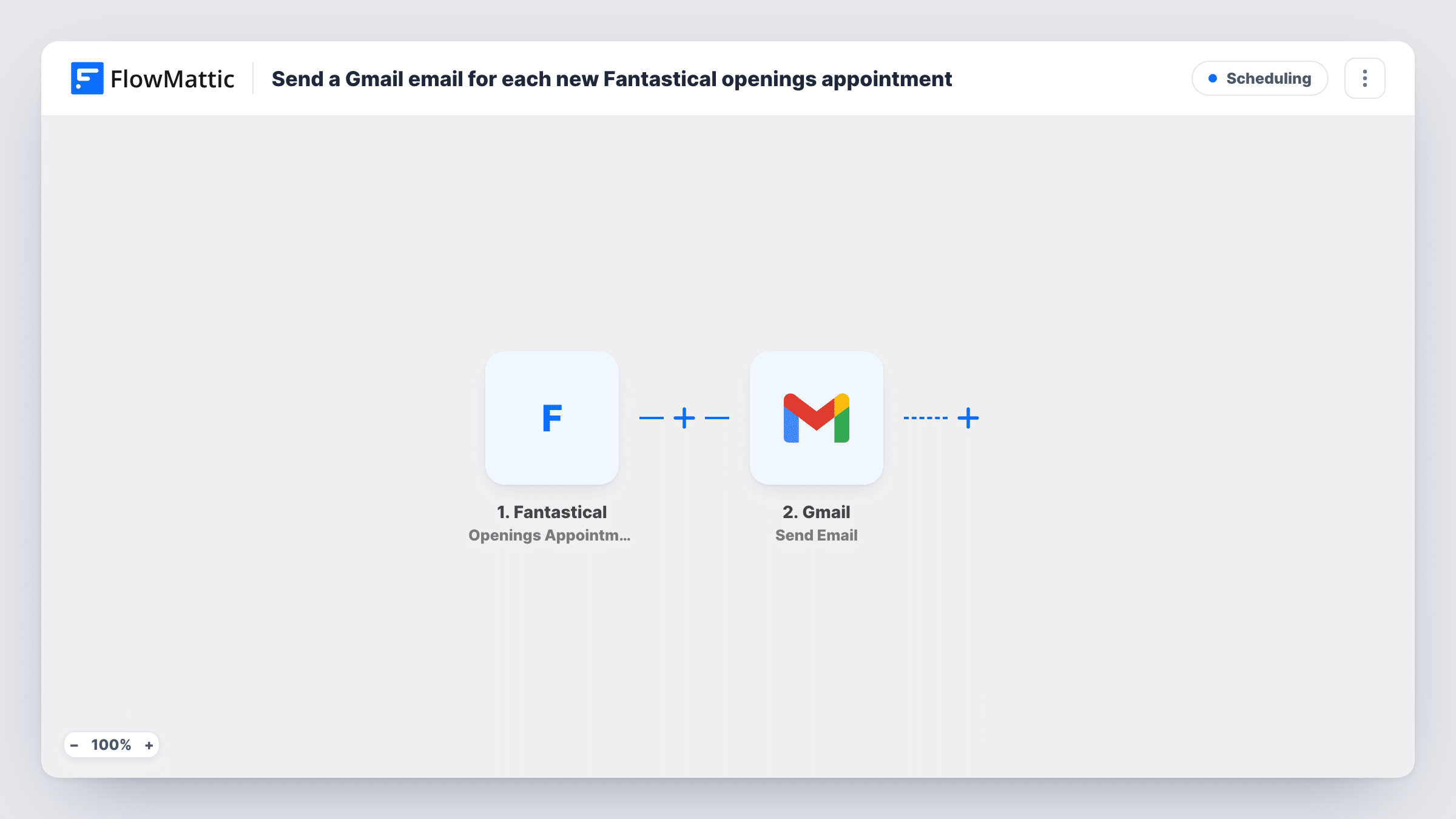
When someone books one of your Fantastical Openings slots and the appointment is confirmed, this workflow sends an email from your Gmail account with the details you write in.
 Fantastical
 Gmail
2 steps Setup ~5 min Used on 878 sites Free to import
What this workflow does
Fantastical Openings lets people pick a time from your availability. Once the booking is confirmed, you may want to send your own email: a personal note, directions, a form to fill in before the call, or a heads-up to a colleague. Writing that email by hand for each booking is easy to forget.
A run begins in the Fantastical trigger as soon as an Openings booking reaches the confirmed state. FlowMattic receives the appointment details and passes them to Gmail. The Send Email step then sends a message from the Gmail account you connect, to the recipient you choose, with booking details mapped into the subject and body.
Requests that are not yet confirmed don't run the workflow. Fantastical has a separate Openings Appointment Requested trigger if you want to act at that point instead. Each email the workflow sends shows up in your Gmail Sent folder, and Task History lists every run.
Consultant sending pre-call questions
When a client's booking is confirmed, they get an email from your Gmail with three questions to think about and a link to your intake form.
Notifying an assistant about new meetings
Send the email to your assistant instead of the guest, so they can prepare notes or book a room for each confirmed appointment.
Tutor sharing lesson materials
Students who book a session through Openings receive an email with the reading list and the video link for the lesson.
How this workflow runs
What happens at each step once the workflow is on, and what you need before you import it.
 Fantastical Openings Appointment Confirmed
Fires when an Openings appointment is confirmed in Fantastical. The appointment details are passed on so you can use them in the email.
- Gmail Send Email
Emails the person you choose from the Gmail account linked to this step. Write the subject and body with the Fantastical appointment details mapped in.
What you need
- FlowMatticCore
- Fantastical AccountAccount
- Gmail AccountAccount
After importing, map your own data. To keep the template universal, not every step is pre-filled. Open each step in the builder and connect your accounts and fields (channels, lists, sheets, recipients) before you switch the workflow on.
Make it yours
Changes worth making after you import it.
- Add a Delay before the Gmail step if you would rather send the email closer to the meeting, for example a day before instead of right after booking.
- Add a second Send Email step addressed to a colleague, so both the guest and your team hear about each confirmed appointment.
- Book a test slot through your own Openings page after import so FlowMattic captures the data, then map the guest's email and the meeting time.
Questions about this workflow
Does Fantastical still send its own confirmation?
This workflow does not change Fantastical's settings. Whatever Fantastical sends today keeps working, and your Gmail email is sent in addition to it.
Does a requested Openings appointment send a Gmail email?
No. The trigger fires on confirmed appointments only. Use the Openings Appointment Requested trigger in a second workflow if you want an email at request time.
Which Gmail address do the Fantastical booking emails come from?
From whichever Gmail account you link to the Send Email step. Guests see it as a normal email from that address.
What if a confirmed appointment is later cancelled?
The email was already sent when the booking was confirmed. This template has no step for cancellations, so nothing else happens.
More Scheduling workflows
Other ready-to-import templates from the same category.




Import this workflow into your WordPress site
Download the JSON, import it from the Workflows screen and connect your accounts. Every run stays on your server, with no per-task fees.
30-day money-back guarantee Unlimited workflows and runs Self-hosted