

Add an approved Leave Dates request to a shared Google Calendar
Once a leave request is approved in Leave Dates, this workflow creates an event on the shared Google Calendar you choose, so your whole team can see who is away and when.
 Leave Dates
 Google Calendar
2 steps Setup ~5 min Used on 1.2k sites Free to import
What this workflow does
Leave Dates tracks who has asked for time off and who has approved it. The rest of the team, though, plans their week in Google Calendar, and absences that only exist in the leave tool get missed. This workflow puts approved leave where everyone already looks.
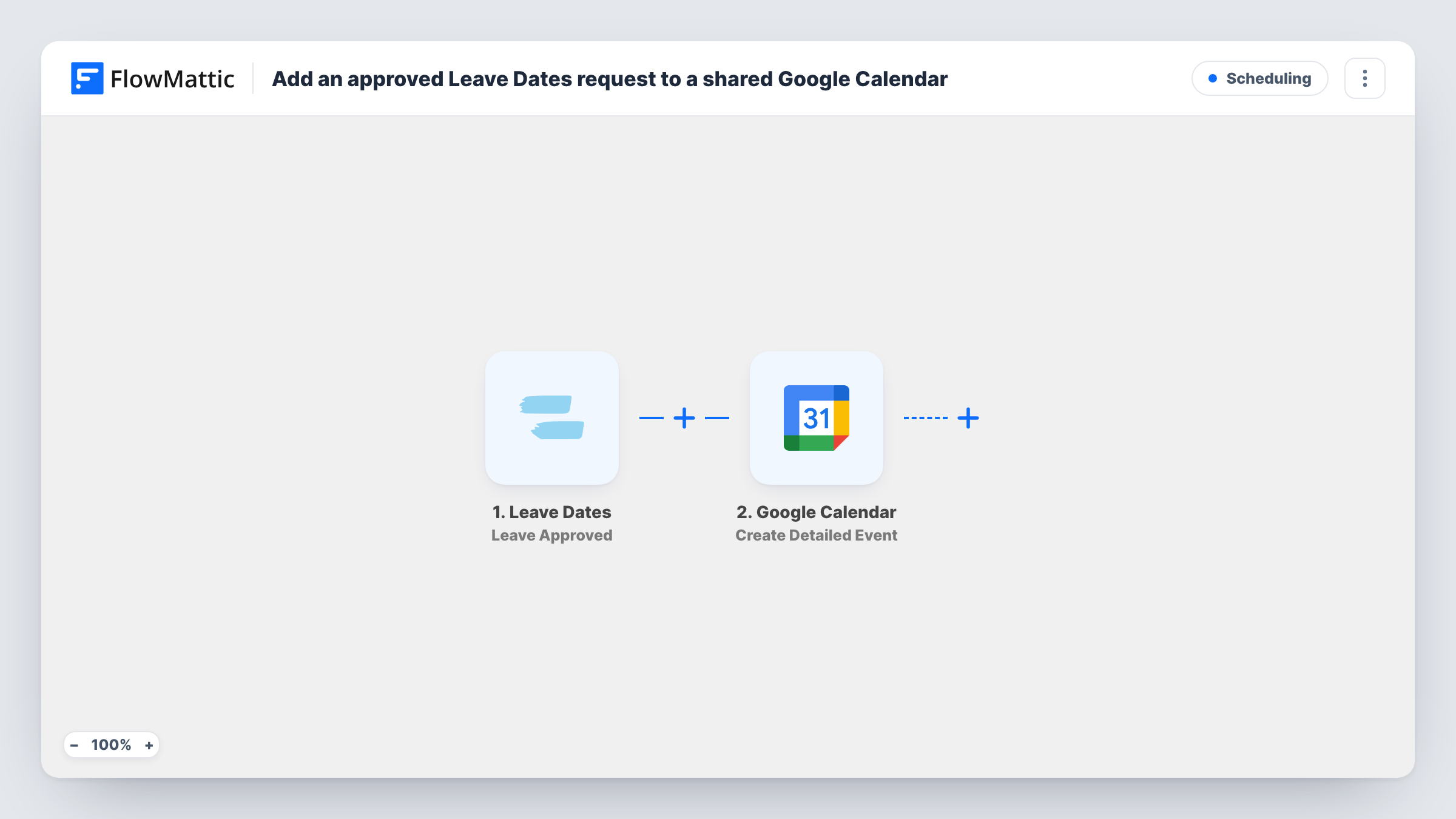
The Leave Dates trigger fires when a leave is approved. Requests that are still waiting, or that get rejected, do not start a run. FlowMattic passes the approved leave's data to Google Calendar, where Create Detailed Event adds an event to the calendar you pick. You build the event title from the employee's name and map the leave dates to the event's start and end.
The template only adds events. If an approved leave is later cancelled or changed, the calendar event stays as it was until someone edits it. Each approval's run, and the event data sent to Google, can be checked in Task History.
Team absence calendar
A shared calendar called Out of office shows each approved holiday, and colleagues overlay it on their own calendars.
Shift planning for a support team
Team leads see approved leave next to their rota and arrange cover before the dates arrive.
Client-facing agencies
Account managers check the shared calendar before promising delivery dates, so client work isn't booked around someone who is away.
How this workflow runs
What happens at each step once the workflow is on, and what you need before you import it.
 Leave Dates Leave Approved
Runs when a leave request is approved in Leave Dates. The approved leave's details, such as the person and dates, are available to map.
- Google Calendar Create Detailed Event
Adds an event to the shared Google Calendar you select. Connect Google, choose the calendar, and map the employee's name into the title and the leave dates into the event times.
What you need
- FlowMatticCore
- Leave Dates AccountAccount
- Google Calendar AccountAccount
After importing, map your own data. To keep the template universal, not every step is pre-filled. Open each step in the builder and connect your accounts and fields (channels, lists, sheets, recipients) before you switch the workflow on.
Make it yours
Changes worth making after you import it.
- Approve a test leave request after import and check the run, so you can see how Leave Dates sends the dates before mapping them to the event.
- Set up a copy of this workflow with the Leave Canceled trigger that posts to Slack, so someone knows to remove the calendar event.
- Use a calendar that only holds leave, so team members can show or hide absences with one click.
Questions about this workflow
Does a rejected Leave Dates request appear on the calendar?
No. The trigger is Leave Approved, so only approved requests create an event.
What happens on Google Calendar when approved leave is cancelled in Leave Dates?
Nothing, as imported. The workflow only creates events, so a cancelled leave still shows until you remove the event yourself.
Can the approved leave events go on a calendar my whole team shares?
Yes. Pick the shared calendar in the Google Calendar step. The account you connect needs permission to add events to it.
More Scheduling workflows
Other ready-to-import templates from the same category.







Import this workflow into your WordPress site
Download the JSON, import it from the Workflows screen and connect your accounts. Every run stays on your server, with no per-task fees.
30-day money-back guarantee Unlimited workflows and runs Self-hosted