

Add a Google Calendar event whenever a Chili Piper meeting is updated
Each time a Chili Piper meeting is updated, for example rescheduled or reassigned, FlowMattic adds a new event to Google Calendar with the updated details. It creates a fresh event on every change.
 Chili Piper
 Google Calendar
2 steps Setup ~5 min Used on 546 sites Free to import
What this workflow does
Rescheduled and reassigned meetings are the ones people miss. Chili Piper knows about every change, but someone else on the team may want a calendar that shows the latest version of each meeting. This workflow writes an event to Google Calendar whenever Chili Piper reports an update.
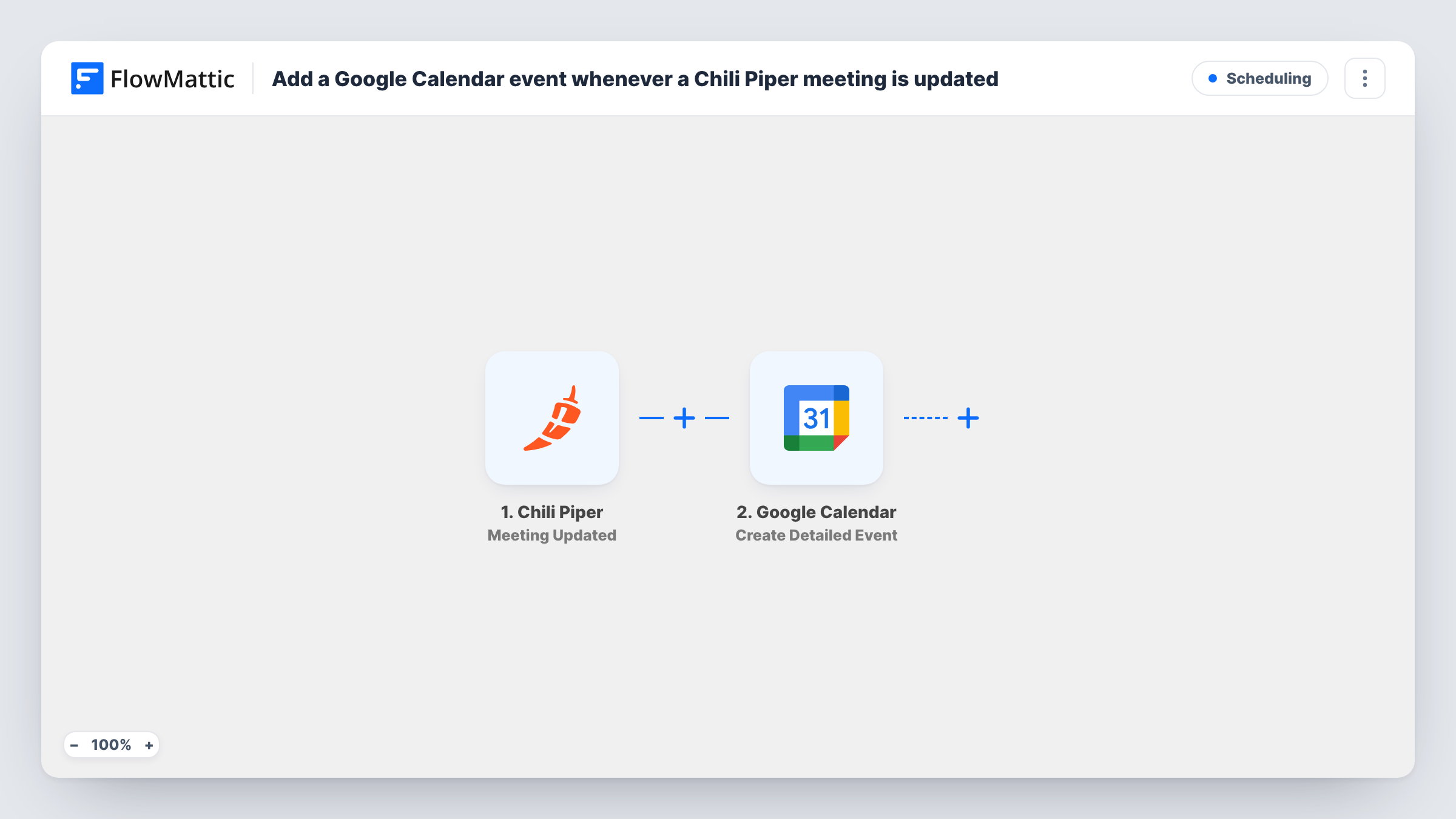
The Chili Piper trigger fires whenever a meeting is updated, for example when it is reassigned or rescheduled. FlowMattic passes the meeting data to Google Calendar, and the Create Detailed Event step adds an event to the calendar you pick, with the title, times and description you map from the meeting.
Be clear about what this does: it creates a new event every time, and never edits or removes an earlier one. A meeting rescheduled twice adds two events, and both stay on the calendar. That makes it best for a separate calendar used as a log of changes, not the calendar the meeting already lives on. Task History shows each run and Google's response.
Change log calendar for sales managers
Keep a dedicated Google Calendar named Chili Piper changes. Managers scan it to see which meetings moved and when they now take place.
Reassignment notice for a shared team calendar
When a meeting moves from one rep to another, an event with the new owner and time appears on a team calendar everyone can view.
Spotting meetings that keep moving
Because each update adds an event, a prospect who reschedules several times stands out as a cluster of entries on the log calendar.
How this workflow runs
What happens at each step once the workflow is on, and what you need before you import it.
 Chili Piper Meeting Updated
Fires whenever a Chili Piper meeting is updated, such as a reschedule or a reassignment. Update a test meeting after import to capture the fields you can map.
- Google Calendar Create Detailed Event
Creates a new Google Calendar event on the calendar you pick, using the meeting's updated title, times and details from Chili Piper. It adds an event each run and doesn't touch earlier ones.
What you need
- FlowMatticCore
- Chili Piper AccountAccount
- Google Calendar AccountAccount
After importing, map your own data. To keep the template universal, not every step is pre-filled. Open each step in the builder and connect your accounts and fields (channels, lists, sheets, recipients) before you switch the workflow on.
Make it yours
Changes worth making after you import it.
- Point the step at a calendar used only for this workflow, so the extra events don't double up the bookings your reps already see in their own calendars.
- Put the word Updated and the meeting owner's name in the event title, so anyone reading the log calendar can tell at a glance what changed.
- Import a second copy on the Chili Piper Canceled Meeting trigger, so cancellations show up on the same log calendar as separate entries.
Questions about this workflow
Will this edit the existing Google Calendar event for the Chili Piper meeting?
No. The step is Create Detailed Event, so it always adds a new event. Google Calendar's Update Event action needs the event's own ID, which the Chili Piper update doesn't carry.
Does a brand-new Chili Piper booking start this workflow?
No. New bookings use Chili Piper's separate New Meeting trigger. This workflow reacts only to changes to meetings that already exist.
Will the people in the meeting get a Google Calendar invite?
Only if you add them as guests in the step, where the step offers that. Check the options in the Create Detailed Event step after import; the template ships with nothing set.
More Scheduling workflows
Other ready-to-import templates from the same category.







Import this workflow into your WordPress site
Download the JSON, import it from the Workflows screen and connect your accounts. Every run stays on your server, with no per-task fees.
30-day money-back guarantee Unlimited workflows and runs Self-hosted