

When a Zcal event is rescheduled, add the new time to Google Calendar and notify attendees via Gmail
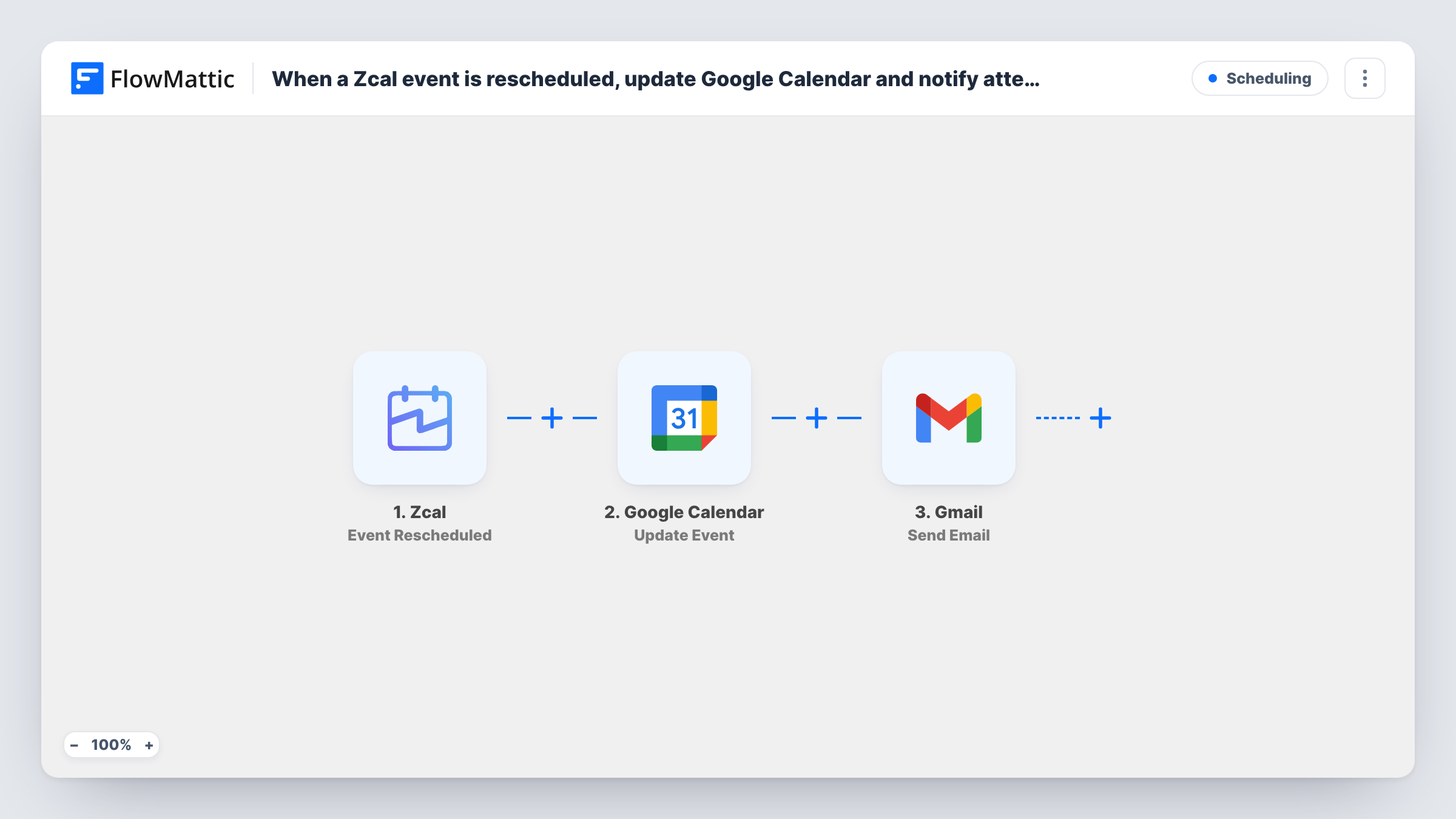
When a Zcal meeting is rescheduled, FlowMattic adds an event at the new time to Google Calendar and sends a Gmail message you write to the attendees about the change.
 Zcal
 Google Calendar
 Gmail
3 steps Setup ~5 min Used on 2.5k sites Free to import
What this workflow does
A rescheduled meeting is easy to get wrong: the new time has to reach the calendar you actually check, and the people involved need to hear about it. This workflow handles both when Zcal reports a reschedule, so your Google Calendar holds the new slot and attendees get a note from your Gmail address.
The Zcal trigger starts a run when an event is rescheduled and passes the meeting details on. The Google Calendar step creates a new detailed event. It adds an entry and doesn't touch any existing one, so if an earlier workflow or you put the original time on the calendar, that entry stays until you delete it.
The Gmail step then sends the email. Both action steps need setup after import. Map Zcal's new start and end time, title and attendee details into the calendar event, then enter the recipients and write the subject and message in Gmail.
Reschedule a test meeting in Zcal once it's set up and open Task History. It shows which time and attendee fields Zcal sent, so you can confirm the right ones are mapped.
Consultant with a single working calendar
A freelance consultant who books calls through Zcal but plans the day in Google Calendar sees each moved call at its new time without retyping it.
Telling a client's whole team
An account manager uses the Gmail step to tell everyone on a client call that the meeting moved, with the new date and time in the message.
Tutoring sessions that shift often
A tutor's students reschedule through Zcal, and each change goes onto the tutor's Google Calendar with a confirmation email to the student.
How this workflow runs
What happens at each step once the workflow is on, and what you need before you import it.
 Zcal Event Rescheduled
Starts the workflow when a Zcal event is rescheduled. Meeting details, such as the new time and the attendees, are passed to the calendar and email steps.
- Google Calendar Create Detailed Event
Creates a new detailed event in Google Calendar. Unmapped in the template: pick the calendar and map Zcal's new start and end time and meeting title. It doesn't remove or edit any earlier event.
- Gmail Send Email
Emails the attendees about the move through your connected Gmail. Enter or map the attendees' email addresses, then write the subject and message with the new meeting time mapped in from Zcal.
What you need
- FlowMatticCore
- Zcal AccountAccount
- Google Calendar AccountAccount
- Gmail AccountAccount
After importing, map your own data. To keep the template universal, not every step is pre-filled. Open each step in the builder and connect your accounts and fields (channels, lists, sheets, recipients) before you switch the workflow on.
Make it yours
Changes worth making after you import it.
- Put the words Rescheduled and the new date in the Google Calendar event title, so the entry is easy to tell apart from any older one still on the calendar.
- After a test reschedule, check that the calendar event sits at the hour you expect. If it's off, compare the time zone of the Zcal times with your calendar's.
- Build a second workflow on Zcal's Event Cancelled trigger with its own Gmail step, so attendees also hear when a meeting is called off.
Questions about this workflow
Does this update the original Google Calendar event?
No. Create Detailed Event adds a new event at the new time. Any entry for the old time stays on the calendar until you delete it.
Who receives the Gmail message about the rescheduled Zcal meeting?
Whoever you enter or map in the Send Email step. Check a test run for the attendee email field Zcal sends and map it as the recipient.
Does Zcal email attendees about the new time as well?
Zcal's own emails aren't part of this workflow. If Zcal already notifies attendees in your setup, use the Gmail step for a personal note, or remove it to avoid sending two emails.
More Scheduling workflows
Other ready-to-import templates from the same category.




Import this workflow into your WordPress site
Download the JSON, import it from the Workflows screen and connect your accounts. Every run stays on your server, with no per-task fees.
30-day money-back guarantee Unlimited workflows and runs Self-hosted