

Send a Gmail welcome email when a student enrolls in an Academy LMS course
When a student enrolls in an Academy LMS course, FlowMattic sends them a welcome email from your Gmail account, written by you and filled with the course details from the enrollment.
 Academy LMS
 Gmail
Gmail2 steps Setup ~5 min Used on 3.3k sites Free to import
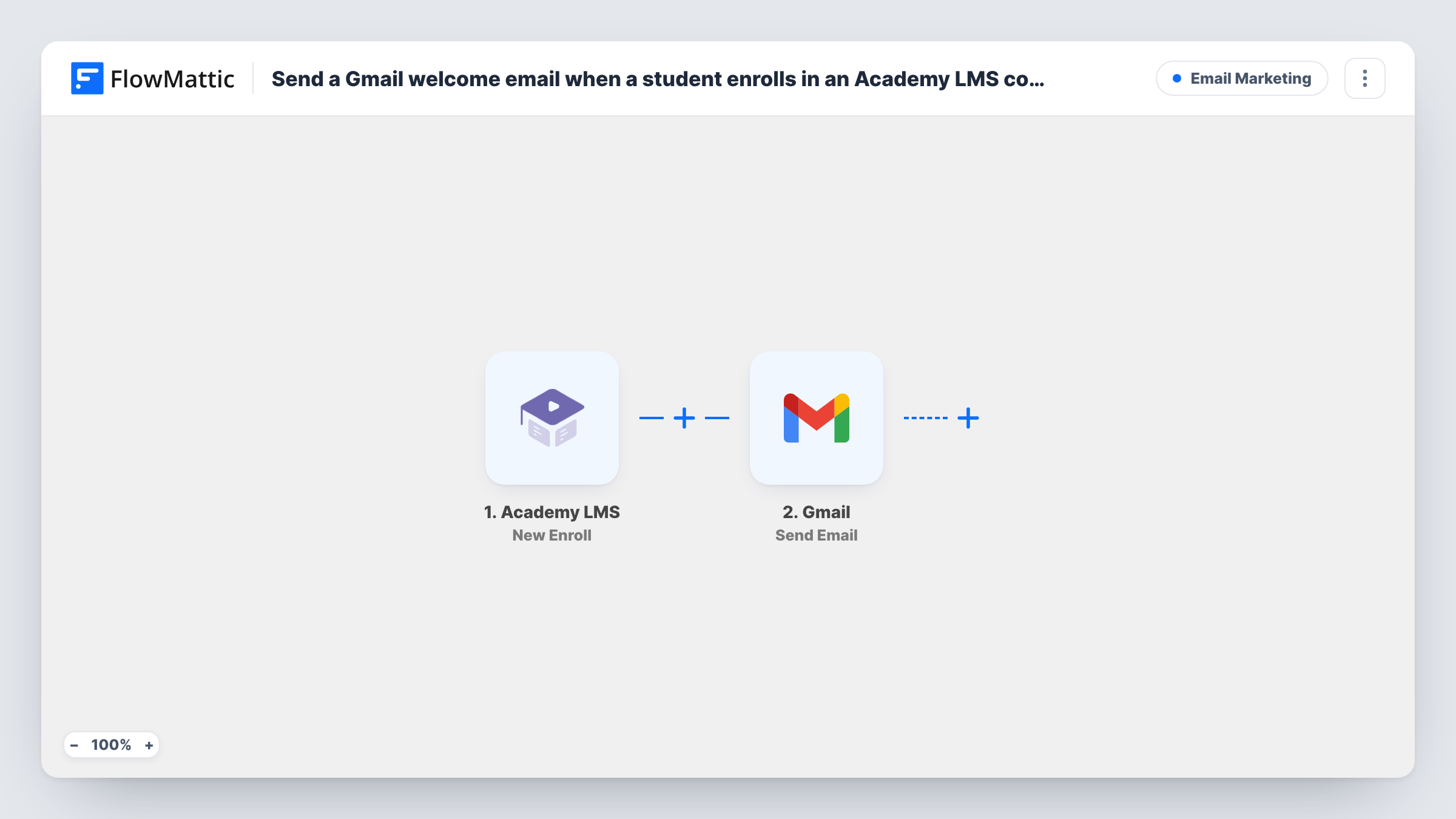
What this workflow does
The first message a new student gets sets the tone for the course. A personal note from the instructor's own inbox, sent right after they join, tells them where to start and who to ask. Writing that note by hand for every enrollment doesn't scale. This workflow sends it for you.
The Academy LMS trigger, New Enroll, fires when there is a new enrollment in a course. FlowMattic then runs Gmail's Send Email action through the account you connect. Set the recipient to the student's email from the enrollment data, and write a subject and body that use the student's name and the course title.
Every enrollment sends one email, in every course, unless you add a Filter. A student who joins three courses gets three welcome emails, which you may want if each one names its course.
Instructor-signed welcome
A solo instructor's welcome email arrives from their own Gmail, so students can reply with questions straight to the teacher.
First-lesson pointer
The email links to the first lesson and lists what to prepare, so new students know exactly where to begin.
Community invite
Each new student gets the link to your private forum or chat group in the welcome email, sent the moment they enroll.
How this workflow runs
What happens at each step once the workflow is on, and what you need before you import it.
 Academy LMS New Enroll
Fires when a student enrolls in an Academy LMS course. The enrollment data, such as the student and course details, is passed on for the email.
- Gmail Send Email
Sends a welcome email from your linked Gmail account. Map the student's email as the recipient, if the enrollment data carries it, and write a subject and body with their name and course.
What you need
- FlowMatticCore
- Academy LMS AccountAccount
- Gmail AccountAccount
After importing, map your own data. To keep the template universal, not every step is pre-filled. Open each step in the builder and connect your accounts and fields (channels, lists, sheets, recipients) before you switch the workflow on.
Make it yours
Changes worth making after you import it.
- Enroll a test student after import and check that the student's email arrives in the trigger data before you map the recipient.
- Add a Filter after the trigger on the course title or ID, then make one copy of the workflow per course with its own welcome text.
- For a course-completion message, import the workflow again on Academy LMS's Course Completed trigger and write a congratulations email.
Questions about this workflow
Does every Academy LMS enrollment send the Gmail email?
Yes, as imported, for every course. Add a Filter on the course if only some courses should send it.
Which address does the Academy LMS welcome email come from?
From the Gmail account you link to the Send Email step. Student replies go to that inbox.
Does Academy LMS still send its own enrollment emails?
The workflow doesn't change Academy LMS's settings. Check its notification options so students don't get two welcome messages.
More Email Marketing workflows
Other ready-to-import templates from the same category.





Import this workflow into your WordPress site
Download the JSON, import it from the Workflows screen and connect your accounts. Every run stays on your server, with no per-task fees.
30-day money-back guarantee Unlimited workflows and runs Self-hosted