

Send a Slack alert for each new inbound Textline message
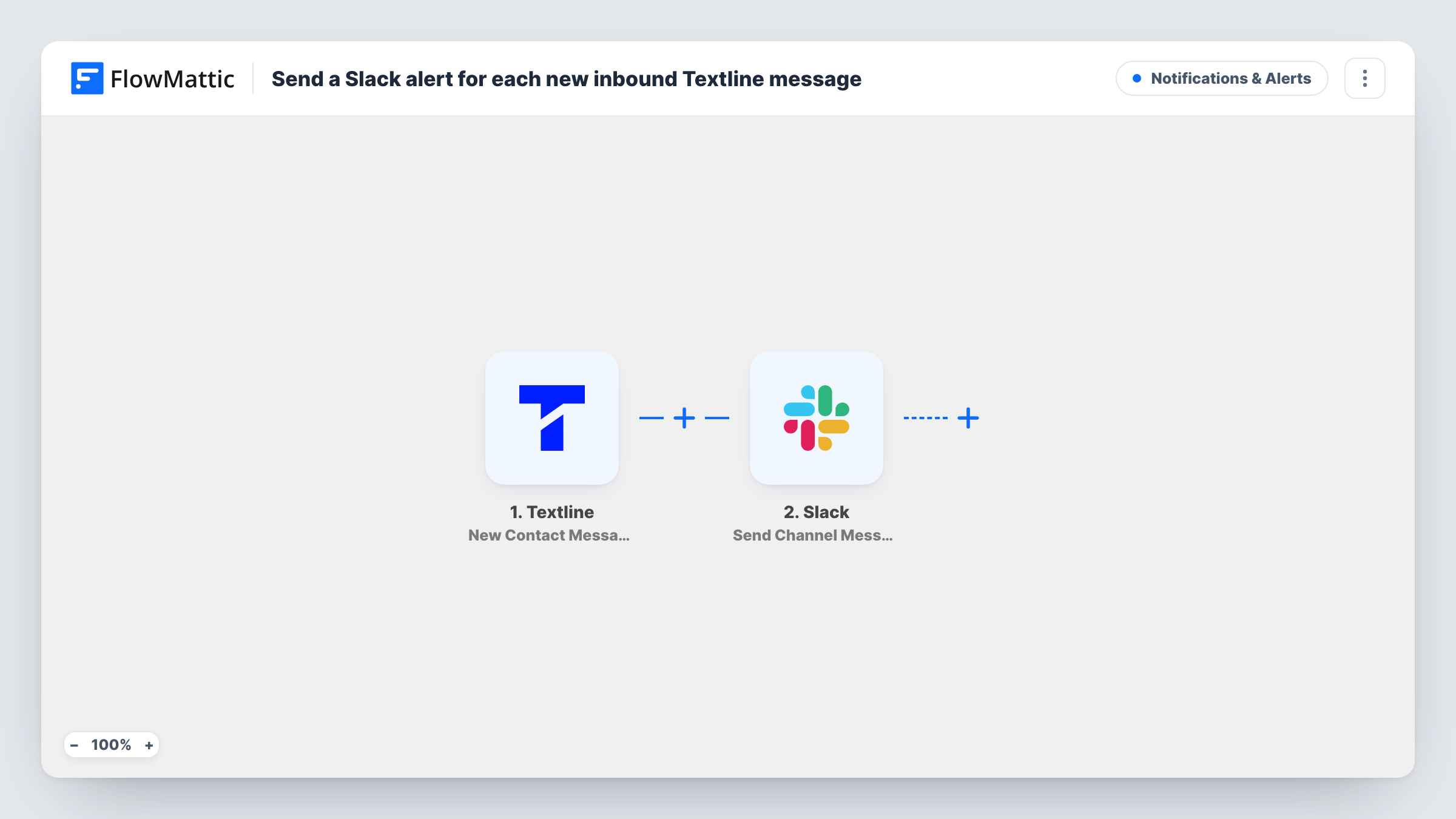
Whenever a contact sends a text to your Textline account, FlowMattic posts a message in a Slack channel so the team sees new inbound texts where they already work.
 Textline
 Slack
2 steps Setup ~5 min Used on 924 sites Free to import
What this workflow does
Customers who text you expect a reply, but the people who could answer are often in Slack rather than the Textline inbox. A text can wait a long time if nobody happens to look. This workflow puts every inbound Textline message in front of the team in a Slack channel.
A run begins each time one of your contacts texts your Textline number. Messages your agents send, and internal whispers, don't start it. FlowMattic captures the message data for mapping, and the Slack step posts to a specific channel. You build the Slack text from fixed words and Textline values, such as the message body and who sent it, once a test shows the values Textline provides.
The reply still happens in Textline. Slack is where the team learns a text came in. Each run is saved in Task History, so you can check what Textline sent and what reached Slack.
Shop staff on the floor
A retail store's team keeps Slack open on their phones. Customer texts about orders or stock appear in a #customer-texts channel, and whoever is free replies in Textline.
After-hours coverage for a service business
A plumbing company routes inbound Textline messages to a Slack channel the on-call technician follows through the evening.
Sales team watching for replies
Reps who text prospects from Textline see each prospect reply in a shared Slack channel, so a teammate can pick it up when the rep is busy.
How this workflow runs
What happens at each step once the workflow is on, and what you need before you import it.
 Textline New Contact Message
Starts the workflow for each inbound text a contact sends you in Textline. Outbound messages from your team don't trigger it. The inbound message data is passed to Slack.
- Slack Send Channel Message
Posts a message in the Slack channel you set here. Write the text with fixed words and the Textline values you map, then send yourself a test text to check it in Slack.
What you need
- FlowMatticCore
- Textline AccountAccount
- Slack AccountAccount
After importing, map your own data. To keep the template universal, not every step is pre-filled. Open each step in the builder and connect your accounts and fields (channels, lists, sheets, recipients) before you switch the workflow on.
Make it yours
Changes worth making after you import it.
- Add a Filter after the trigger so only texts containing a word such as urgent or refund reach a busy channel, and leave the rest in Textline.
- Include the contact's phone number or name in the Slack message so a teammate knows which conversation to open in Textline.
- Use a Router with two Slack steps to send texts about refunds to one channel and texts about bookings to another. Every route whose condition matches posts, so a text mentioning both lands in both.
Questions about this workflow
Can my team reply to the Textline customer from Slack?
No. The workflow only posts a notice in Slack. Replies are still written in Textline.
Do outbound Textline messages also post to Slack?
No. This trigger fires on messages a contact sends to you. Textline's outbound messages and whispers have their own triggers in FlowMattic and do not start this workflow.
Will every inbound Textline text create a Slack message?
Yes, as imported. Each message a contact sends runs the workflow once. Add a Filter to post only some of them.
Does Slack get a message for texts that arrived before import?
No. Only messages received after the workflow is switched on are posted.
More Notifications & Alerts workflows
Other ready-to-import templates from the same category.




Import this workflow into your WordPress site
Download the JSON, import it from the Workflows screen and connect your accounts. Every run stays on your server, with no per-task fees.
30-day money-back guarantee Unlimited workflows and runs Self-hosted