

Send a Slack alert to recruiters when a JobScore candidate is hired
When a candidate is marked as hired in JobScore, this workflow posts a message to the Slack channel your recruiters use, so the team hears about each hire without checking the applicant tracker.
 JobScore
 Slack
2 steps Setup ~5 min Used on 2.3k sites Free to import
What this workflow does
A hire is the moment several people need to act: the recruiter closes out the role, someone starts onboarding, and the hiring manager wants to know it's done. If that news only lives in JobScore, it reaches people late or not at all. This workflow announces each hire in Slack.
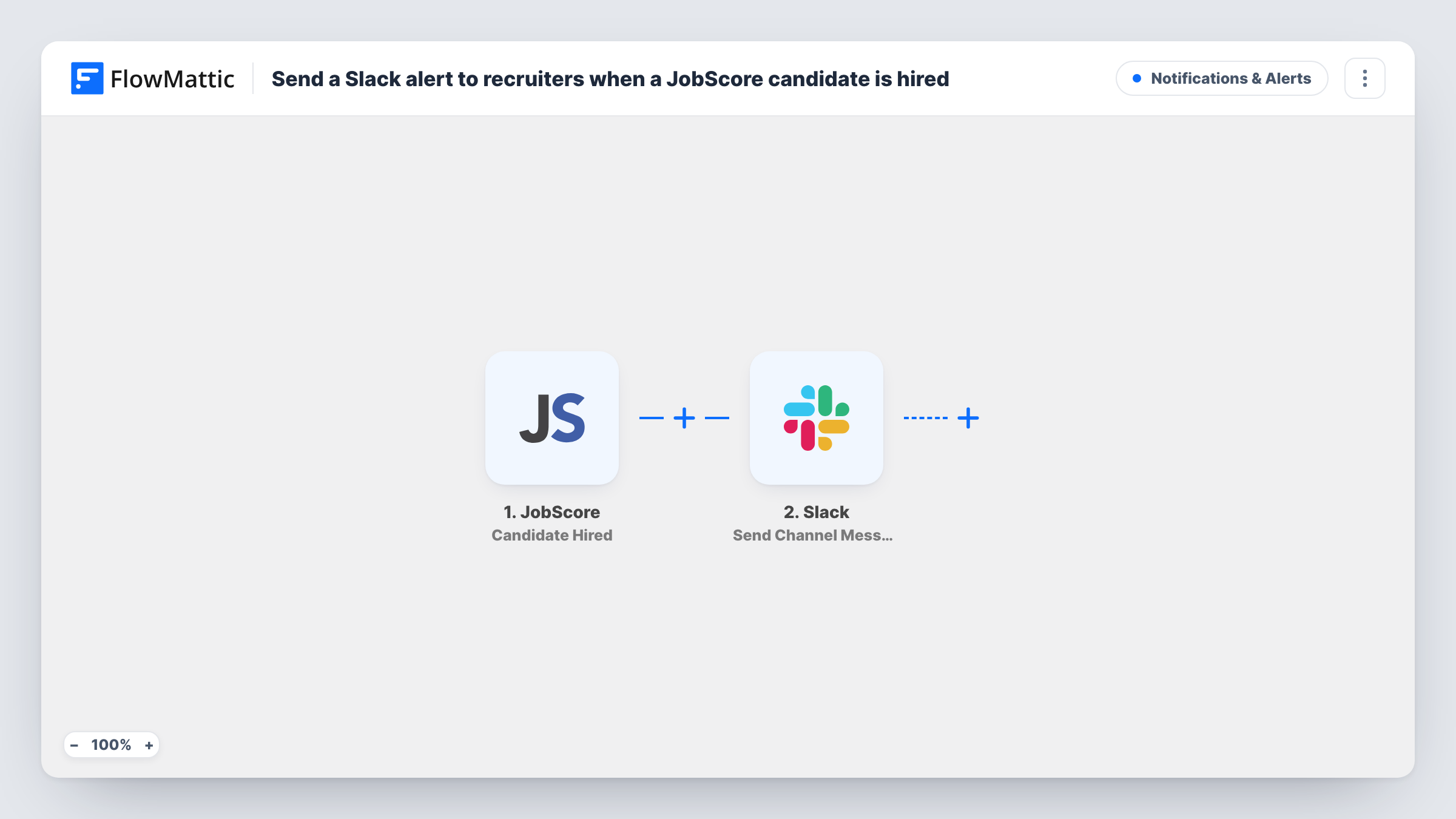
The JobScore trigger fires when a candidate is hired. FlowMattic takes the hire's data and passes it to Slack, where Send Channel Message posts to the channel you pick. You write the message text and insert the JobScore values you want, such as details about the candidate and the role, once a test run shows what JobScore sends.
Every hire posts a message, because the template has no Filter. If your recruiters talk in a private channel, switch to Slack's Send Private Channel Message action. Task History keeps a record of each run and of what Slack returned.
Recruiting team wins channel
An in-house recruiting team shares a #hires channel. Each JobScore hire appears there, so recruiters can close the job and thank interviewers the same day.
Hand-off to onboarding
People ops watches the Slack channel and starts paperwork, equipment and accounts for the new starter as soon as the hire message appears.
Agency placement updates
A staffing agency tracks candidates in JobScore and posts every placement to a team channel where account managers follow up with the client.
How this workflow runs
What happens at each step once the workflow is on, and what you need before you import it.
 JobScore Candidate Hired
Fires when a candidate is hired in your JobScore account. The candidate and job data from that event become available to the Slack message.
- Slack Send Channel Message
Sends the hire announcement to whichever Slack channel you pick. Connect your Slack workspace, then write the message and insert the JobScore values you want recruiters to see.
What you need
- FlowMatticCore
- JobScore AccountAccount
- Slack AccountAccount
After importing, map your own data. To keep the template universal, not every step is pre-filled. Open each step in the builder and connect your accounts and fields (channels, lists, sheets, recipients) before you switch the workflow on.
Make it yours
Changes worth making after you import it.
- If only one hiring manager needs the news, swap the step for Slack's Send Direct Message action and pick that person instead of a channel.
- Add a Filter after the trigger on a value from the hire, such as the department, if the JobScore data includes one and each team wants only its own hires in its channel.
- Mark a test candidate as hired in JobScore after import so FlowMattic captures the data, then build the message from those values.
Questions about this workflow
Can the JobScore hire alert go to a private Slack channel?
Yes, with a different action. Swap the template's Send Channel Message for Slack's Send Private Channel Message and pick your private recruiting channel there.
What candidate details can I put in the Slack message?
Any value the JobScore Candidate Hired event sends. Hire a test candidate after import, then insert the values you want into the message text.
Will JobScore hires made before import be posted to Slack?
No. Only candidates marked as hired after the workflow is on start a run.
More Notifications & Alerts workflows
Other ready-to-import templates from the same category.




Import this workflow into your WordPress site
Download the JSON, import it from the Workflows screen and connect your accounts. Every run stays on your server, with no per-task fees.
30-day money-back guarantee Unlimited workflows and runs Self-hosted