

Send a Slack alert to sales for every new Serviceform chatbot submission
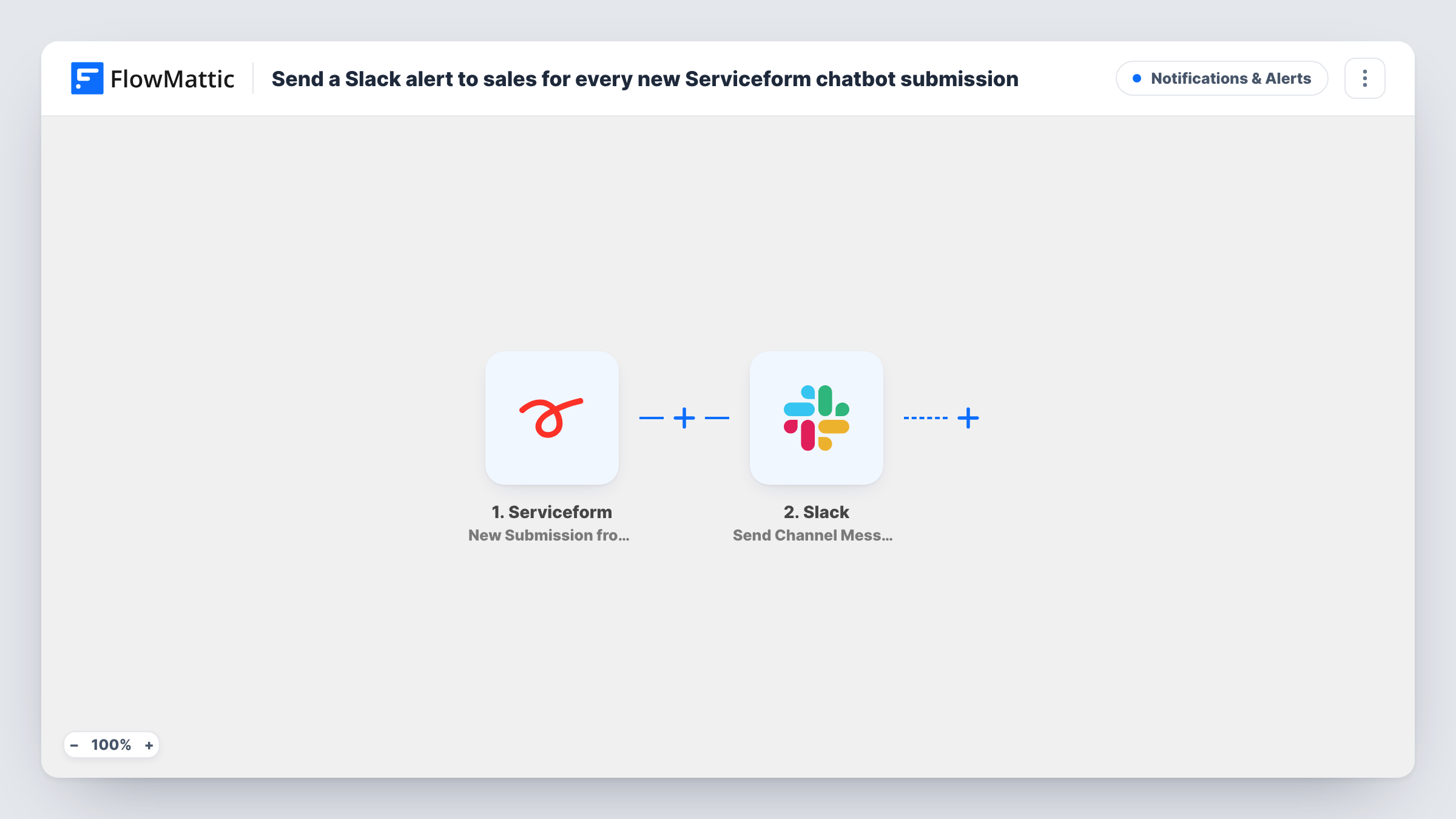
Every time a visitor completes your Serviceform chatbot, this workflow posts the submission to a Slack channel, so your sales team reads the new lead’s answers in the place they already work.
 Serviceform
 Slack
2 steps Setup ~5 min Used on 1.7k sites Free to import
What this workflow does
A chatbot on your site can collect a visitor's needs and contact details at any hour, but the answers sit in Serviceform until someone checks. Sales reps who live in Slack are more likely to see a message in their channel. This workflow puts every chatbot submission there.
The Serviceform trigger New Submission from Chatbot fires for each new submission and hands its data to FlowMattic. The Slack step then posts a message to the channel you pick. You decide the wording and drop in the visitor's answers, such as their name, email, phone and what they asked about.
There is no filtering as imported, so every chatbot submission produces a Slack message. If your chatbot also handles support questions, add a Filter so only sales enquiries reach the channel. Task History logs each run, which helps you check that the message shows the right answers.
Quote requests from a service business
A cleaning or renovation company's chatbot asks about the job and the postcode. Each finished conversation shows up in the #sales channel with those details for a rep to call back.
Demo bookings for a software product
Visitors tell the chatbot their company size and what they need. The sales channel gets the answers so whoever is free can reply first.
Out-of-hours enquiries
Chatbot submissions made overnight are waiting in Slack when the team starts in the morning, already laid out with the visitor's contact details.
How this workflow runs
What happens at each step once the workflow is on, and what you need before you import it.
 Serviceform New Submission from Chatbot
Fires whenever a visitor completes a submission through your Serviceform chatbot. The answers they gave become available to place in the Slack message.
- Slack Send Channel Message
Posts a message to a Slack channel of your choosing. Write the text and add the chatbot answers your sales team needs, such as the visitor's contact details and request.
What you need
- FlowMatticCore
- Serviceform AccountAccount
- Slack AccountAccount
After importing, map your own data. To keep the template universal, not every step is pre-filled. Open each step in the builder and connect your accounts and fields (channels, lists, sheets, recipients) before you switch the workflow on.
Make it yours
Changes worth making after you import it.
- Add a Filter after the Serviceform trigger that continues only when the visitor's answer to your topic question matches sales, so support chats stay out of the channel.
- Add a CRM step after the Slack message, such as creating a contact, so the lead is stored as well as announced.
- Run the chatbot once yourself after import so FlowMattic captures the submission fields, then map them into the message text.
Questions about this workflow
Does every Serviceform chatbot submission post to Slack?
Yes. Without a Filter, each submission runs the workflow once and posts one message to the channel.
Can I mention a sales rep in the Slack message?
You write the message text yourself, so you can include a mention for a person or group. Test once to confirm Slack shows it the way you expect.
Are past Serviceform submissions sent to Slack?
No. Only chatbot submissions made after the workflow is turned on are posted.
Which Serviceform answers can appear in the alert?
Any field the chatbot submission sends to FlowMattic. Make a test submission to see the full list before you build the message.
More Notifications & Alerts workflows
Other ready-to-import templates from the same category.



Import this workflow into your WordPress site
Download the JSON, import it from the Workflows screen and connect your accounts. Every run stays on your server, with no per-task fees.
30-day money-back guarantee Unlimited workflows and runs Self-hosted