

Send a Slack alert to the sales team for each new Chili Piper meeting
Post a message to your sales team’s Slack channel whenever a meeting is booked in Chili Piper, so reps see each new booking where they already talk.
 Chili Piper
 Slack
2 steps Setup ~5 min Used on 425 sites Free to import
What this workflow does
Reps live in Slack, not in the Chili Piper dashboard. When a meeting is booked, the rest of the team often never hears about it. A channel post makes each booking visible to everyone who should know.
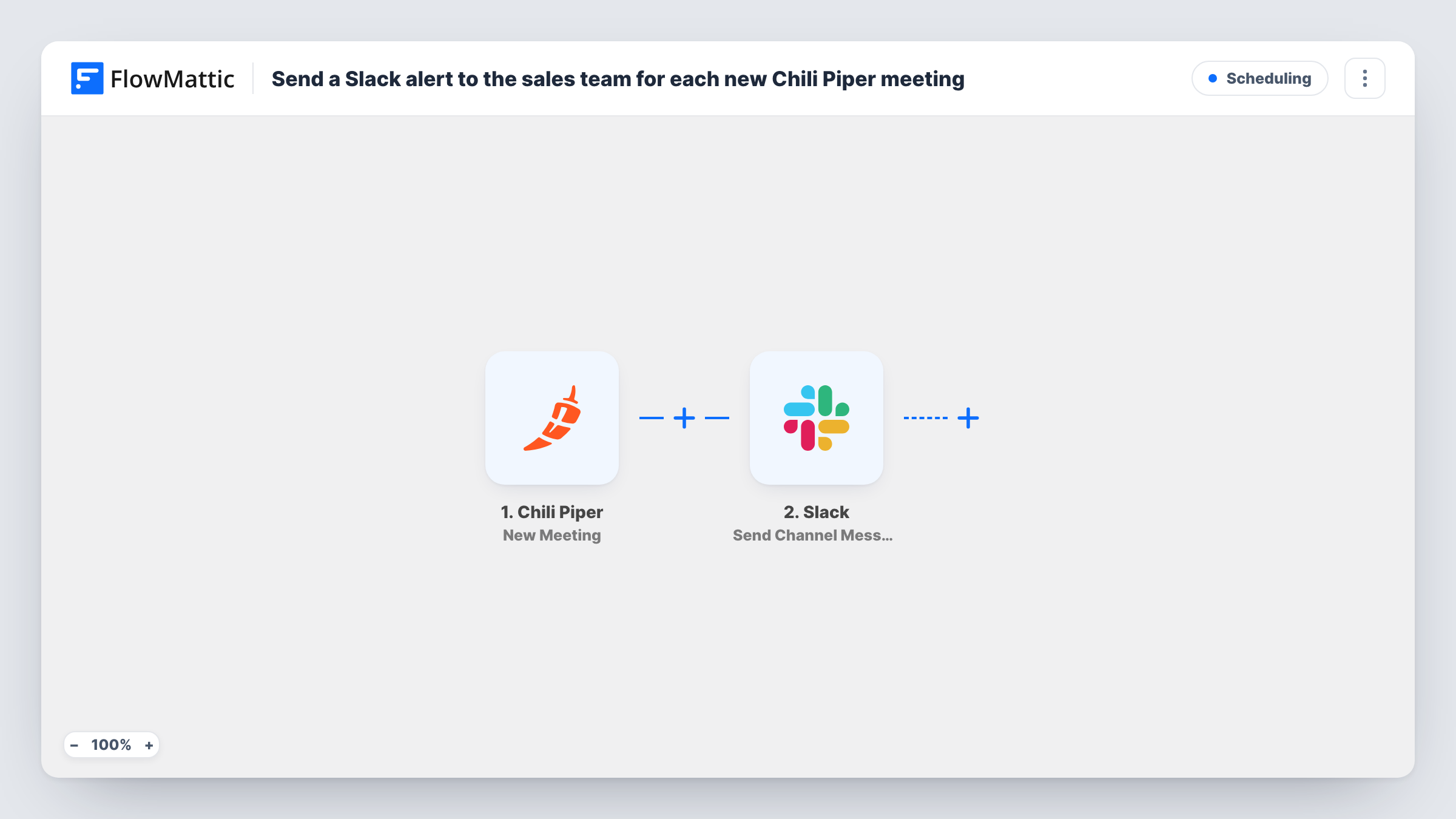
The Chili Piper trigger starts a run each time a meeting is booked, from any booking source. FlowMattic passes the meeting data to Slack, and the Send Channel Message step posts to the channel you choose. You write the message and drop in values from the meeting. A test booking shows which details Chili Piper sends.
The template posts for every booking. If your team only wants some meetings announced, add a Filter between the two steps. Each run shows in Task History with the message Slack received.
A #booked-meetings feed for sales
Every new Chili Piper booking appears in one channel, so the team can react, offer help or spot a busy week at a glance.
Handoff visibility for SDRs
SDRs who route leads through Chili Piper see a post when the account executive's meeting is booked, which closes the loop on their handoff.
Manager oversight of inbound demand
Sales managers follow the channel to see how many meetings come in each day without opening reports.
How this workflow runs
What happens at each step once the workflow is on, and what you need before you import it.
 Chili Piper New Meeting
Runs for every new meeting booked in Chili Piper, from any source. The meeting data is passed on for use in the Slack message.
- Slack Send Channel Message
Posts the booking alert in the Slack channel you set. Connect your Slack workspace, choose the channel and write the message using values from the Chili Piper meeting.
What you need
- FlowMatticCore
- Chili Piper AccountAccount
- Slack AccountAccount
After importing, map your own data. To keep the template universal, not every step is pre-filled. Open each step in the builder and connect your accounts and fields (channels, lists, sheets, recipients) before you switch the workflow on.
Make it yours
Changes worth making after you import it.
- Lead the message with the meeting time and who booked, so people scanning the channel see the key facts first.
- For a private sales channel, switch the step to Slack's Send Private Channel Message action. To message only the assigned rep, use Send Direct Message instead.
- Add a Filter after the trigger if you only want certain meetings announced, for example by checking one value in the meeting data.
Questions about this workflow
Can the Chili Piper alert go to a private Slack channel?
Use Slack's Send Private Channel Message action for that. The template's Send Channel Message step is meant for a regular channel.
Will canceled Chili Piper meetings post in Slack?
No. Only new bookings start this workflow. Chili Piper has a separate Canceled Meeting trigger if you want a second workflow for cancellations.
Can the Slack alert mention the rep who owns the Chili Piper meeting?
Slack mentions need the person's Slack user ID. If the meeting data includes the host's email, add Slack's Find User by Email action before the message step and use the ID it returns.
More Scheduling workflows
Other ready-to-import templates from the same category.






Import this workflow into your WordPress site
Download the JSON, import it from the Workflows screen and connect your accounts. Every run stays on your server, with no per-task fees.
30-day money-back guarantee Unlimited workflows and runs Self-hosted