

When a new task is created in ClickUp, create an event in AddEvent
Every new task created in ClickUp also creates an event in AddEvent, so deadlines, launches and meetings planned as tasks can be shared as add-to-calendar events.
 ClickUp
 AddEvent
2 steps Setup ~5 min Used on 992 sites Free to import
What this workflow does
Teams often plan dates as ClickUp tasks: a webinar, a release, a client call. The people who need those dates, such as customers, attendees or other teams, don't live in ClickUp. AddEvent gives each event an add-to-calendar link they can save. This workflow creates that AddEvent event as soon as the task exists.
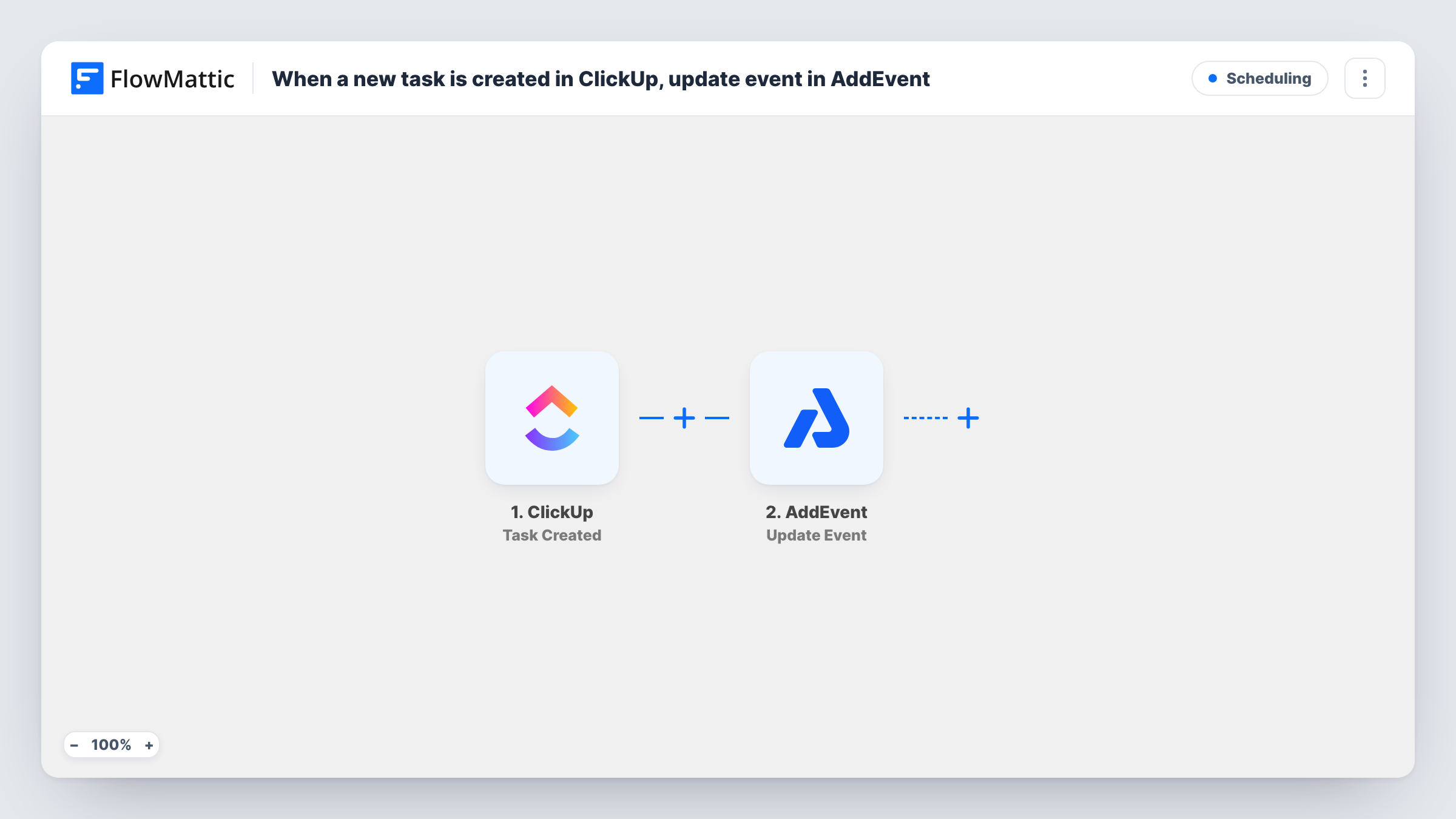
The ClickUp Task Created trigger fires when a new task is created. FlowMattic then runs the AddEvent Create Event action. There is no condition in between, so every new task the trigger sees produces an event.
The AddEvent step ships unmapped. After import, connect AddEvent and map the task into the event: the task name as the event title, the description, and the task's dates for the start and end. A task with no due date gives the event nothing to use for its time, so test with a task that has dates set.
The event is created once, from the task as it looks when it is first saved. Later changes to the task, such as a new due date, don't update the event. Task History shows what AddEvent returned for each run.
Webinar dates for attendees
A marketing team creates a ClickUp task for each webinar, and the matching AddEvent event gives the promotion emails an add-to-calendar link.
Release dates for customers
A software company plans releases as ClickUp tasks and shares the AddEvent event with customers who want the launch date in their calendar.
Client meetings from a project list
An agency logs client meetings as tasks in one ClickUp list, and each becomes an AddEvent event it can send to the client.
How this workflow runs
What happens at each step once the workflow is on, and what you need before you import it.
 ClickUp Task Created
Starts a run each time someone adds a task in ClickUp. The task's name, description, dates and other details are passed on to the AddEvent step; a test task shows exactly which arrive.
- AddEvent Create Event
Creates a new event in AddEvent from the task. The step ships unmapped: connect AddEvent and map the task name, description and dates into the event's title, details and times.
What you need
- FlowMatticCore
- ClickUp AccountAccount
- AddEvent AccountAccount
After importing, map your own data. To keep the template universal, not every step is pre-filled. Open each step in the builder and connect your accounts and fields (channels, lists, sheets, recipients) before you switch the workflow on.
Make it yours
Changes worth making after you import it.
- Put a Filter between the ClickUp trigger and the AddEvent step that continues only for tasks in your events list, or only when the due date is not empty, so routine to-dos don't become calendar events.
- Build a second workflow on ClickUp's Task Due Date Updated trigger if you need date changes reflected. AddEvent's Update Event action needs the event's ID, so you'd also have to store it on the task.
- Map the task's link into the event description, so anyone at the event can open the related work in ClickUp.
Questions about this workflow
Does every new ClickUp task create an AddEvent event?
Yes, as imported. Nothing filters the tasks, so each one the trigger receives creates an event. Add a Filter between the ClickUp trigger and the AddEvent step to limit it to the list or tasks you want.
What happens to the AddEvent event if the ClickUp task's date changes?
Nothing. The workflow only creates events when tasks are created, so the event keeps its first date. Update it in AddEvent by hand or build a separate workflow for changes.
What if a ClickUp task has no due date?
The event then has no task date to use for its time, and AddEvent may return an error or create an event with missing details. Check Task History. Give tasks dates when you create them, or put a Filter on the due date between the ClickUp trigger and the AddEvent step.
More Scheduling workflows
Other ready-to-import templates from the same category.






Import this workflow into your WordPress site
Download the JSON, import it from the Workflows screen and connect your accounts. Every run stays on your server, with no per-task fees.
30-day money-back guarantee Unlimited workflows and runs Self-hosted