

When form submission received in Contact Form 7, create an event in SavvyCal
Each Contact Form 7 submission creates an event on one of your SavvyCal scheduling links, using the visitor’s details and the time your form collects, so form requests become calendar events.
 Contact Form 7
 SavvyCal
2 steps Setup ~5 min Used on 659 sites Free to import
What this workflow does
Some visitors prefer to fill in a plain form instead of picking a slot in a booking page, or you may want your own Contact Form 7 form on the site for consistency. Their requests still need to end up in your scheduling tool. This workflow turns each submission into a SavvyCal event.
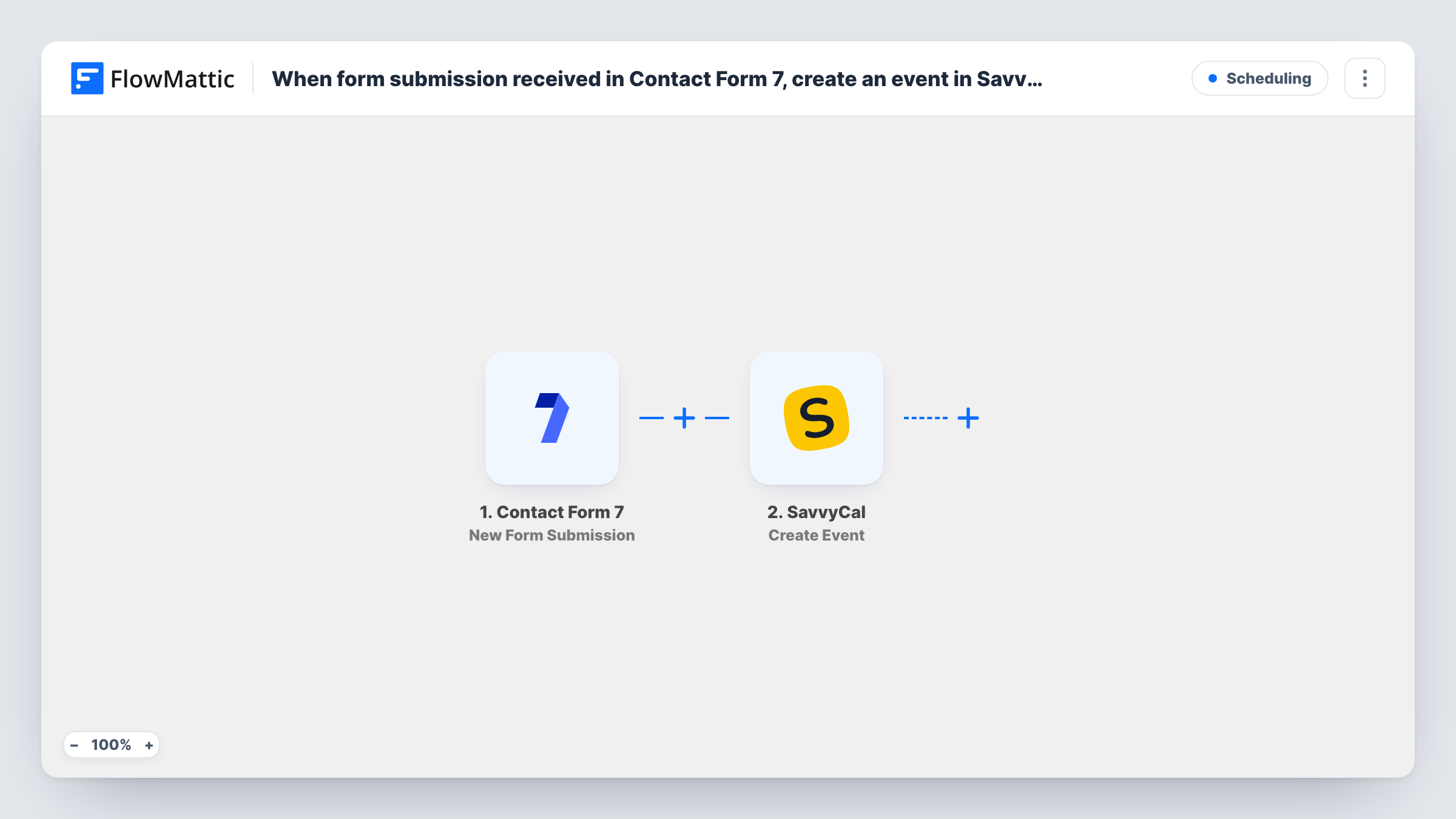
The Contact Form 7 trigger fires on every new submission and sends the fields to FlowMattic. The SavvyCal step runs Create Event, which creates an event for a given scheduling link. You choose the link and map the visitor's name, email and requested time from the form.
SavvyCal needs to know when the event happens, so your form must collect a date and time in a format the step accepts. Run a test submission and check the result in Task History before you rely on it. There's no Filter in the template, so every submission tries to create an event, including spam that gets past your form's protection. If the requested time isn't free on that link, Task History shows what SavvyCal returned.
Consultation requests on a law firm site
A Contact Form 7 form asks for the client's name, email and preferred time. Each request becomes an event on the firm's consultation scheduling link in SavvyCal.
Demo bookings from a product page
Your demo form collects company details and a date. The submission creates the event in SavvyCal so it sits with the rest of your booked demos.
Tutoring session requests
Parents pick a lesson time in a short form, and each submission becomes an event on the tutor's SavvyCal link.
How this workflow runs
What happens at each step once the workflow is on, and what you need before you import it.
 Contact Form 7 New Form Submission
A Contact Form 7 submission on your site, such as a booking request, starts the run. The fields the visitor filled in, including any date and time fields, are passed on so they can be mapped into SavvyCal.
- SavvyCal Create Event
Creates an event on the SavvyCal scheduling link you pick. Map the visitor's name, email and requested time from the form, then connect your SavvyCal account and test with one entry.
What you need
- FlowMatticCore
- Contact Form 7 PluginPlugin
- SavvyCal AccountAccount
After importing, map your own data. To keep the template universal, not every step is pre-filled. Open each step in the builder and connect your accounts and fields (channels, lists, sheets, recipients) before you switch the workflow on.
Make it yours
Changes worth making after you import it.
- Add date and time fields to your Contact Form 7 form, and make them required, so every submission carries the time SavvyCal needs to create the event.
- Add a Filter after the trigger that continues only when the date field is not empty, so incomplete submissions don't reach SavvyCal.
- If you offer more than one kind of meeting, add a Router on a dropdown in the form with one SavvyCal step per scheduling link, using distinct dropdown values.
Questions about this workflow
Which SavvyCal scheduling link does the event go on?
Create Event works on a given scheduling link, which you pick when you set up the step. Use a separate step or workflow for each link you want to fill.
What if the Contact Form 7 form has no date or time field?
An event needs a time, so expect the SavvyCal step to return an error in Task History. Add those fields to your form and map them before you activate the workflow.
What happens if the requested time is already taken in SavvyCal?
The workflow sends the request as mapped. Whatever SavvyCal returns, an event or an error, is shown on that step in Task History.
Does Contact Form 7 still email me each request?
Yes. The workflow listens for submissions without changing your form's mail settings, so you keep the usual notification.
More Scheduling workflows
Other ready-to-import templates from the same category.






Import this workflow into your WordPress site
Download the JSON, import it from the Workflows screen and connect your accounts. Every run stays on your server, with no per-task fees.
30-day money-back guarantee Unlimited workflows and runs Self-hosted